
Tasks Overview ⚙️ 🛠️
In this video, I emphasize the importance of using tasks effectively to stay organized and on top of your responsibilities. I walk you through how to create tasks, set due dates, and manage recurring tasks, highlighting the need for a standardized way of naming them for better filtering and tracking. I also explain how to assign tasks to yourself or others and the benefits of using tasks as reminders instead of relying on external notifications. I encourage you to implement these strategies to enhance your productivity and ensure nothing falls through the cracks. Please start using the task feature right away and let me know if you have any questions!
Creating and Managing Tasks in the System
Objective
This SOP outlines the steps for creating and managing tasks effectively within the system to ensure proper follow-up and organization.
Key Steps
1. Determine Task Type and Recurrence 0:32
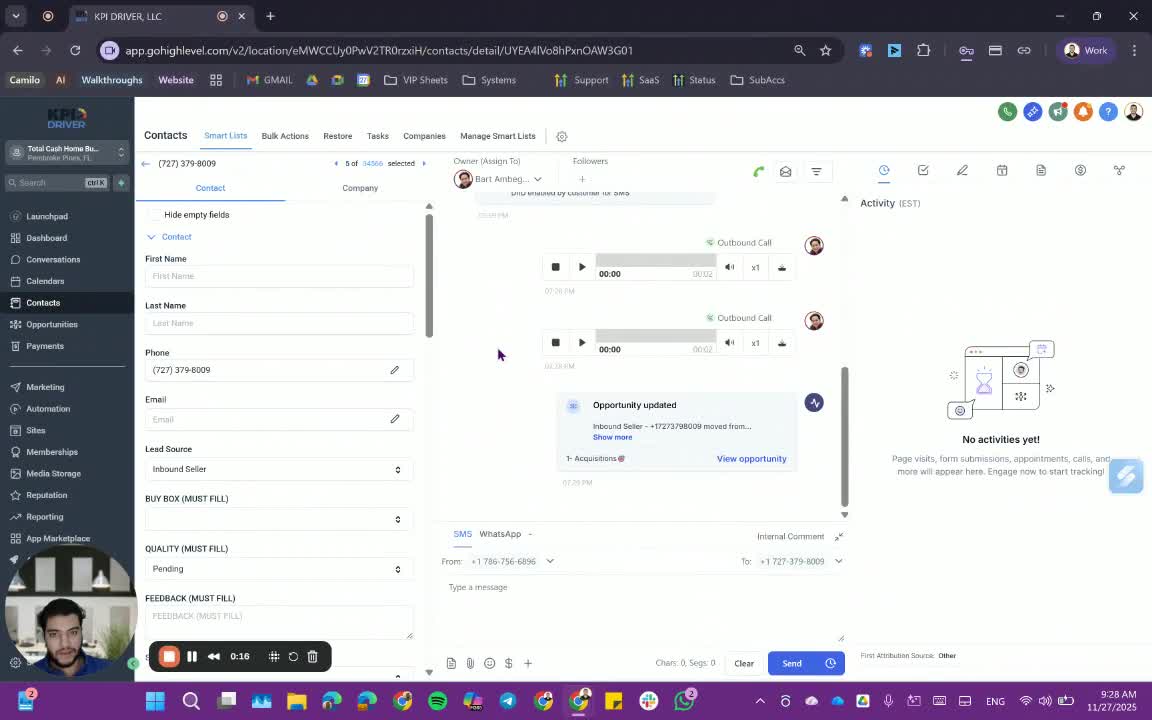
- Identify if the task is recurring or not.
- If recurring, specify the cadence (e.g., every hour, day, week, etc.).
- Set an end date or a limit on the number of occurrences.
2. Access the Contact Information 1:14
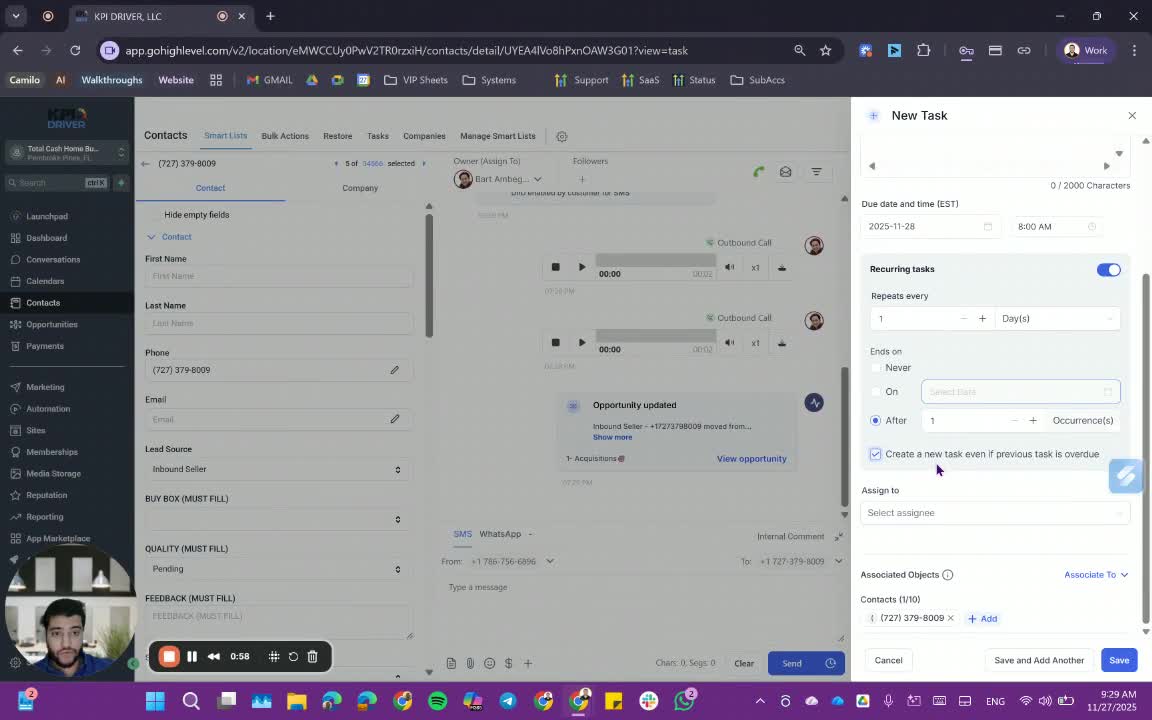
- Ensure you are on the contact page related to the task.
- If not, you can search for the contact by name or number.
3. Assign the Task 1:27
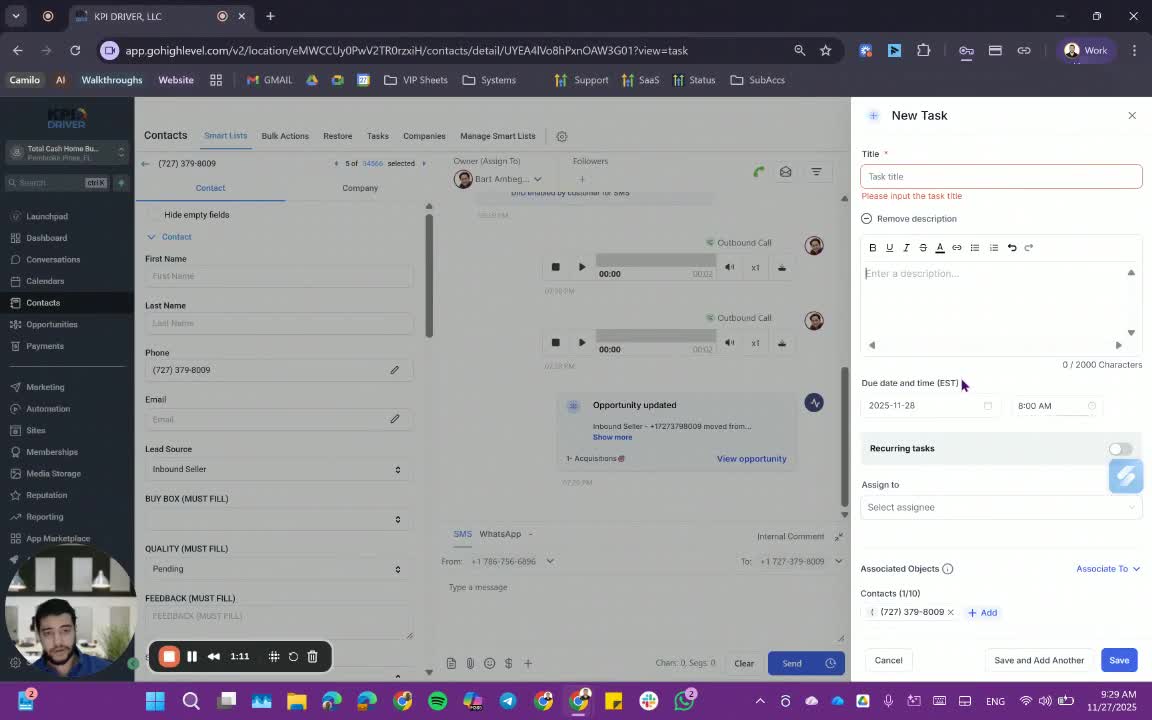
- Choose who to assign the task to (yourself or another team member).
- For example, if you are a follow-up specialist, assign it to the acquisition team.
4. Use Tasks as Reminders 1:42
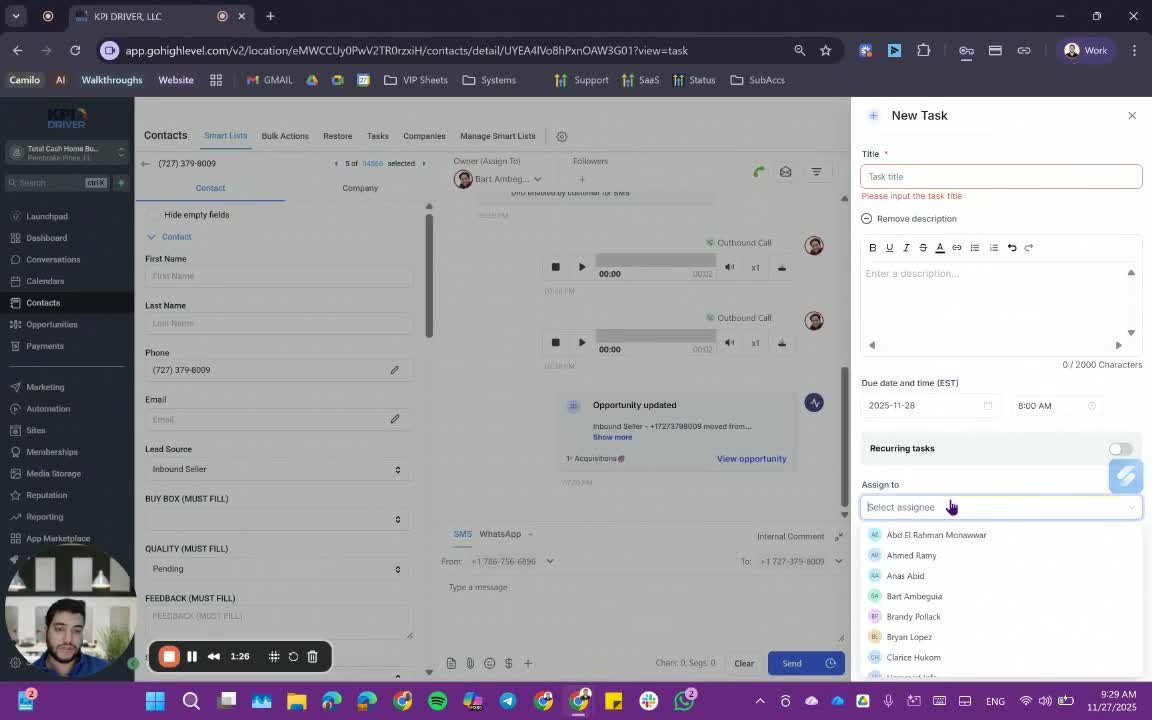
- Understand that tasks serve as reminders for follow-ups.
- Utilize internal notifications for reminders about upcoming tasks.
5. Standardize Task Titles 2:18
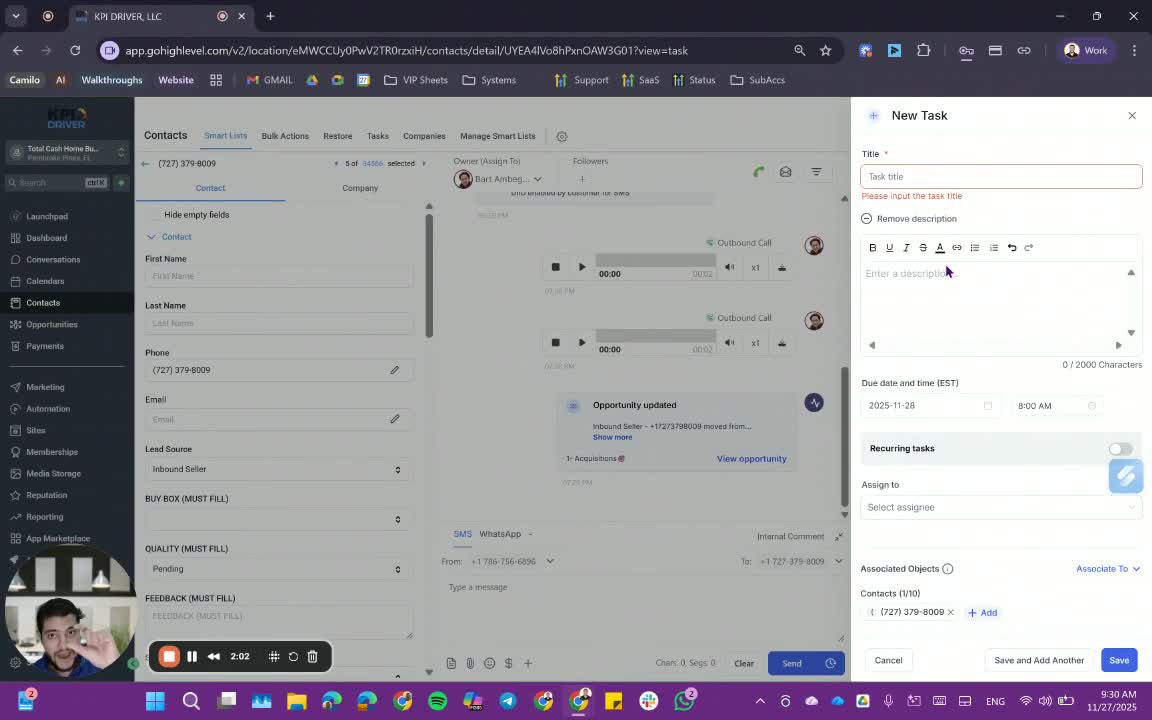
- Use a standardized format for task titles (e.g., "Follow Up - Callback").
- Include the type of follow-up in the title (e.g., callback, text, email).
6. Add Task Description 2:53
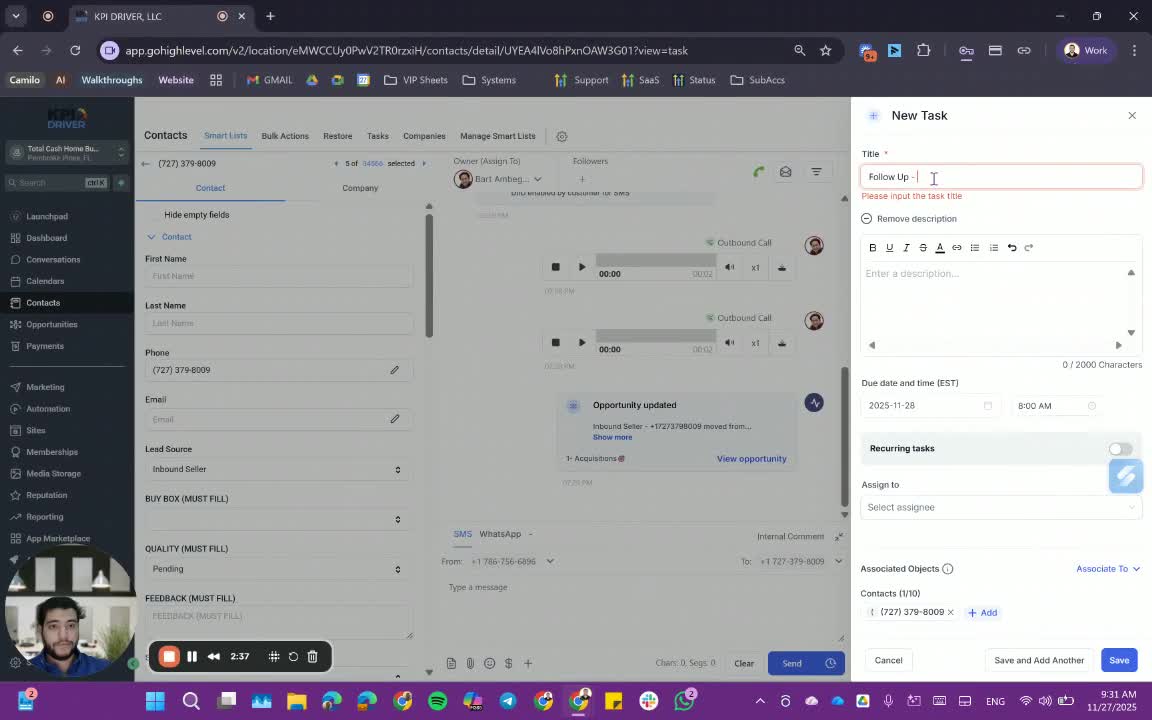
- Include any necessary details in the task description to avoid forgetting specifics.
7. Save the Task 3:22
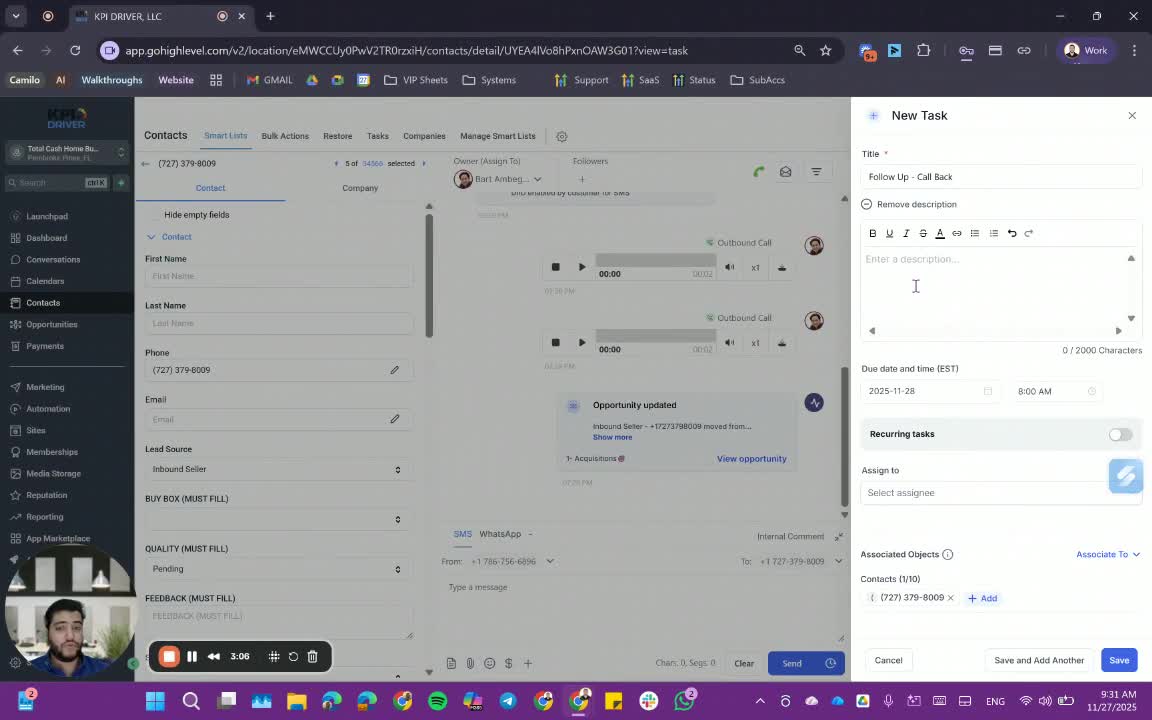
- After filling in the title and description, save the task.
8. View and Filter Tasks 3:39
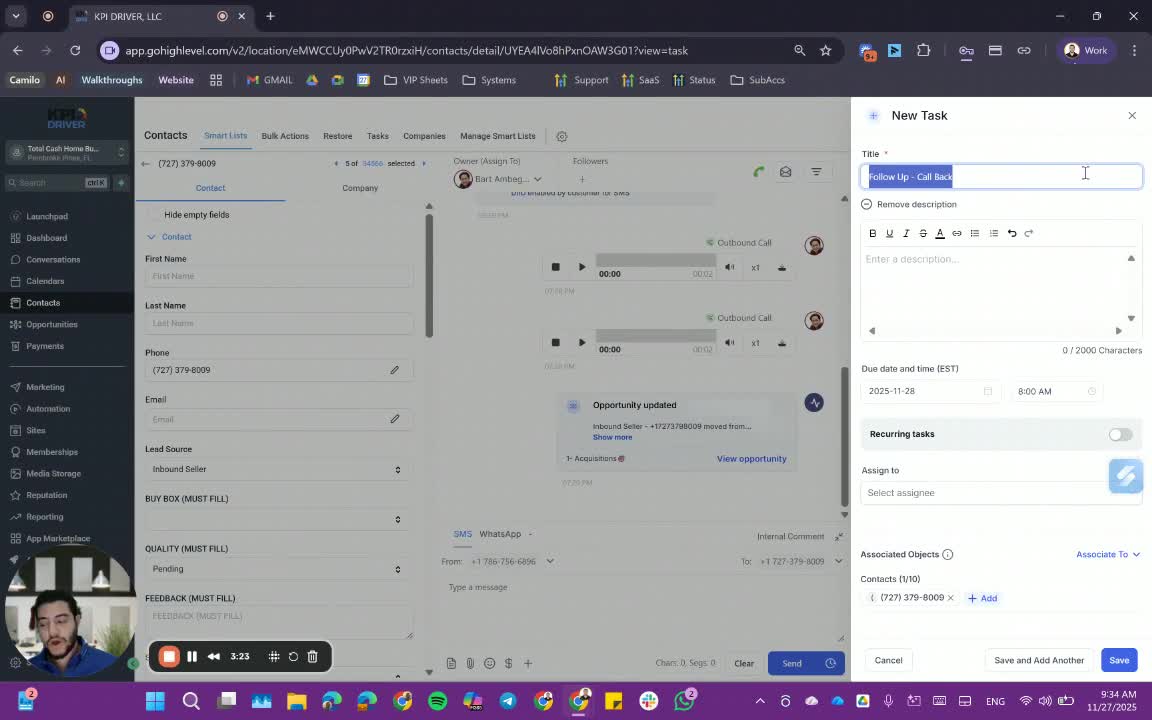
- Access the task view to see all tasks.
- Use filters to view tasks by status (pending/completed) and due dates.
9. Apply Advanced Filters 5:51
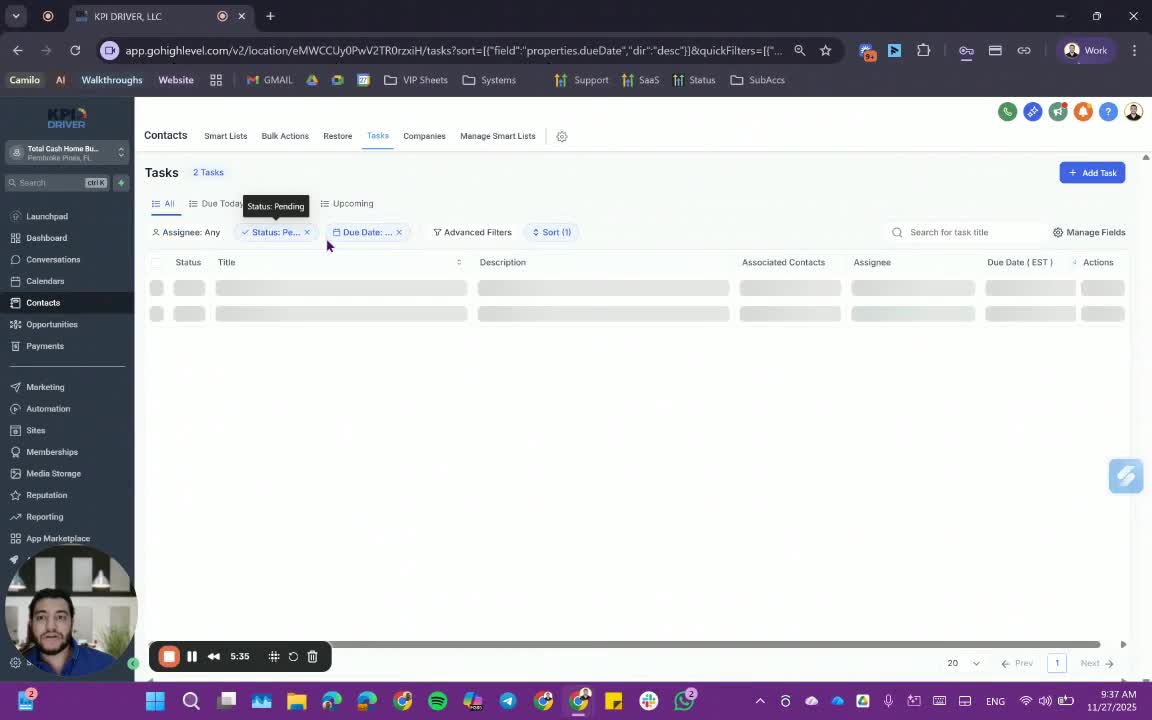
- Use advanced filters based on the standardized title to find specific tasks.
10. Manage Notification Settings 7:01
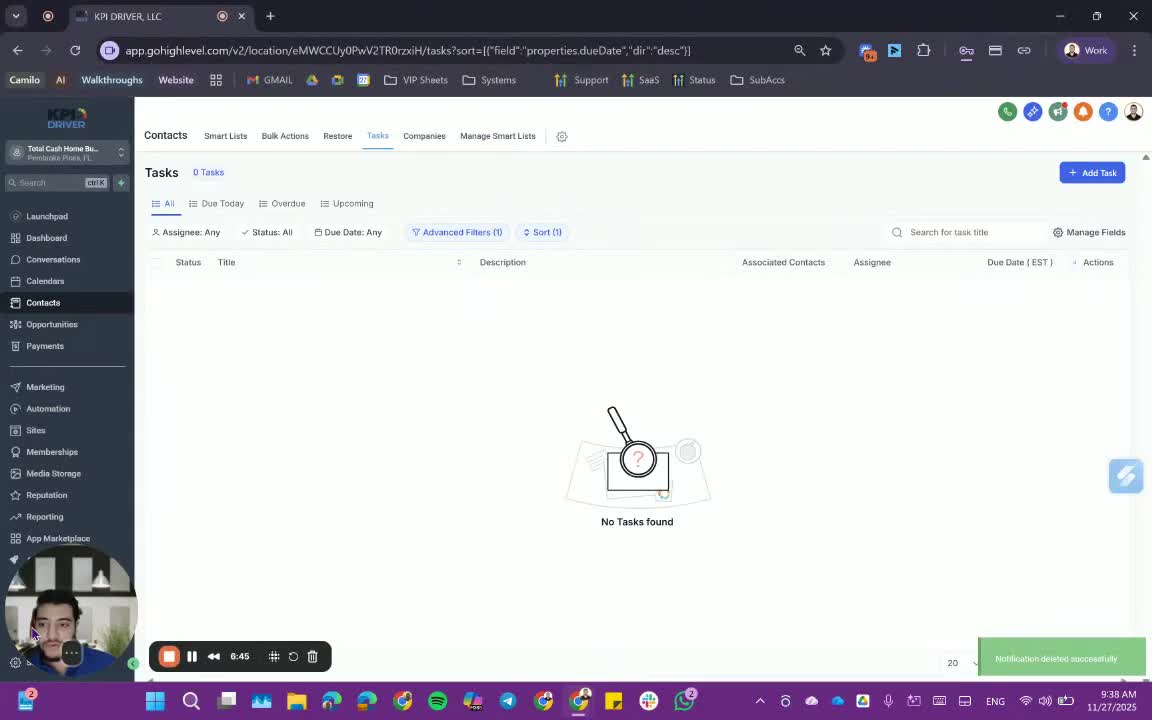
- Access notification settings to customize reminders for tasks.
Cautionary Notes
- Ensure that task titles are consistently formatted to avoid confusion.
- Regularly check notifications to stay updated on task deadlines.
Tips for Efficiency
- Create a template for task titles to streamline the process.
- Regularly review and update tasks to ensure nothing is overlooked.
Link to Loom
https://loom.com/share/42ae9e536be84608848de20d4a7895bc
Articles
Other Related Articles
FAQ
FAQ
What makes KPI DRIVER different from other real estate CRMs?
Do I need separate systems for document signatures, dispo, or rentals?
How long does it take to migrate my CRM to KPI DRIVER?
Will KPI DRIVER work if I’m new to real estate or don’t have a CRM yet?
Is the KPI Dashboard customizable?
How does KPI DRIVER help me scale my business?
Do you offer support or training?
How many leads, calls, and deals can KPI DRIVER handle?
How much does KPI DRIVER cost?

@KPI DRIVER LLC 2025. All Rights Reserved.
Design and developed by YAVACADO