
Custom Fields Overview ⚙️ 🛠️
In this video, I walk you through the overview of custom fields within our contact management system, highlighting the importance of fields like first name, last name, phone, email, and lead source. I explain how to navigate to the settings and customize values, including the significance of tracking call counts and lead quality. I also cover the make an offer section, detailing the types of offers you can input and how they are tracked over time. If you find any fields excessive or unnecessary, please let us know so we can remove them, but do not attempt to remove anything yourself to avoid potential issues. Your attention to these details will help streamline our processes and improve our efficiency.
Creating and Managing Custom Fields in CRM
Objective
This SOP outlines the steps to create and manage custom fields in the CRM system, ensuring all necessary contact information is accurately recorded and maintained.
Key Steps
1. Accessing Custom Fields 0:33
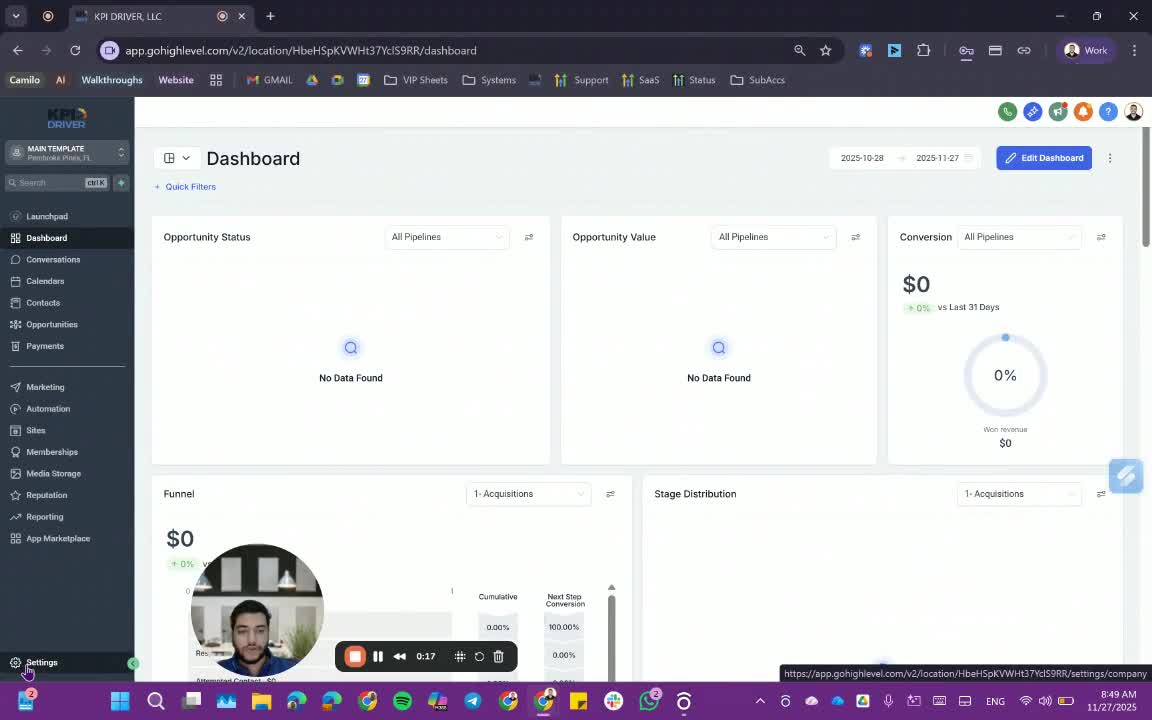
- Navigate to Settings in the CRM.
- Click on Custom Values to view existing custom fields.
2. Understanding Field Types 0:41
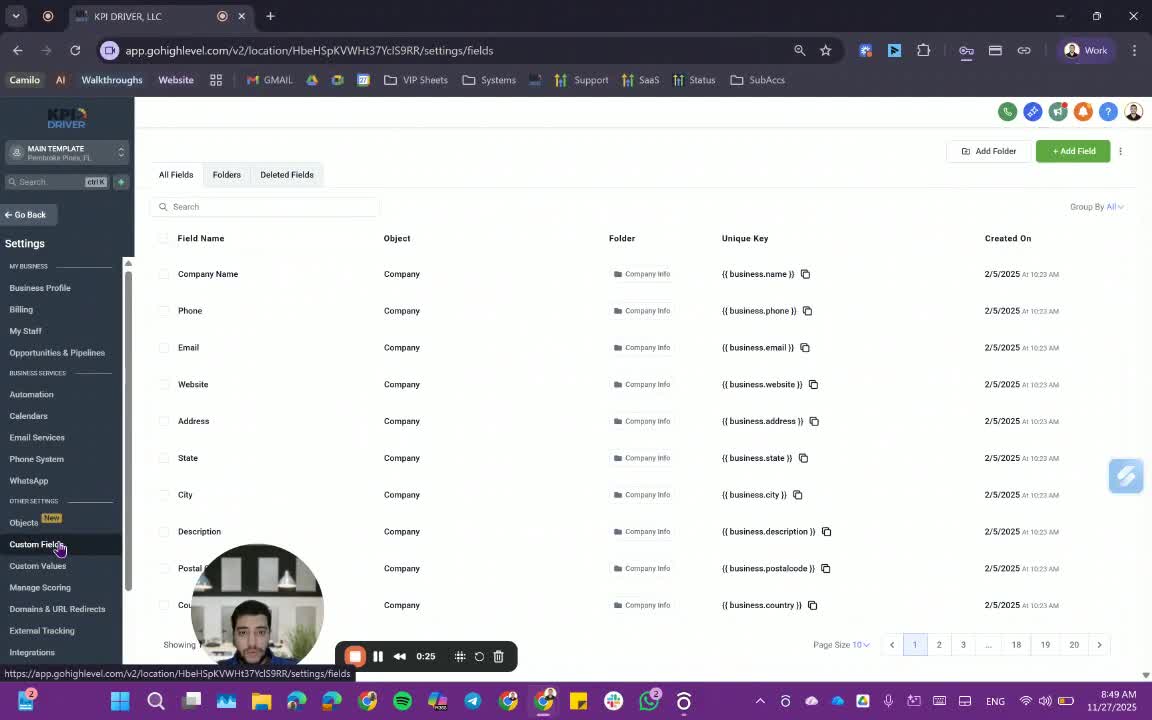
- Familiarize yourself with the different types of fields:
- Standard: Default fields that cannot be changed or removed.
- Numerical: For numerical data.
- Single Option: Dropdown selections.
- Multiple Option: Allows multiple selections.
- Text: Single line text input.
- Large Text: Multi-line text input.
3. Essential Contact Fields 1:33
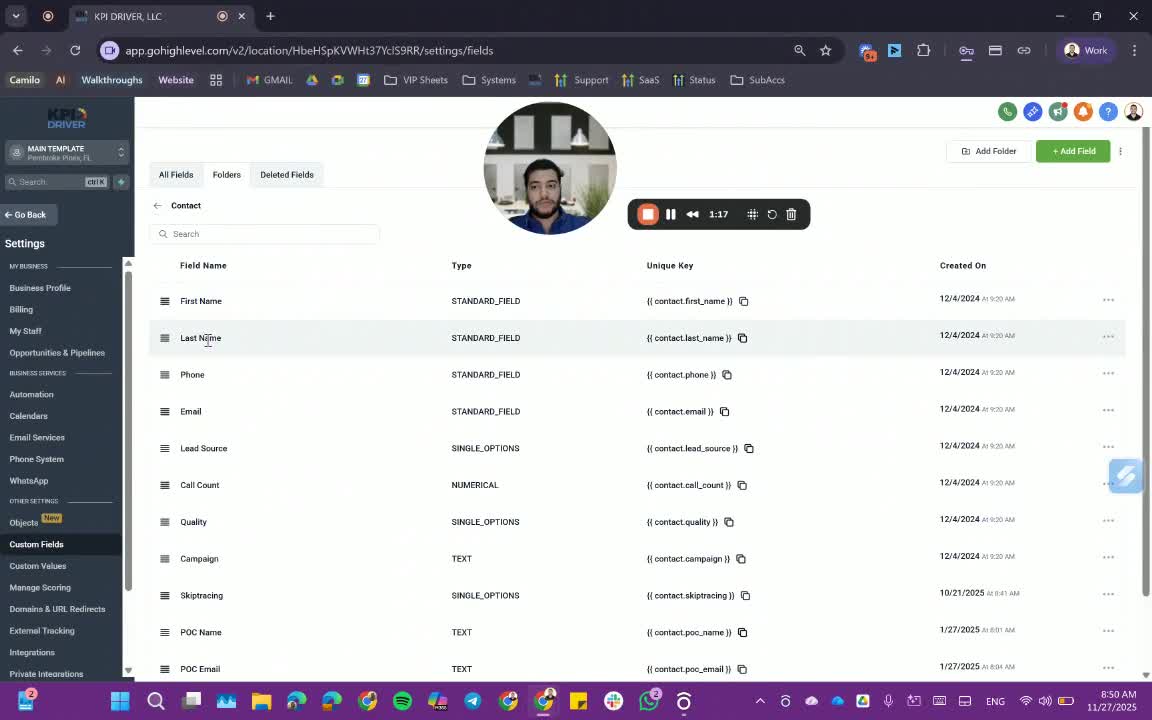
- Ensure the following fields are filled out for each contact:
- First Name
- Last Name
- Phone (at least one of phone or email is required)
- Lead Source (should be filled automatically)
- Call Count (tracks outbound calls)
- Quality (set to pending by default, change to qualified or disqualified as needed)
- Campaign (auto-filled)
- Skip Tracing (select if needed for internal processing).
4. General Information Fields 3:06
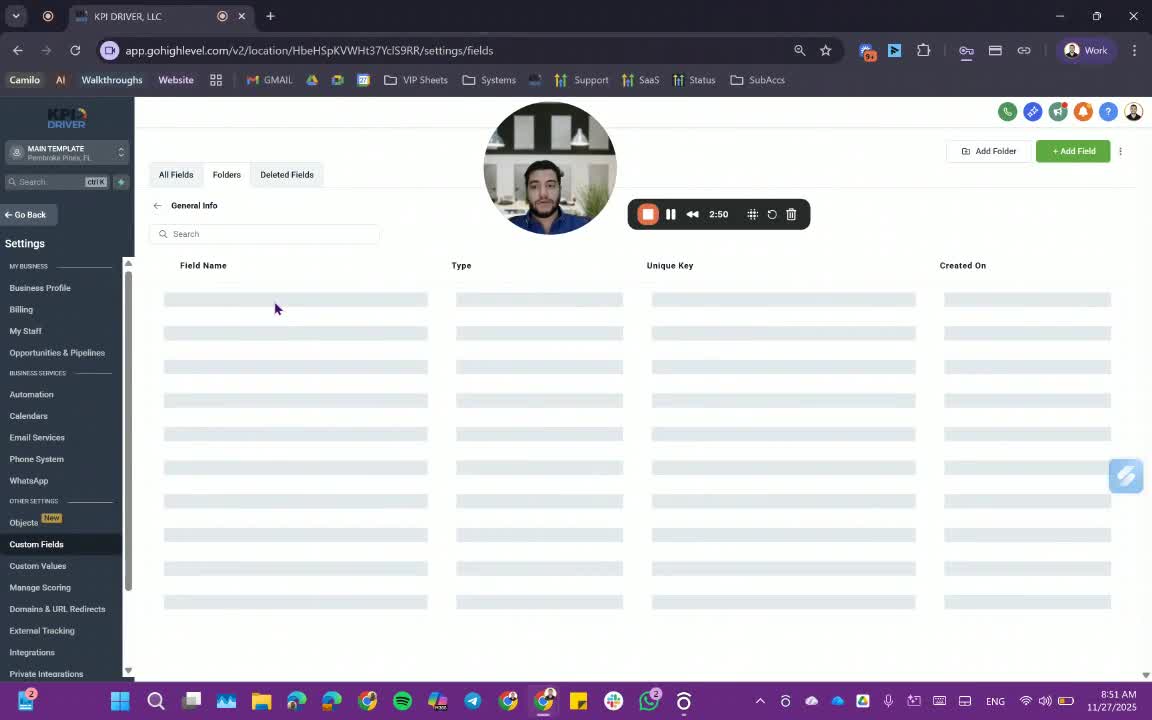
- Fill in the following general information:
- 3D Address
- City
- State
- Postal Code
- Apartment Number (if applicable)
- County
- Parcel ID
- Zillow Link or Systemate (if needed).
5. Using the Calculator 3:31
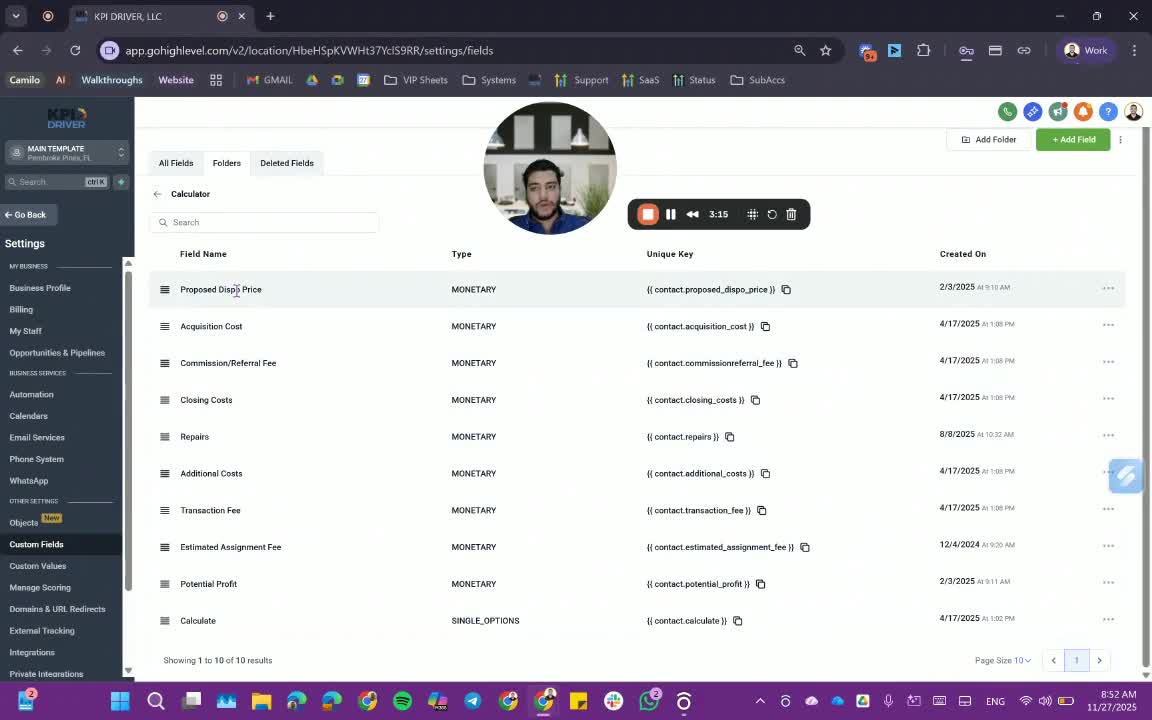
- Input necessary data into the calculator section:
- Enter the Proposed Dispo Price.
- Click Calculate to determine potential profit.
- Use Reset to clear inputs for new calculations.
6. Making an Offer 4:00
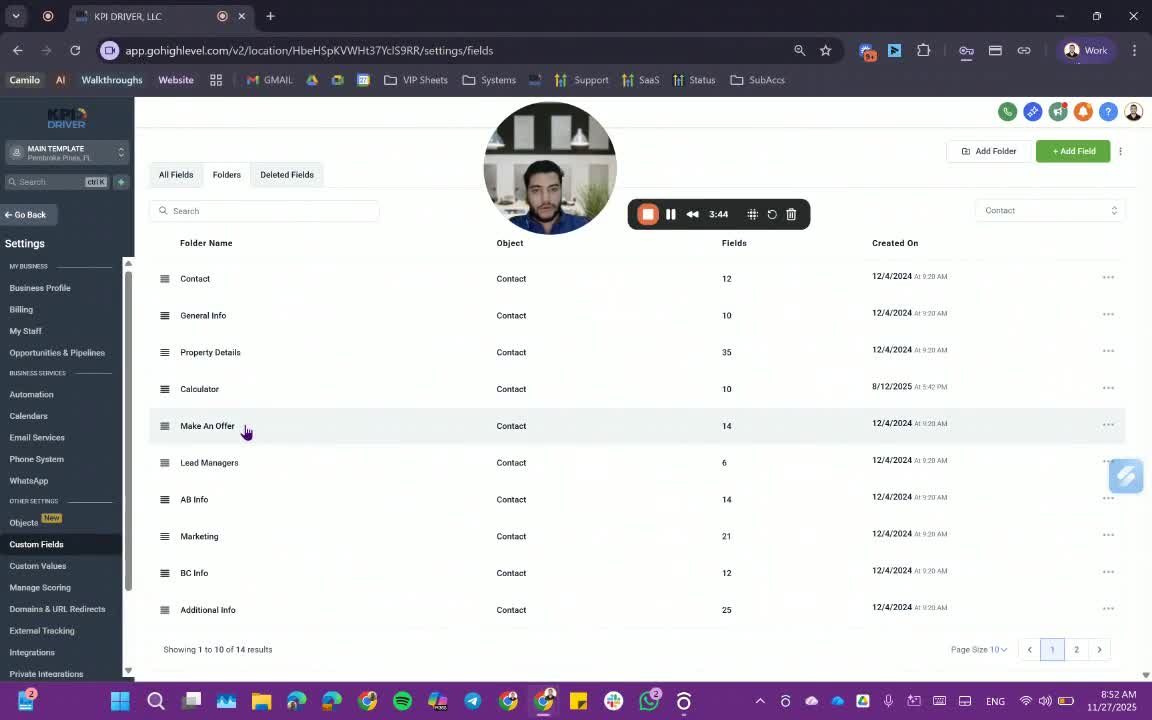
- In the Make an Offer section, provide:
- Asking Price
- ARV (After Repair Value)
- Comps (comparative market analysis)
- Estimated Cost of Repairs
- Offer Type (select multiple options if necessary).
7. Tracking Offers 5:04
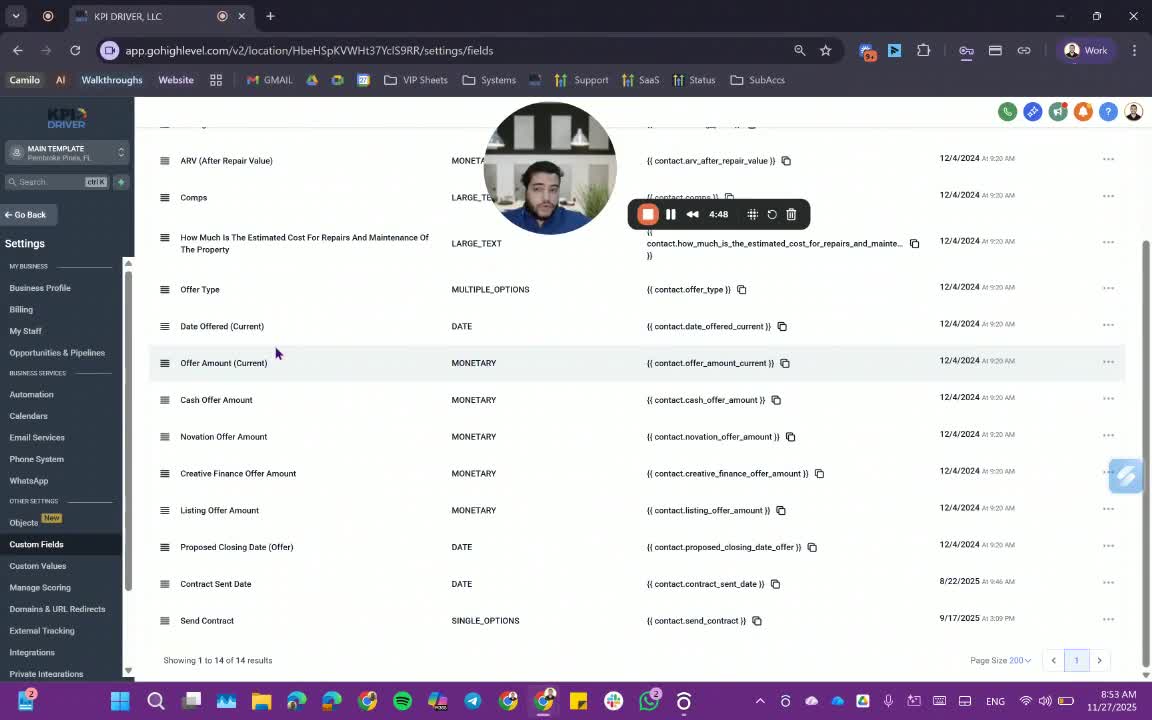
- Record details of each offer made:
- Current Offer Amount with date.
- Previous offer amounts and types for reference.
8. Managing Lead Information 6:13
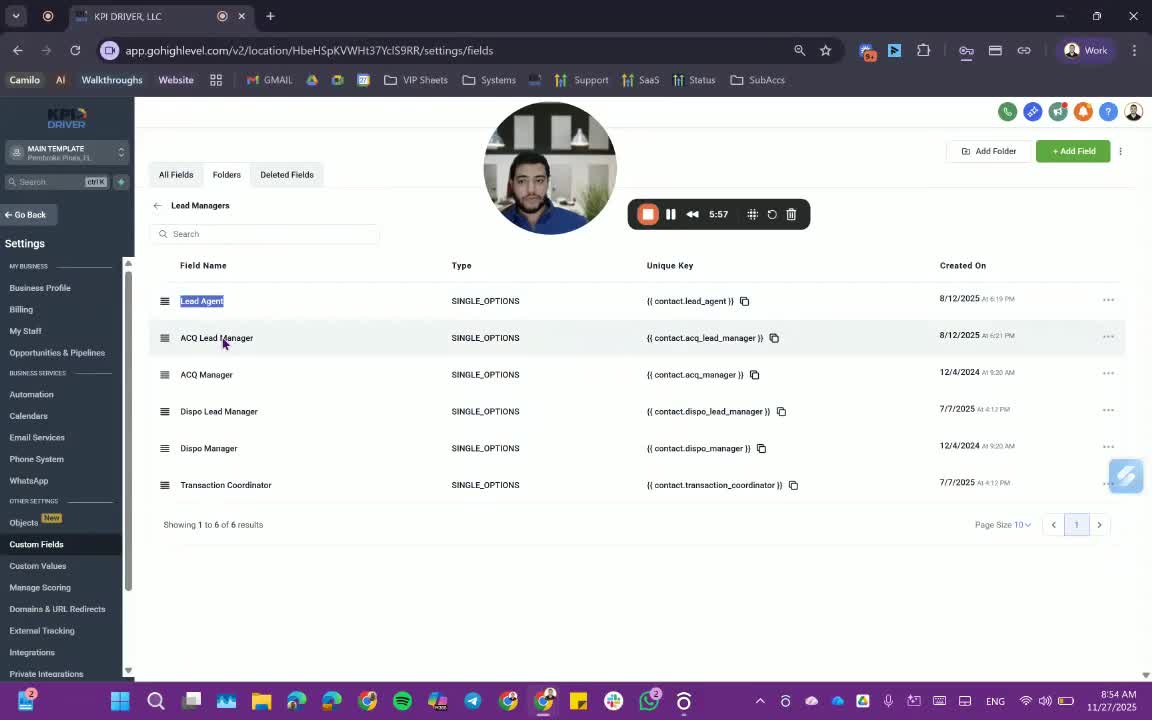
- Ensure the following roles are populated:
- Lead Agent
- Acquisition Lead
- Follow-Up Specialist
- Dispo Manager
- Transaction Coordinator (TC).
9. Additional Information 7:08
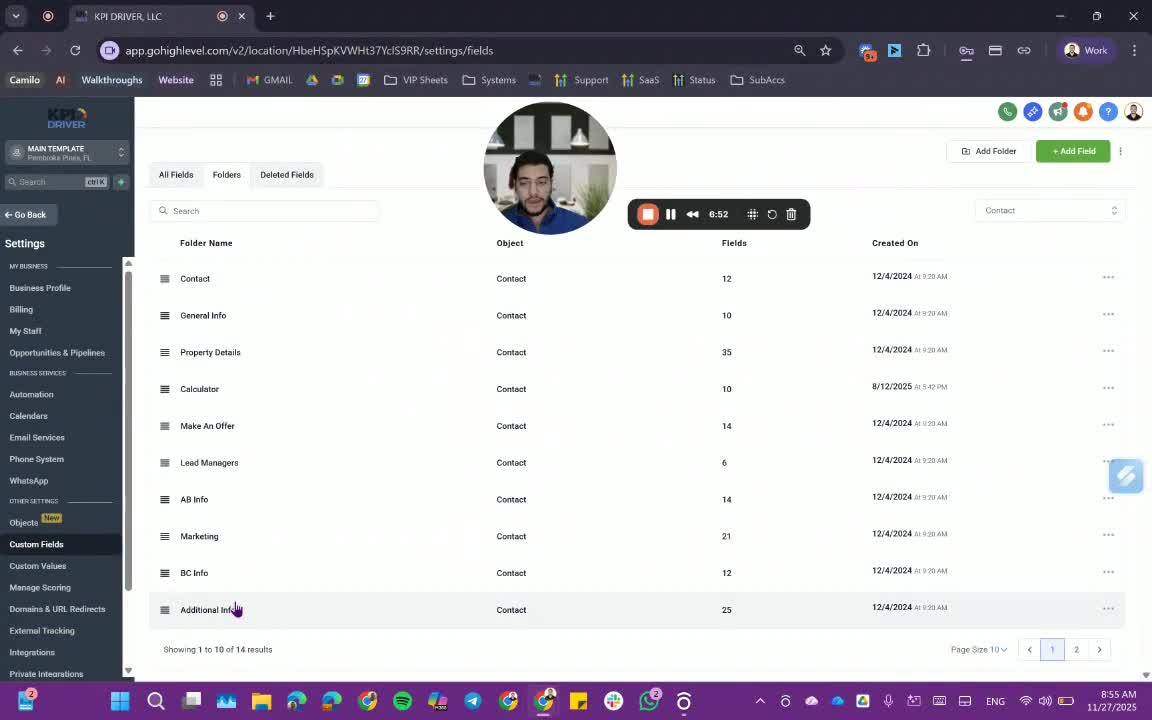
- Fill in any additional fields as necessary:
- Creation Date
- First Contact Date
- Qualification Date
- Current Stage
- Mailing Address
- Next Contact Date.
10. Handling Excess Fields 8:38
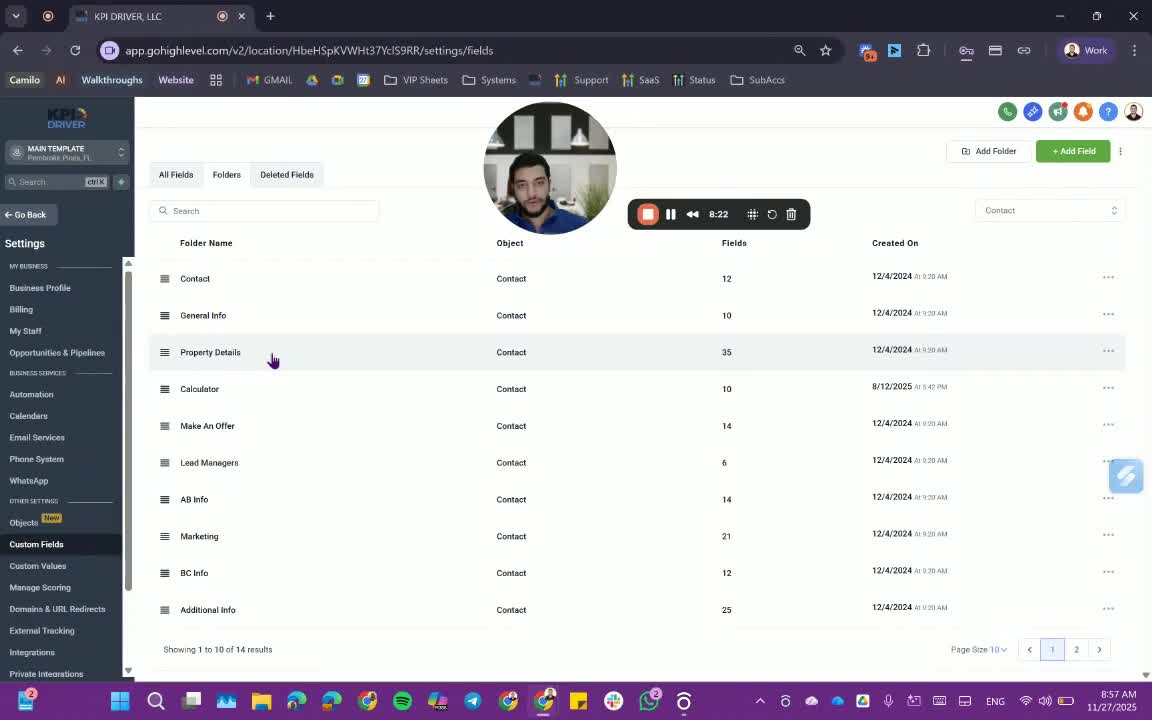
- If certain fields are not used, request their removal through the appropriate channels to avoid clutter.
Cautionary Notes
- Do not remove any fields yourself without prior approval, as this may disrupt system functionality.
- Always ensure that at least one contact method (phone or email) is provided for each contact.
Tips for Efficiency
- Regularly review and update contact information to maintain accuracy.
- Utilize the calculator feature to streamline profit calculations.
- Keep track of all offers made to avoid confusion and ensure proper follow-up.
Link to Loom
https://loom.com/share/8bd78720975e45f19388e6bc854160e1
Articles
Other Related Articles
FAQ
FAQ
What makes KPI DRIVER different from other real estate CRMs?
Do I need separate systems for document signatures, dispo, or rentals?
How long does it take to migrate my CRM to KPI DRIVER?
Will KPI DRIVER work if I’m new to real estate or don’t have a CRM yet?
Is the KPI Dashboard customizable?
How does KPI DRIVER help me scale my business?
Do you offer support or training?
How many leads, calls, and deals can KPI DRIVER handle?
How much does KPI DRIVER cost?

@KPI DRIVER LLC 2025. All Rights Reserved.
Design and developed by YAVACADO