
Documents & Signatures ⚙️ 🛠️
In this Loom, I walk you through our new document signing system that allows you to eliminate the need for external platforms like DocuSign or Adobe Acrobat Sign. We provide two templates: a single signee and a multiple signee contract, which you can customize with your own fields. You can also collect payments directly through the system if you have an active Stripe account. I encourage you to explore these templates and consider how they can streamline your contract processes. If you have any questions or need assistance, feel free to reach out!
Creating and Sending Contracts Using the CRM System
Objective
This SOP outlines the steps to create and send contracts using the CRM system, allowing for single or multiple signers without the need for external signing services.
Key Steps
1. Understanding Contract Templates 0:40
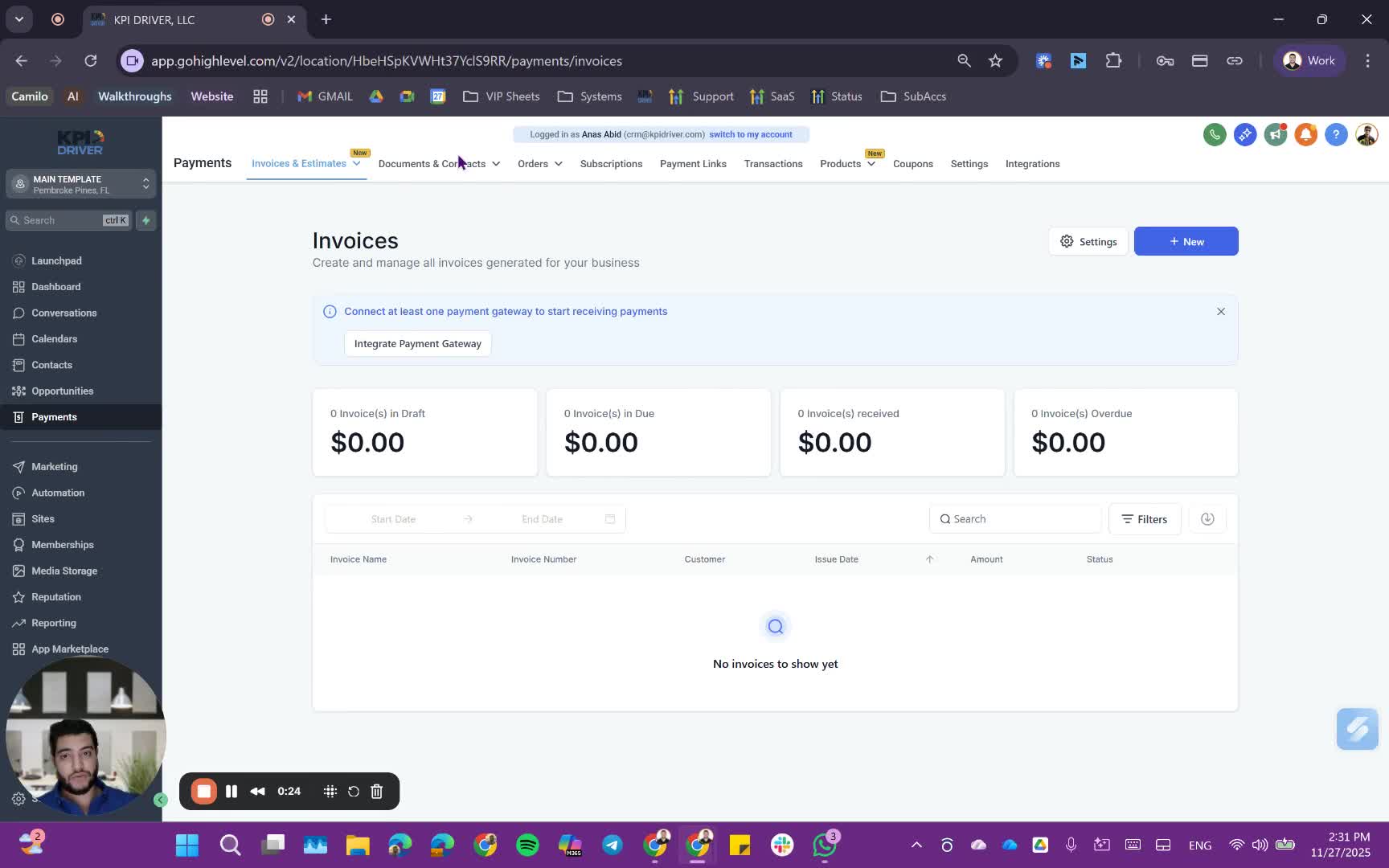
- Two templates are provided:
- Single Signer Contract: For contracts requiring one signature.
- Multiple Signer Contract: For contracts requiring multiple signatures.
2. Accessing the Single Signer Template 1:05
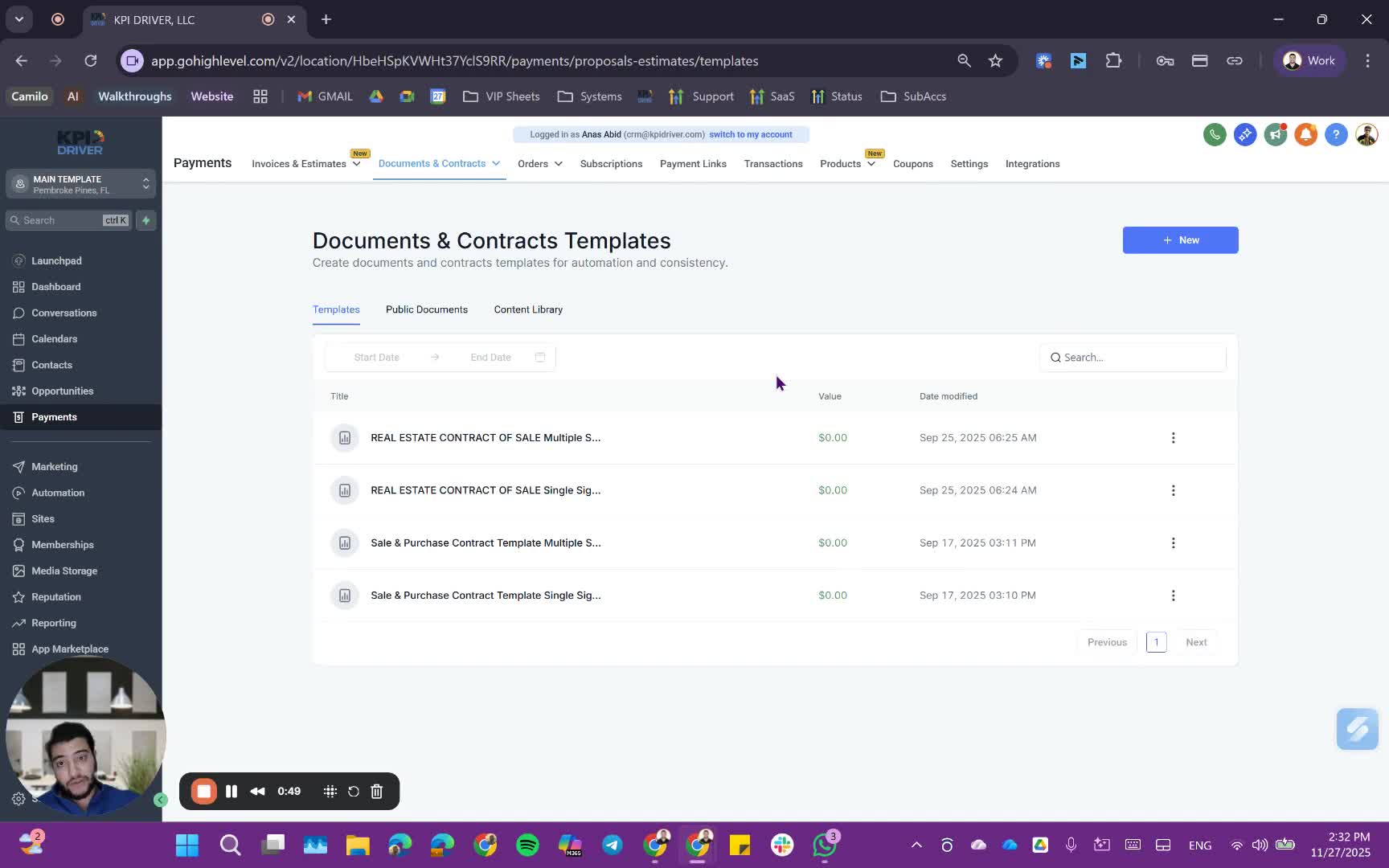
- Open the single signer template.
- You can customize this template with your own documents if needed.
3. Utilizing Custom Fields 1:21
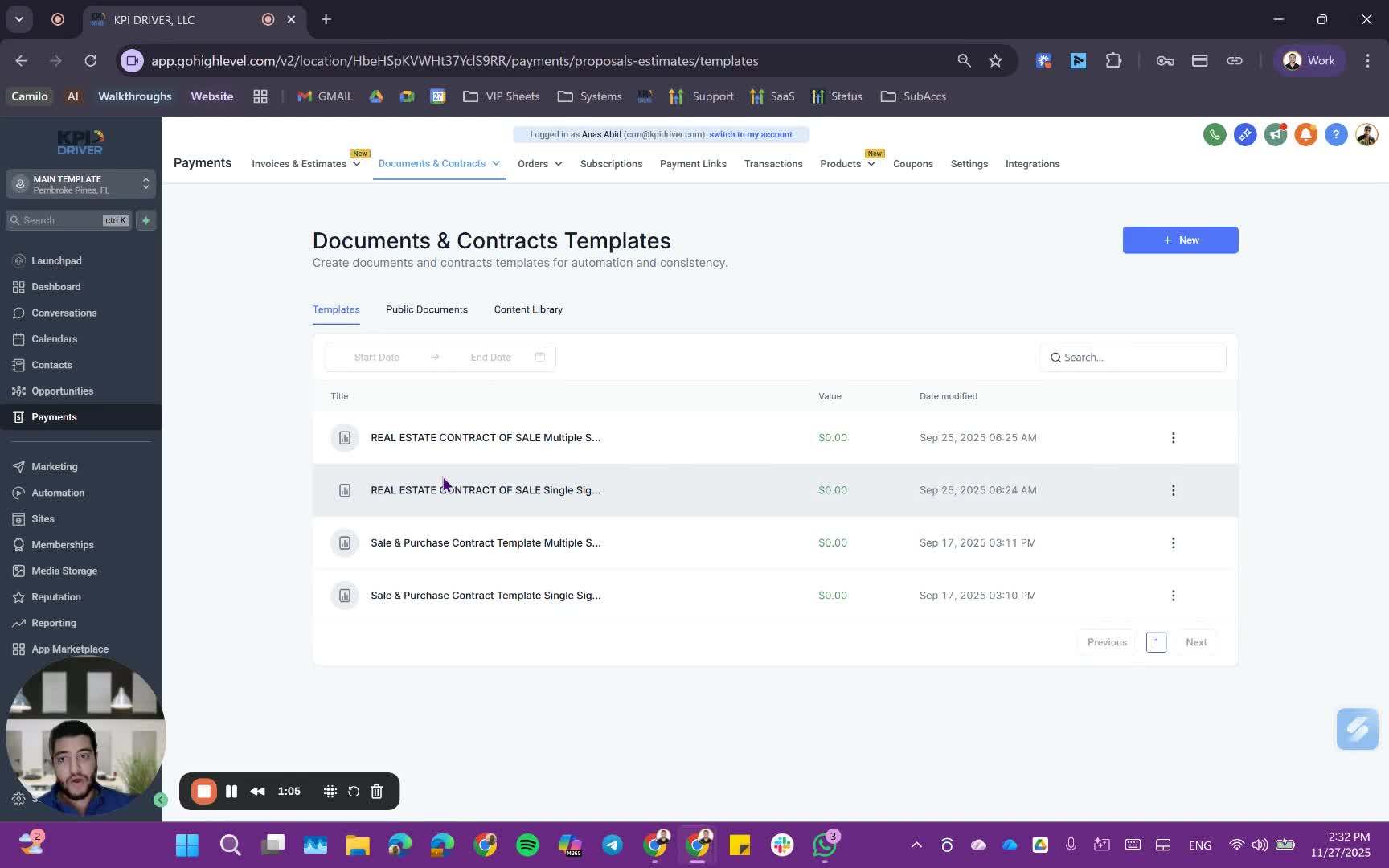
- Use pre-filled custom fields to avoid manual entry.
- Ensure fields like date, business name, and offer amount are correctly filled.
4. Sending the Contract 2:25
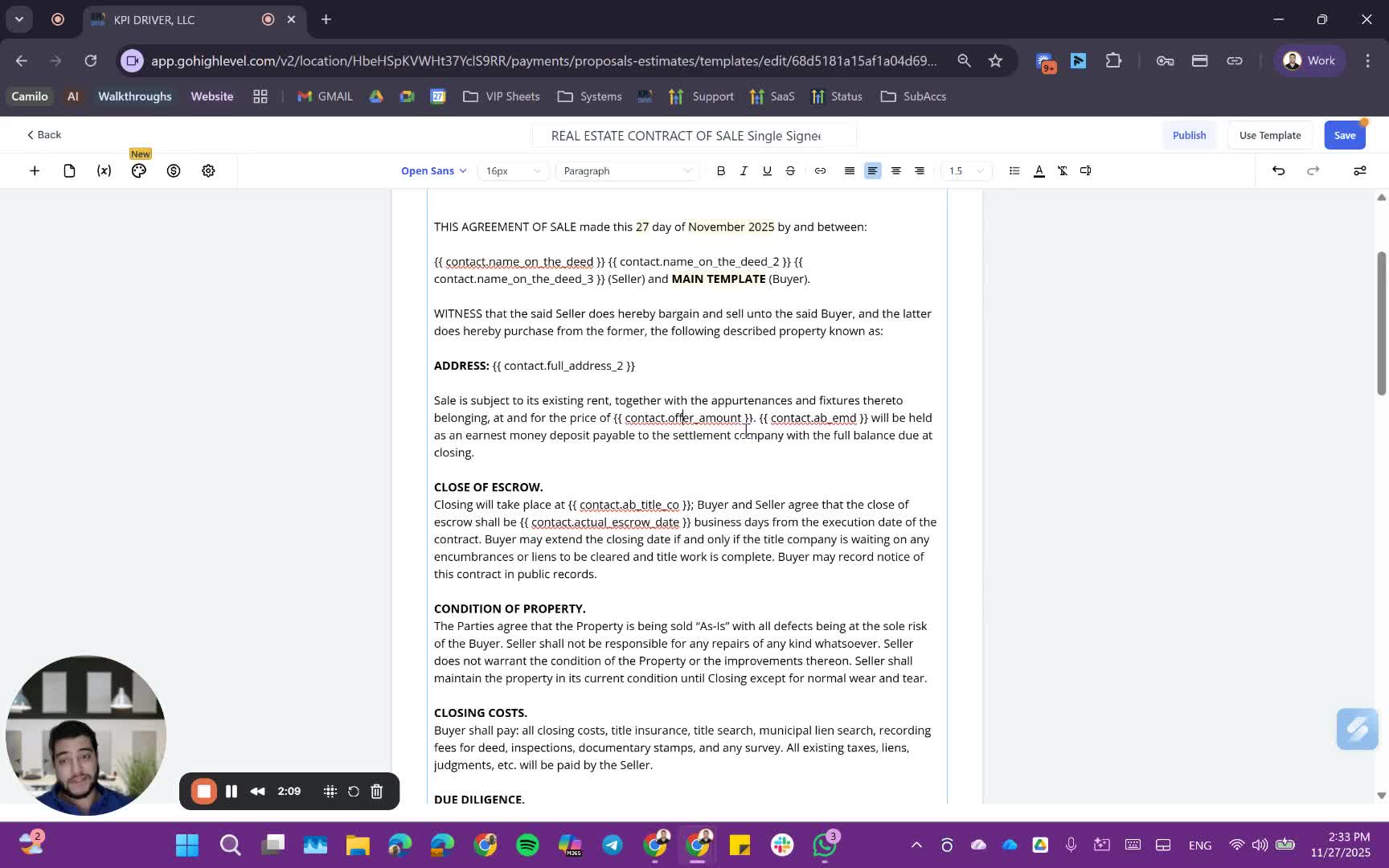
- Decide whether to send the contract pre-signed or unsigned.
- Click the button to send the contract to the seller.
5. Understanding the Multiple Signer Process 3:38

- For multiple signers, a draft is created.
- Assign additional signers using the signer's form.
6. Adding Signers to the Draft 4:04
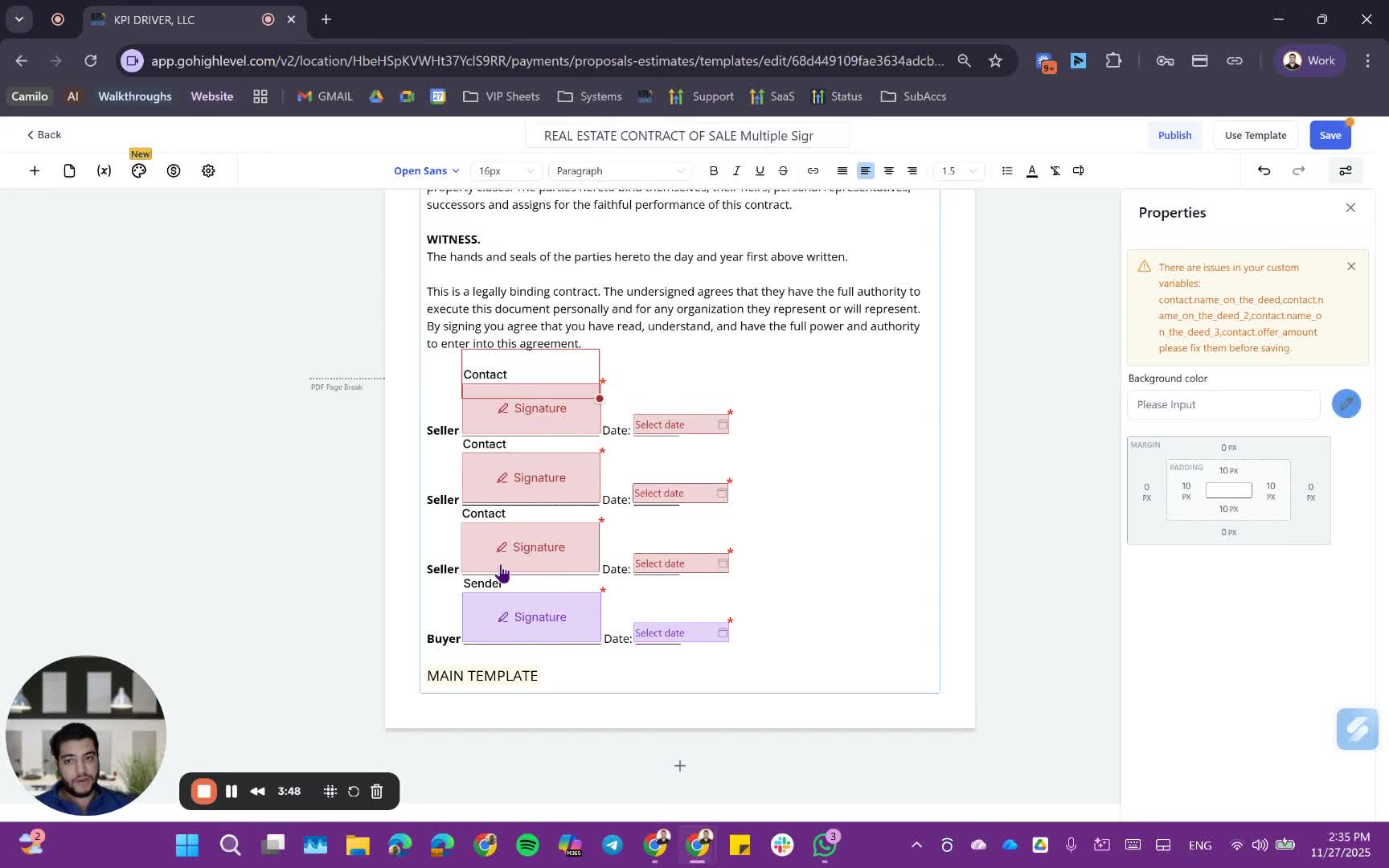
- Open the draft and add additional recipients.
- Set the signing order if necessary.
7. Finalizing the Contract 6:17
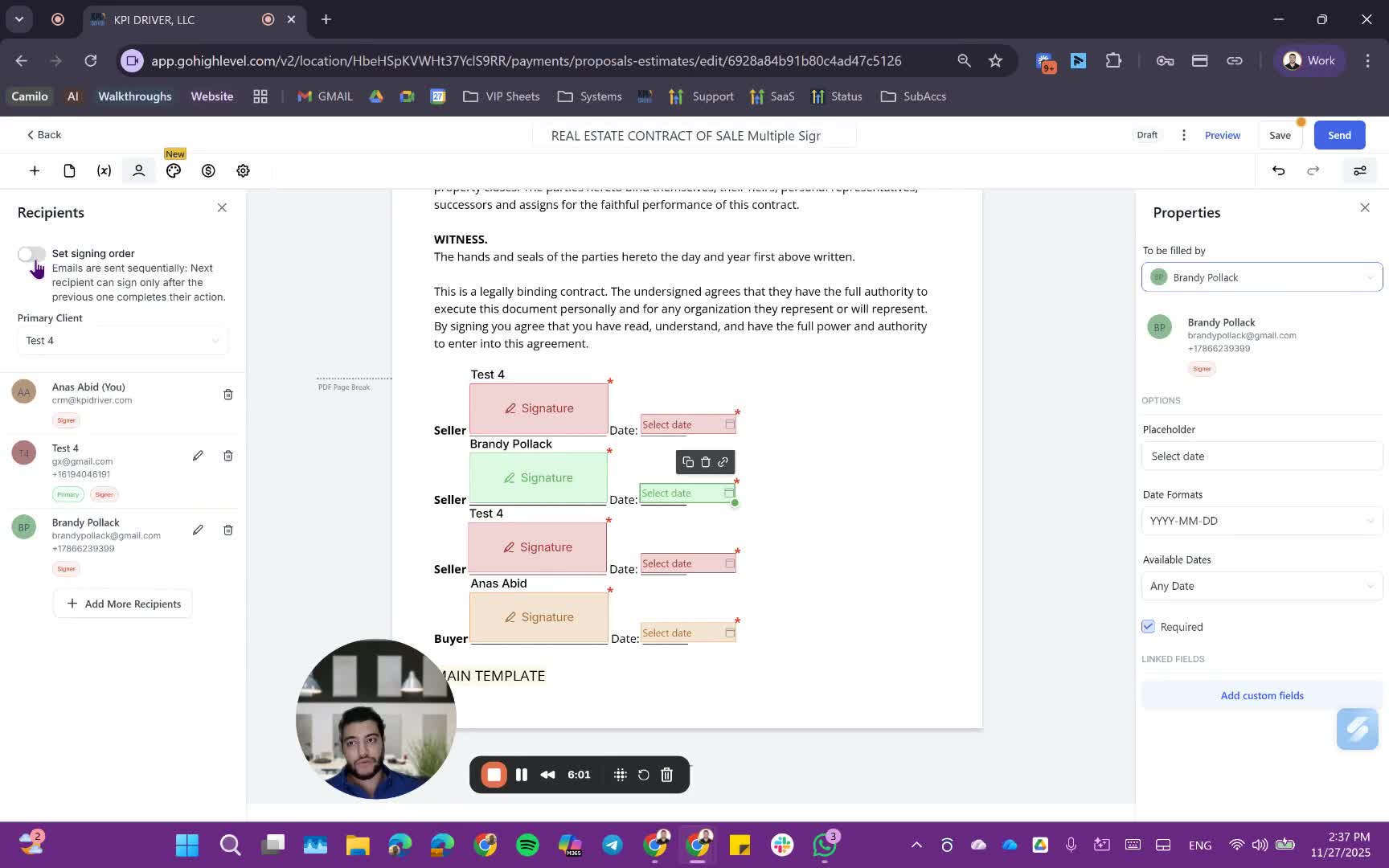
- Once signed, the contract is legally binding and includes necessary electronic signatures.
8. Managing Drafts and Completed Contracts 7:05
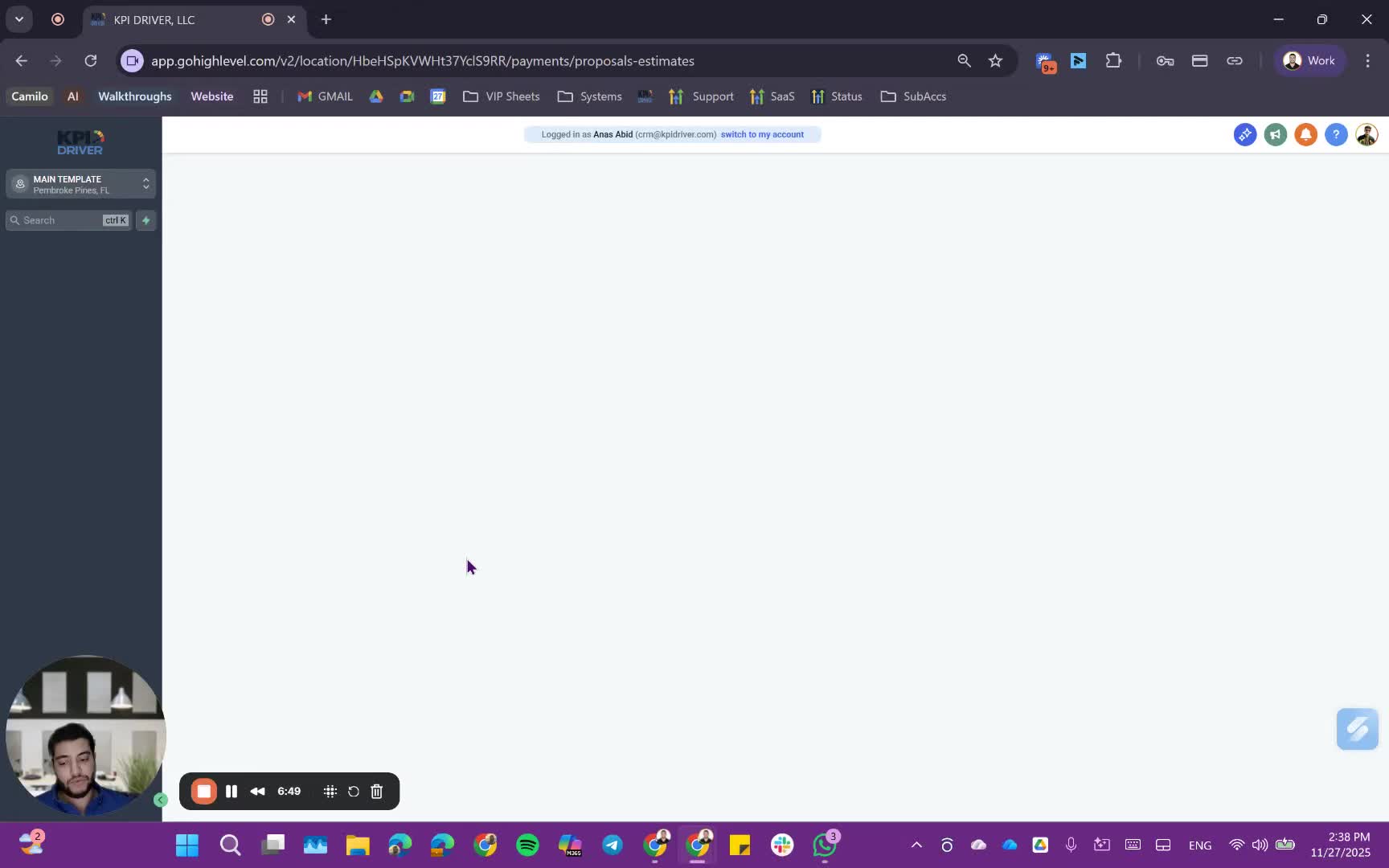
- View drafts and completed contracts in the system.
- Ensure all information is accurate before sending.
9. Sending Contracts Based on Type 8:11
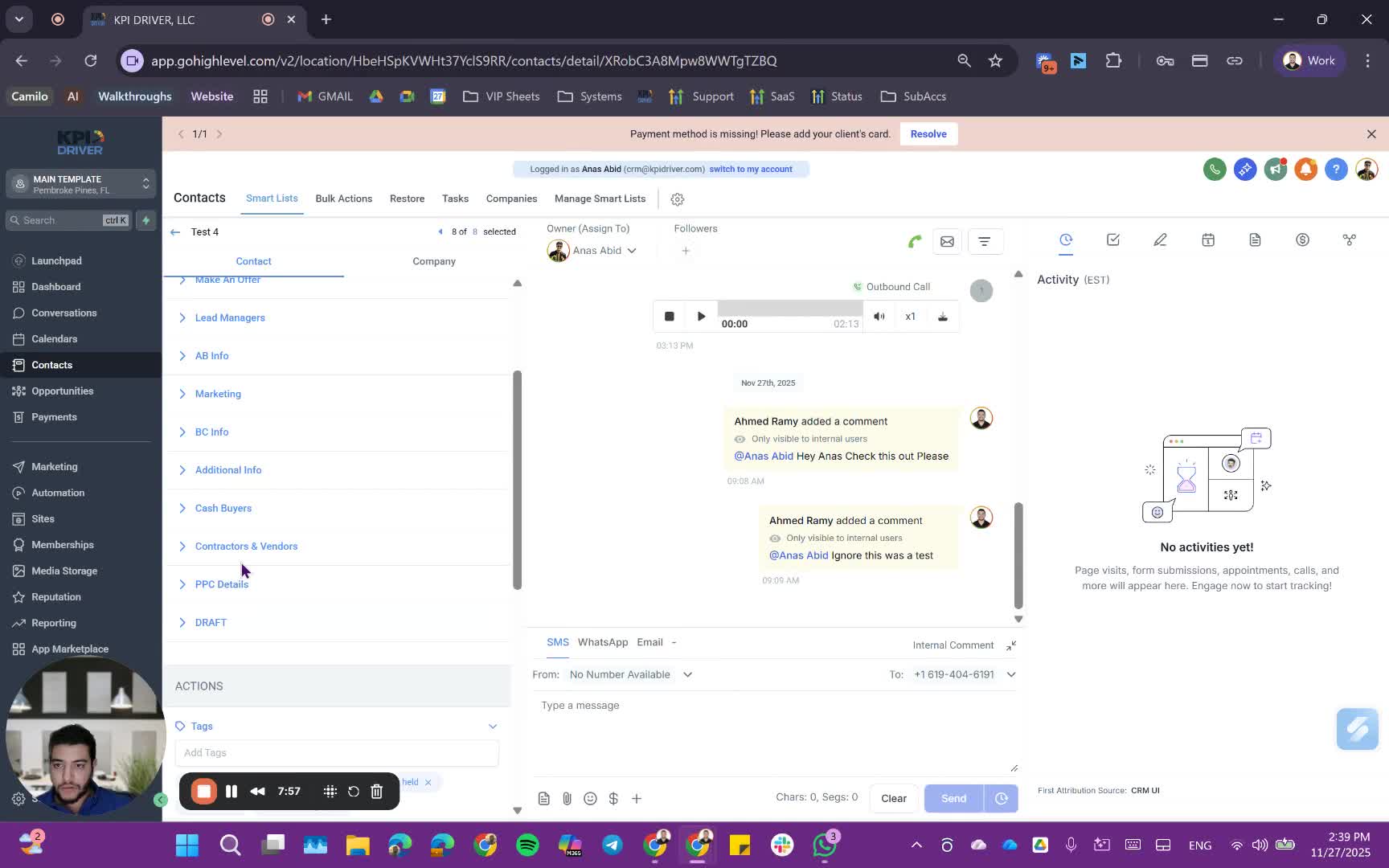
- Single signer contracts are sent immediately.
- Multiple signer contracts create drafts for further editing.
10. Conclusion and Support 9:29
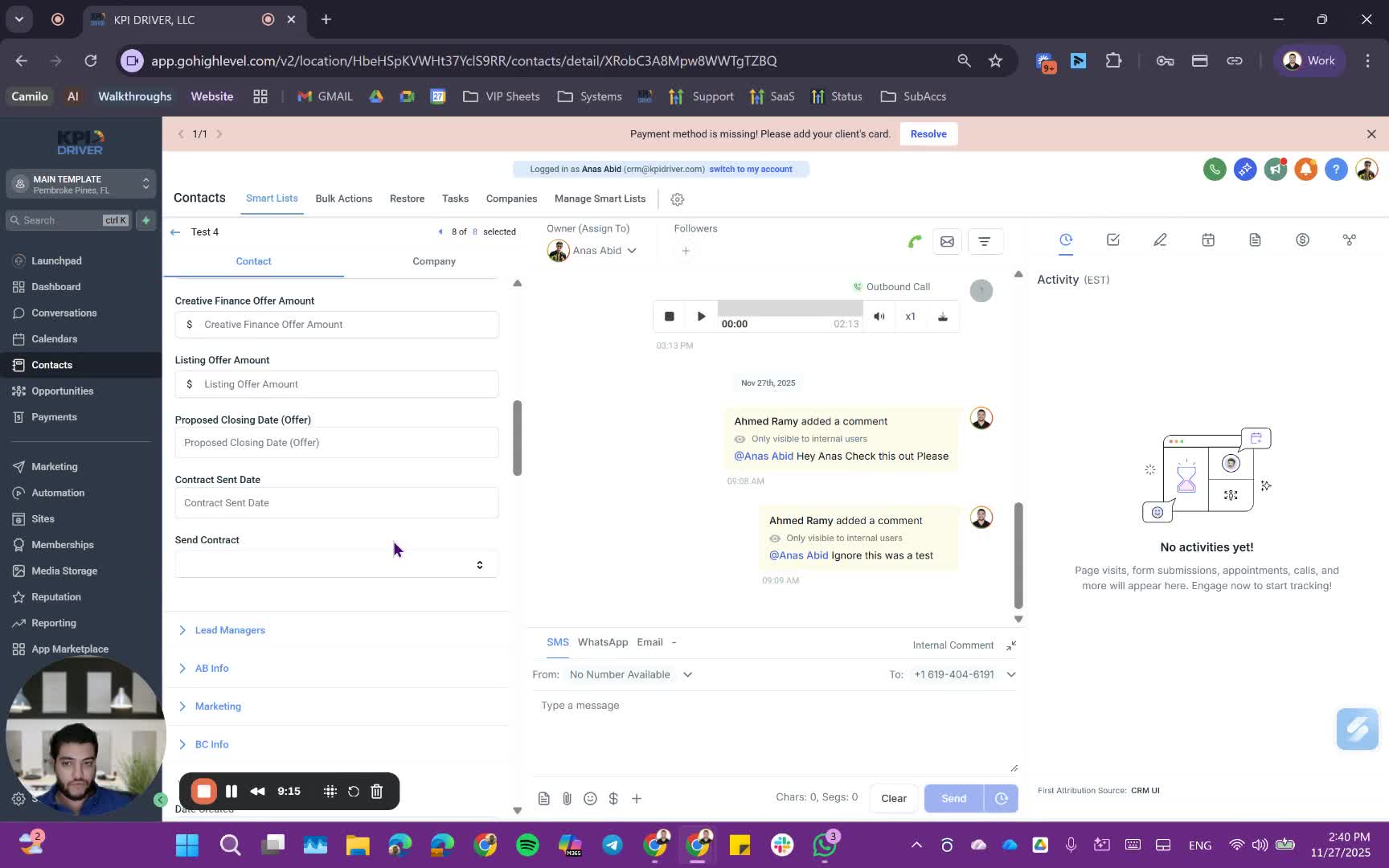
- All contract management can be done within the CRM.
- Reach out for assistance if needed.
Cautionary Notes
- Ensure all custom fields are filled out correctly to avoid delays.
- Double-check recipient email addresses before sending contracts.
Tips for Efficiency
- Use templates to save time on contract creation.
- Familiarize yourself with the automation features to streamline the signing process.
- Regularly update your templates to reflect any changes in your business practices.
Link to Loom
https://loom.com/share/f04f218e98744372a768d28ff10b9673
Articles
Other Related Articles
FAQ
FAQ
What makes KPI DRIVER different from other real estate CRMs?
Do I need separate systems for document signatures, dispo, or rentals?
How long does it take to migrate my CRM to KPI DRIVER?
Will KPI DRIVER work if I’m new to real estate or don’t have a CRM yet?
Is the KPI Dashboard customizable?
How does KPI DRIVER help me scale my business?
Do you offer support or training?
How many leads, calls, and deals can KPI DRIVER handle?
How much does KPI DRIVER cost?

@KPI DRIVER LLC 2025. All Rights Reserved.
Design and developed by YAVACADO