
Payment Method & A2P 10DLC/Twilio
In this Loom video, I walk you through the first step of filling out the form we sent via email, which is crucial for getting your account set up. I explain how to provide your business email, card details, and if applicable, information for your Twilio or third-party account. Additionally, I emphasize the importance of having a privacy policy, terms and conditions, and clear opt-in language on your website for A2P 10 DLC submission. Please make sure to complete the form accurately, as this will help us move forward to the next step. Thank you, and I look forward to guiding you through step two!
SOP for Filling Out the Account Setup Form
Objective
This SOP outlines the steps to fill out the account setup form for integrating your business with our CRM system.
Key Steps
Step 1: Access the Form 0:15

- Locate the email containing the link to the account setup form.
- Click on the link to access the form.
Step 2: Fill Out Basic Information 0:40
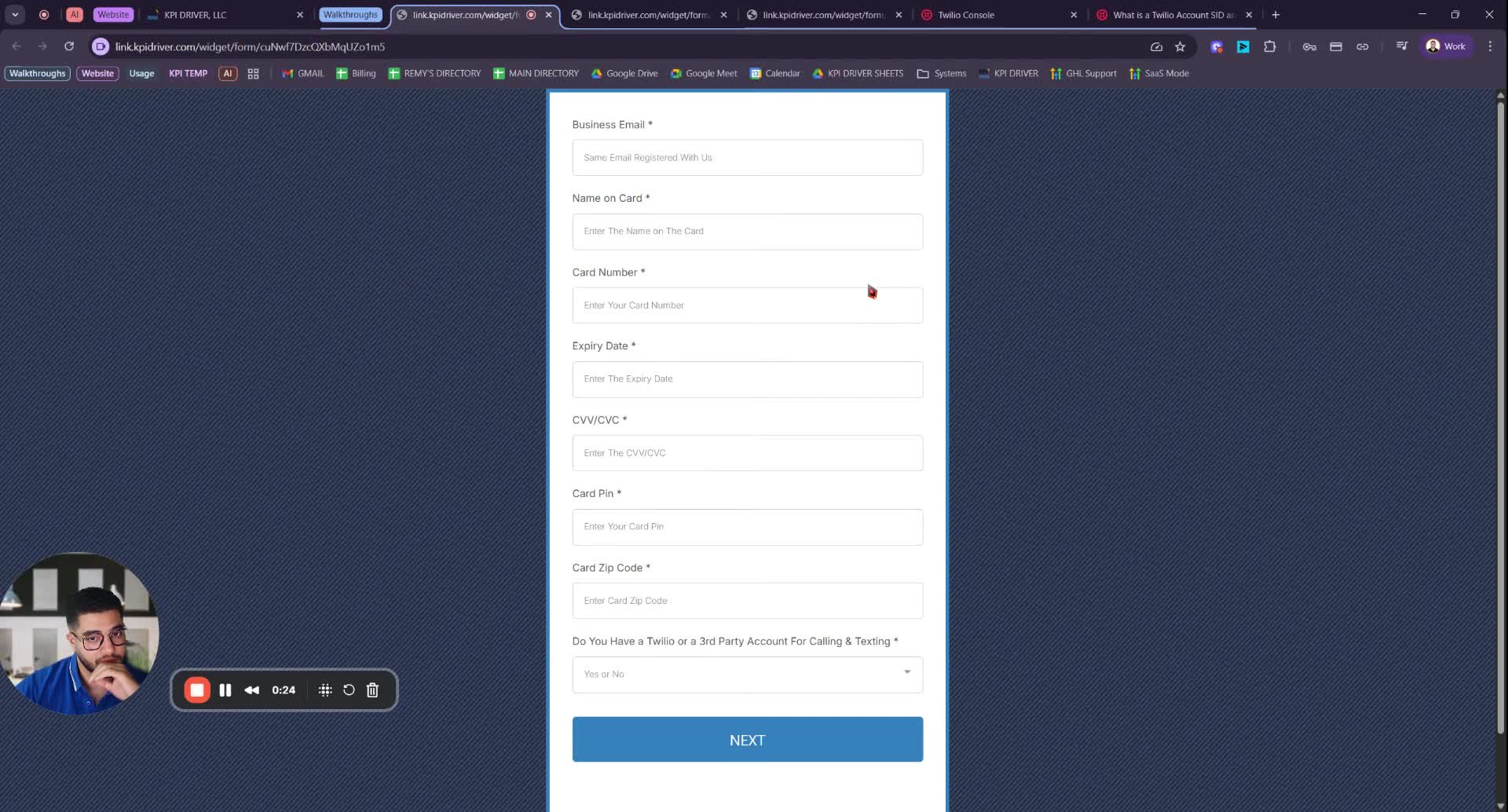
- Enter your registered business email.
- Provide the following payment information:
- Name on card
- Card number
- Expiry date
- CBC
- Card BIN
- Zip code
Step 3: Determine Twilio or Third Party Account Status 1:07
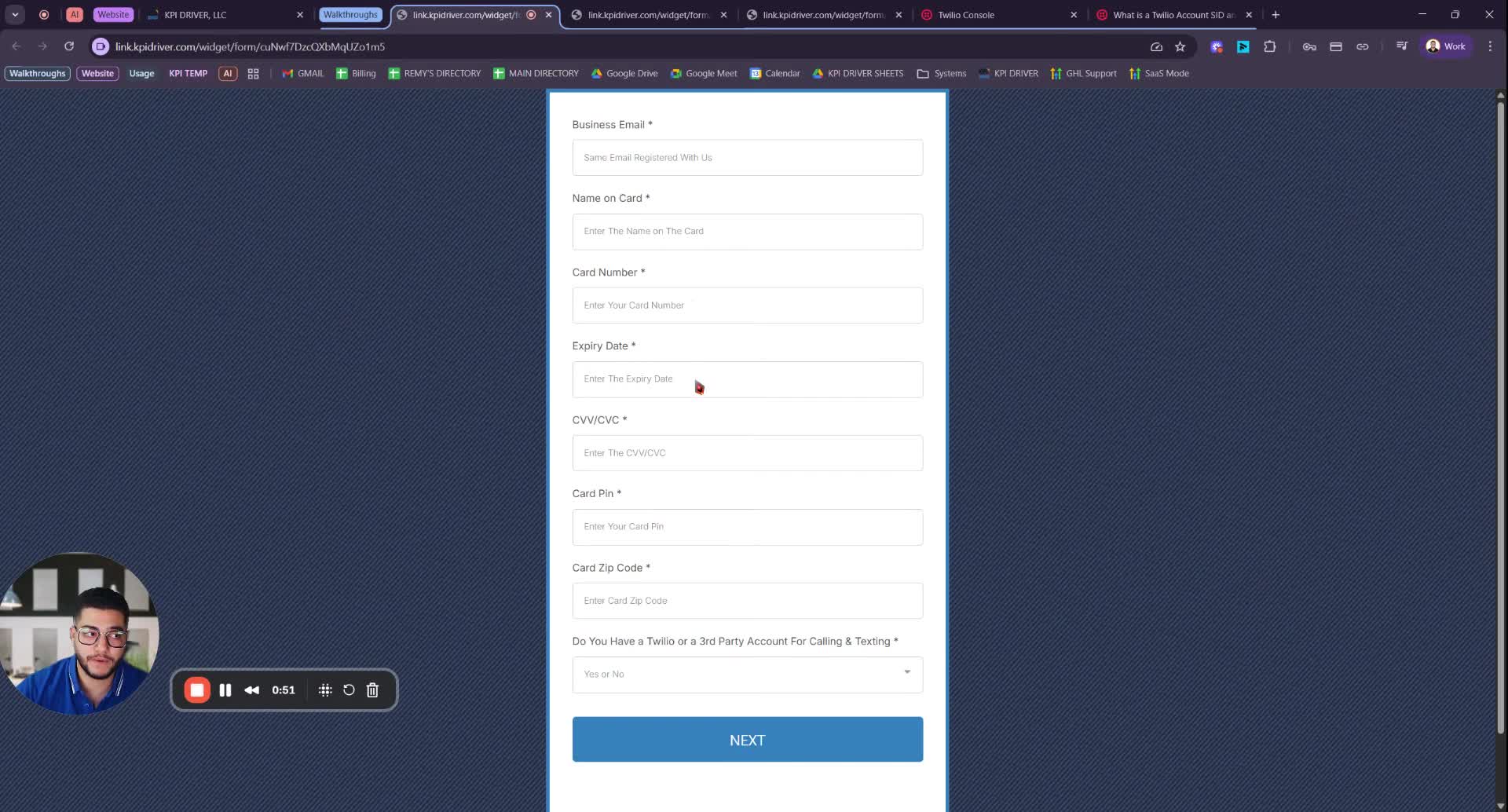
- Indicate whether you have a Twilio or third-party account for calling and texting:
- If you do not have an account, select 'No'.
- If you have an account, select 'Yes'.
Step 4: A2P 10DLC Submission (If No Account) 1:35
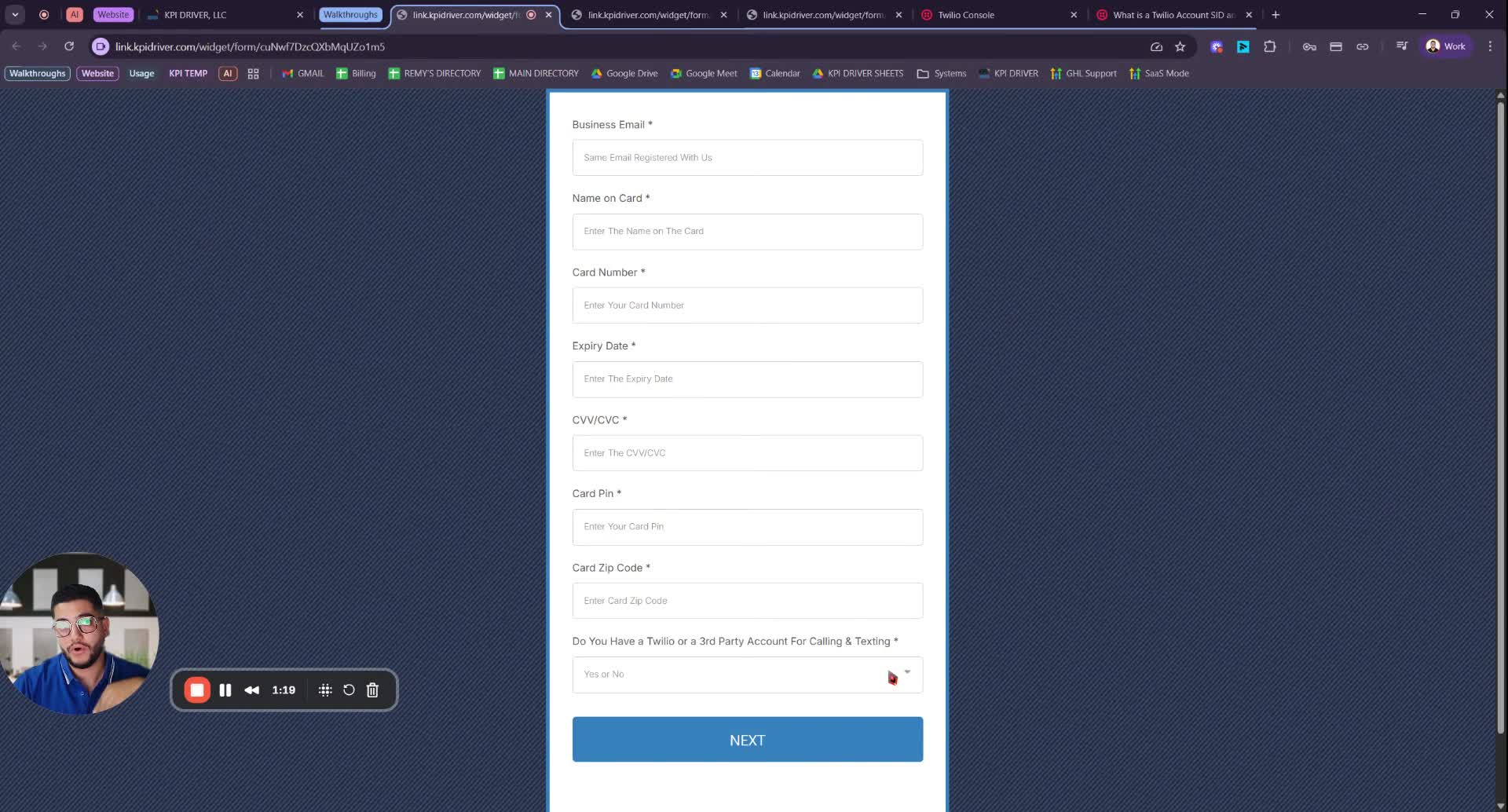
- If you selected 'No', you will be directed to the A2P 10DLC submission form.
- Fill out the following:
- Business name
- Business type
- Business niche
- EIN (select EIN and enter your EIN number)
- Website URL (ensure it has a privacy policy, terms and conditions, and clear opt-in language)
- Click 'Submit'.
Step 5: Provide Twilio or Third Party Account Information (If Yes Account) 3:34
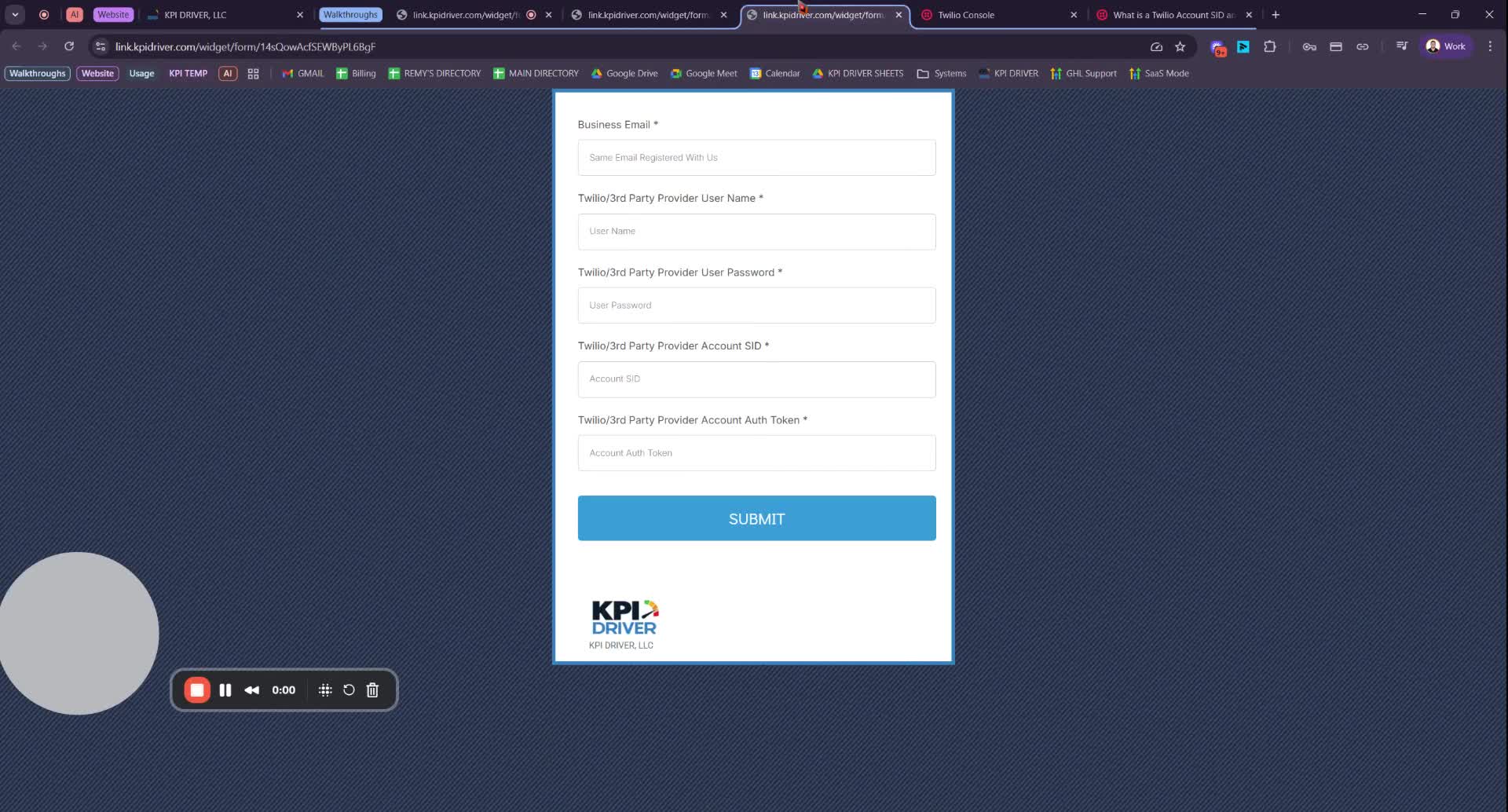
- If you selected 'Yes', fill out the following:
- Business email
- Username for Twilio or third-party platform
- User password
- Account SID
- Authorization token
Step 6: Locate Account SID and Authorization Token 4:04
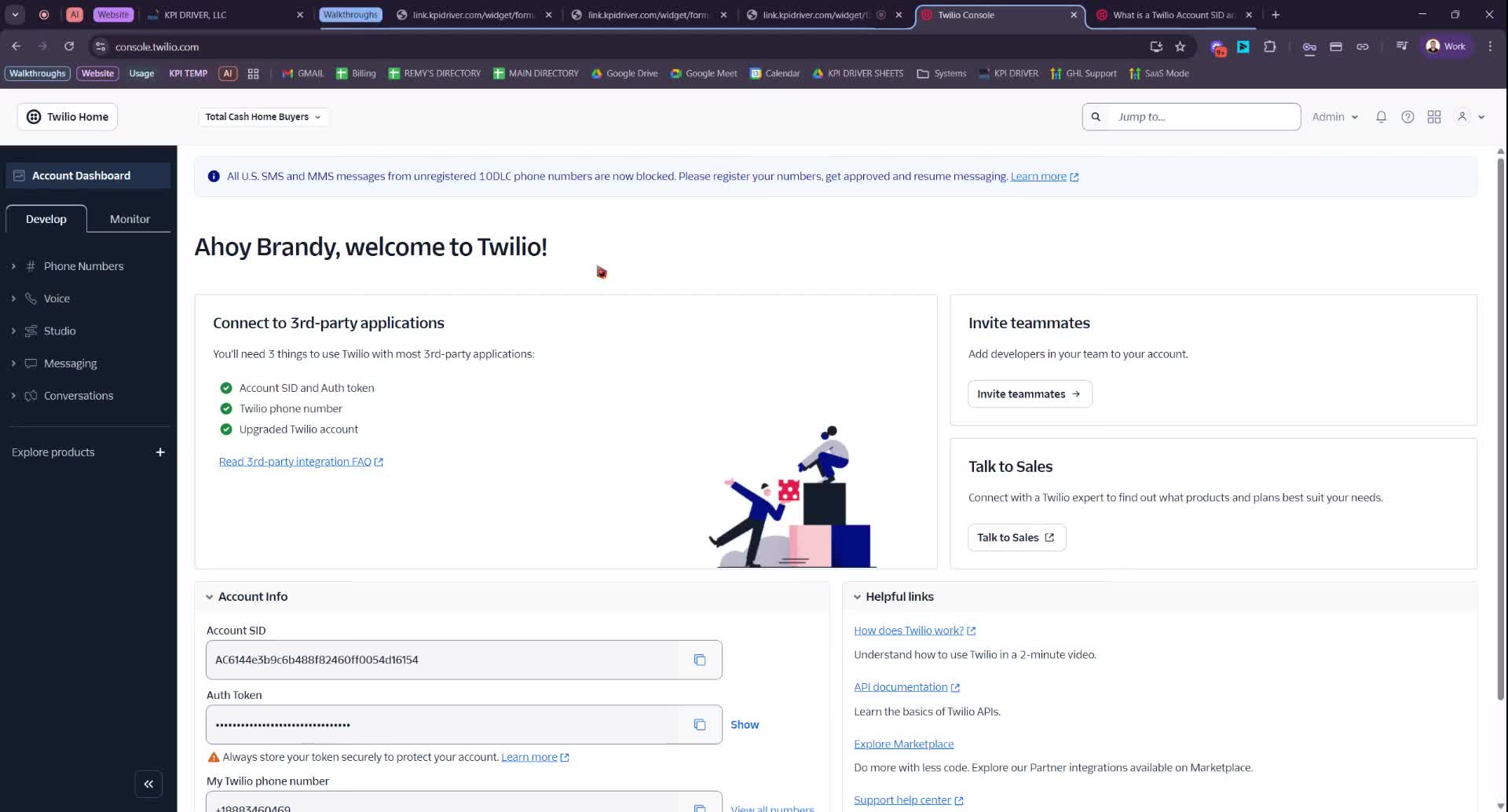
- Log into your Twilio console.
- View your main account or sub-accounts to find:
- Account SID
- Authorization token
- Copy and paste these into the form.
Step 7: Handling Multiple Subaccounts 4:39
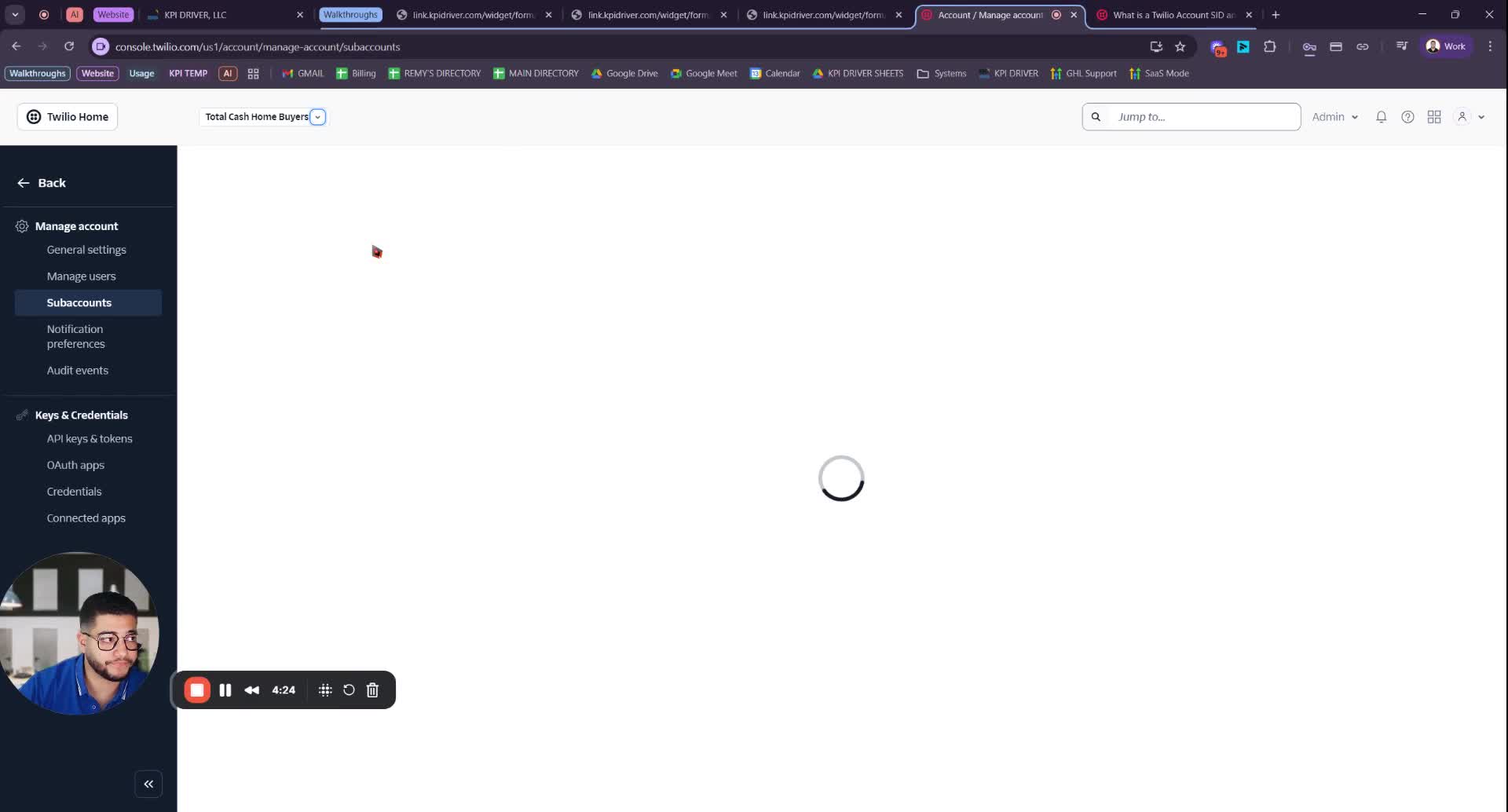
- If using a subaccount, select 'View Subaccounts'.
- Choose the relevant subaccount and copy the Account SID and Authorization token.
Step 8: Final Submission 5:31
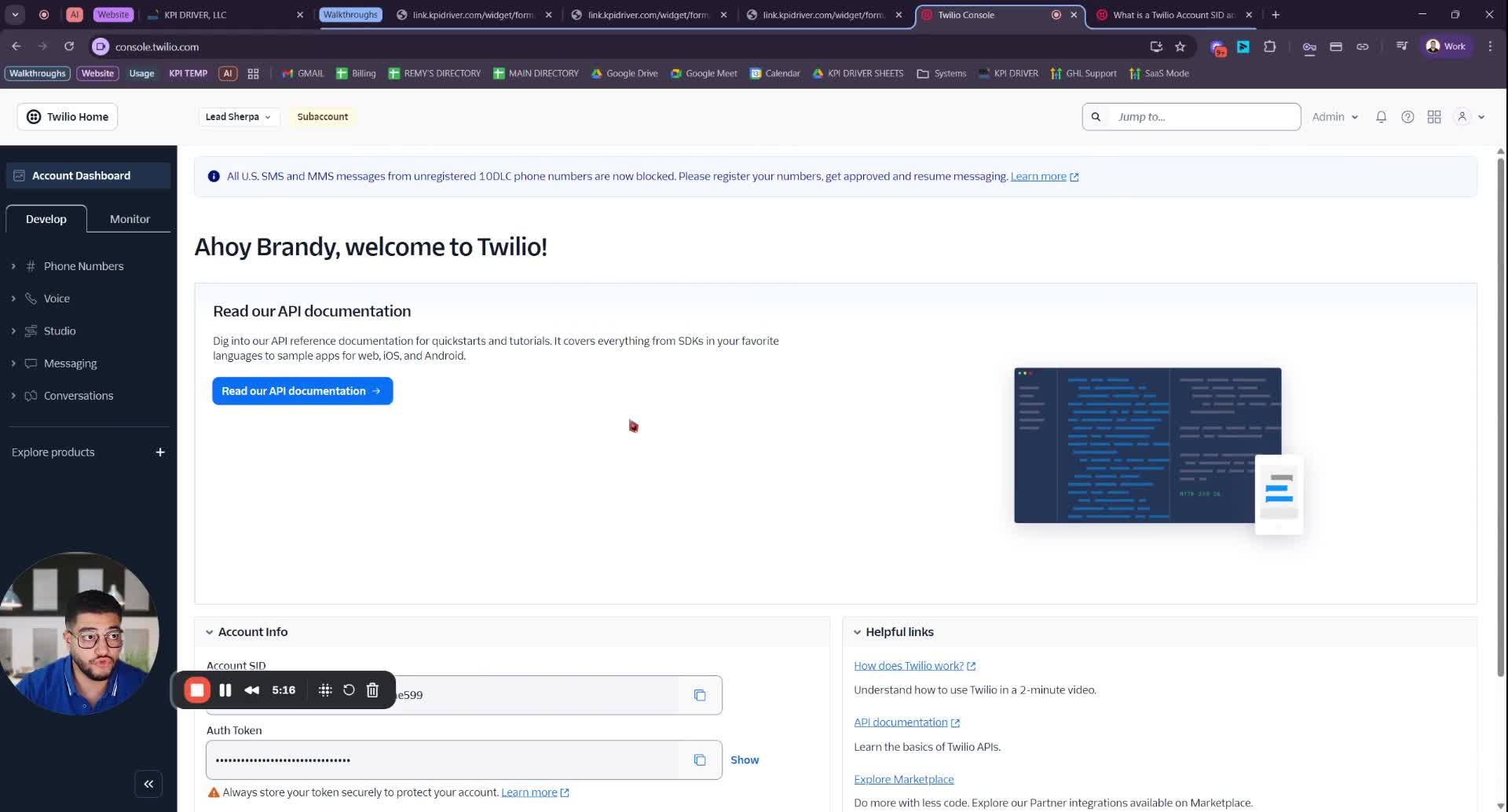
- If you cannot find the Account SID or Authorization token, fill in any placeholder information.
- Submit the form.
Cautionary Notes
- Ensure that your website has the required pages (privacy policy, terms and conditions, clear opt-in language) before submitting the A2P form.
- The card information provided will be stored for future transactions, so ensure it is accurate.
Tips for Efficiency
- Double-check all entries for accuracy before submitting the form.
- Keep your business information and documents handy to streamline the process.
Link to Loom
https://loom.com/share/b7e92b837f65452a9e5e48335ed5e183
Articles
Other Related Articles
FAQ
FAQ
What makes KPI DRIVER different from other real estate CRMs?
Do I need separate systems for document signatures, dispo, or rentals?
How long does it take to migrate my CRM to KPI DRIVER?
Will KPI DRIVER work if I’m new to real estate or don’t have a CRM yet?
Is the KPI Dashboard customizable?
How does KPI DRIVER help me scale my business?
Do you offer support or training?
How many leads, calls, and deals can KPI DRIVER handle?
How much does KPI DRIVER cost?

@KPI DRIVER LLC 2025. All Rights Reserved.
Design and developed by YAVACADO