
SMS & Email Snippets 📞 💬
In this video, I walk you through the concept of snippets, which are essential for streamlining our email and SMS communications. A snippet allows you to create ready-made templates that can be personalized with contact names and other details, saving you time on repetitive messages. I demonstrate how to create both text and email snippets, highlighting the importance of using custom values for personalization. I encourage you to utilize these snippets to enhance your communication efficiency and suggest naming them clearly to avoid confusion. Please take a moment to implement this in your workflow!
Creating and Using Snippets for Email and SMS Communication
Objective
This SOP outlines the steps to create and utilize snippets for efficient email and SMS communication, ensuring consistency and saving time in repetitive messaging tasks.
Key Steps
1. Understanding Snippets 0:23
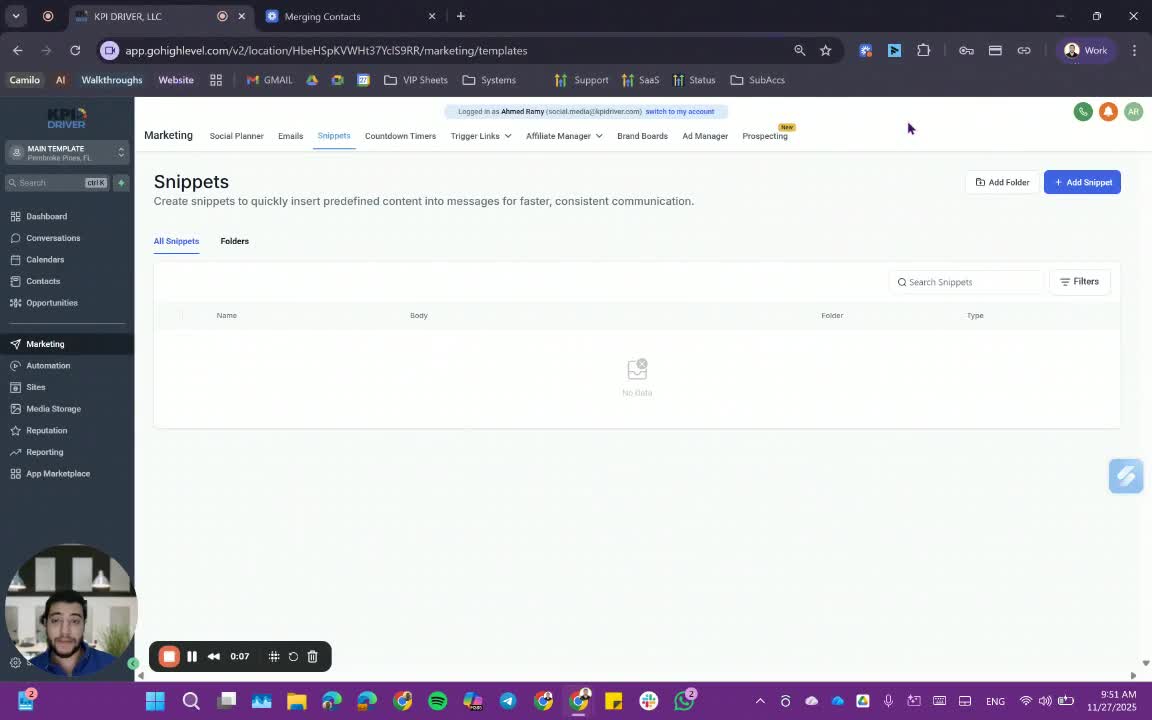
- A snippet is a pre-made template for messages that can be reused.
- It allows for personalization by changing contact names and other details without retyping the entire message.
2. Accessing Snippets 0:40
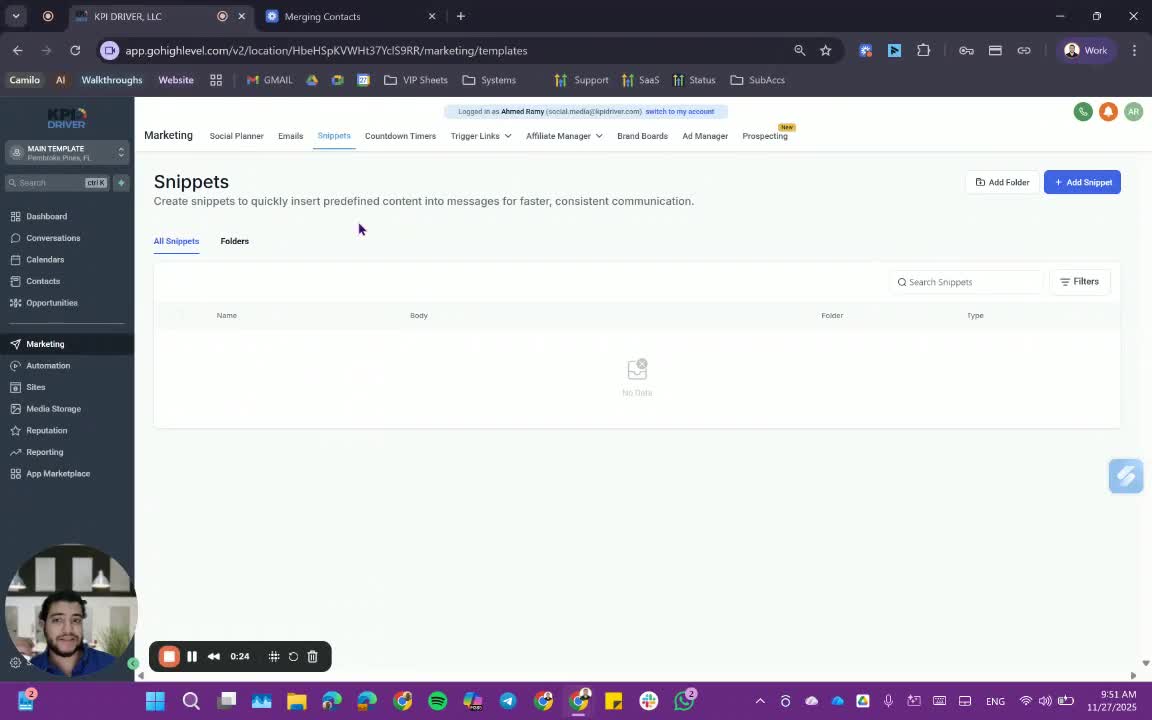
- Navigate to the Marketing section in your application.
- Click on 'Snippets' to view existing snippets or create a new one.
3. Creating a Text Snippet 0:56
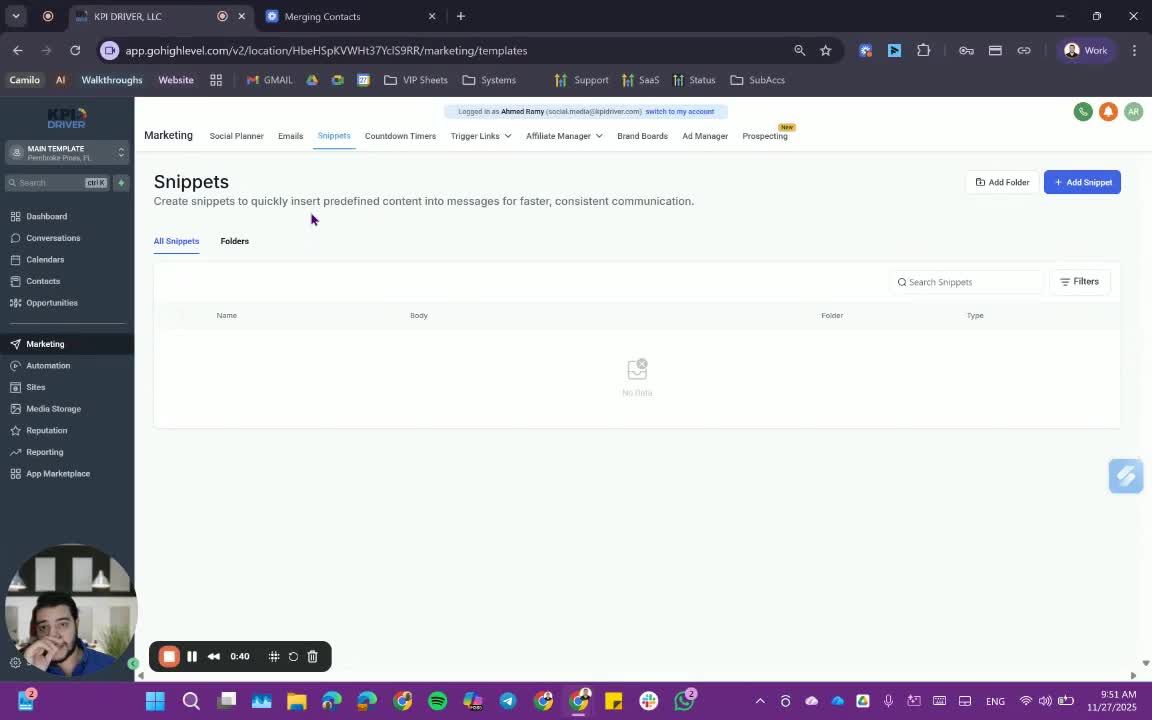
- Click on 'Add Snippet'.
- Choose 'Text Snippet'.
- Enter your message, using custom values for personalization (e.g., contact name, user name, company name).
- Example: 'Hey [Contact Name], this is [User Full Name] from [Company Name].'
- Test the snippet by sending it to see how it appears.
4. Adding Attachments to SMS Snippets 2:45
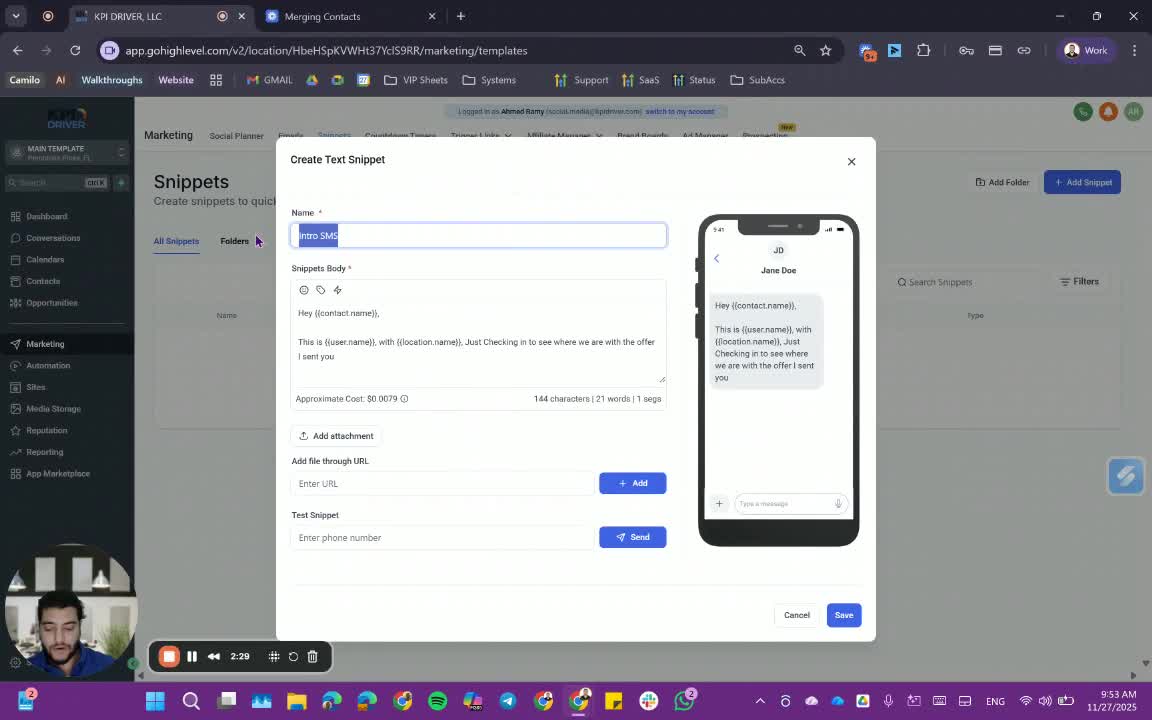
- If needed, add an attachment by including a URL in the snippet.
- Click 'Save' to store the snippet.
5. Creating an Email Snippet 3:04
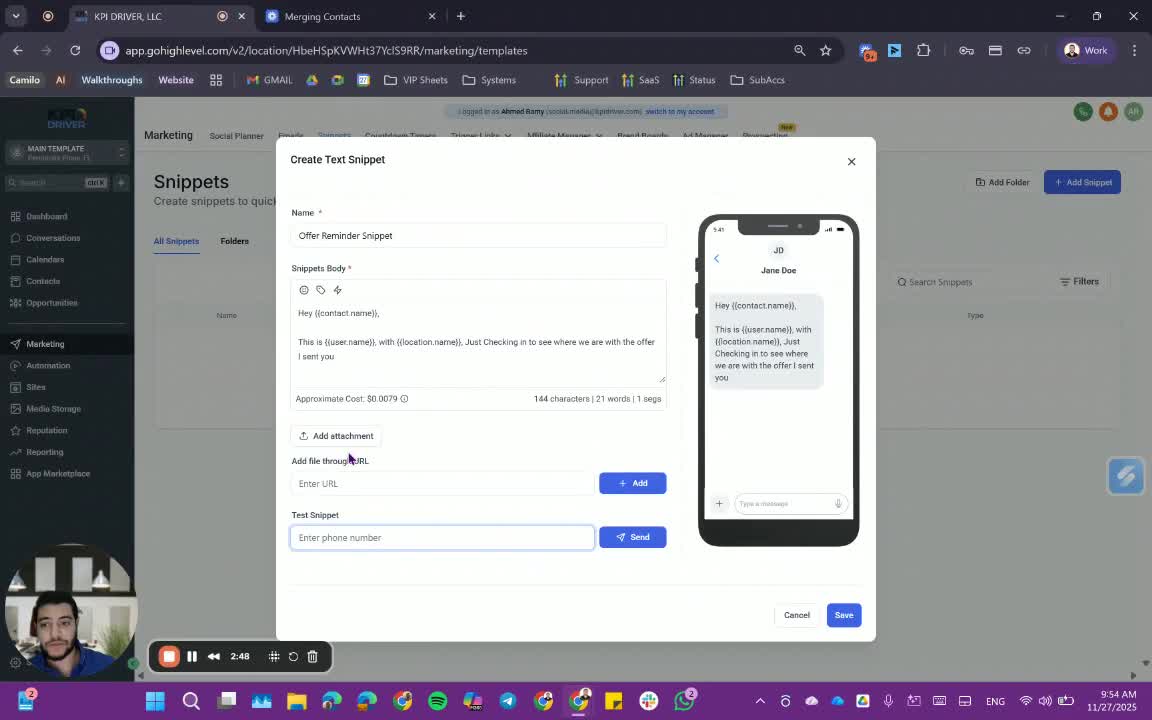
- Click on 'Add Snippet'.
- Choose 'Email Snippet'.
- Enter the subject line and body of the email, utilizing formatting options (bold, bullet points, emojis).
- Example: 'Subject: Offer Reminder' and body text with personalized fields.
6. Sending Test Snippets 4:09
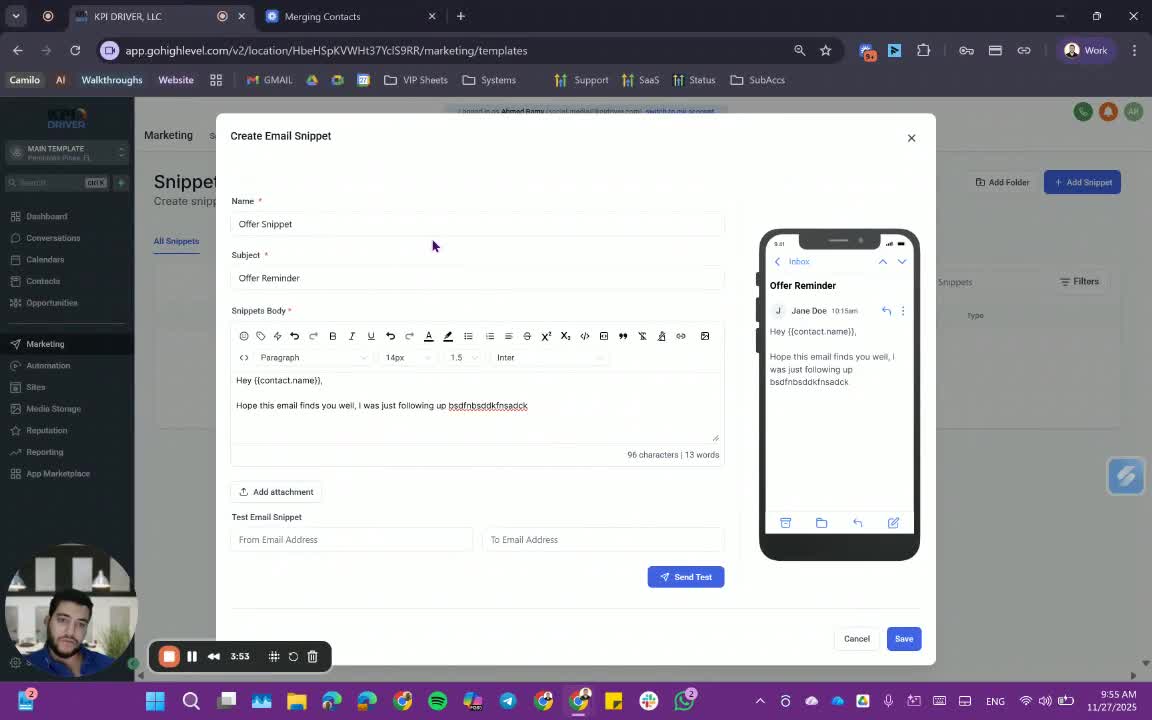
- Send a test email snippet to verify formatting and content.
- Input the sender and recipient email addresses.
7. Inserting Snippets into Messages 5:15
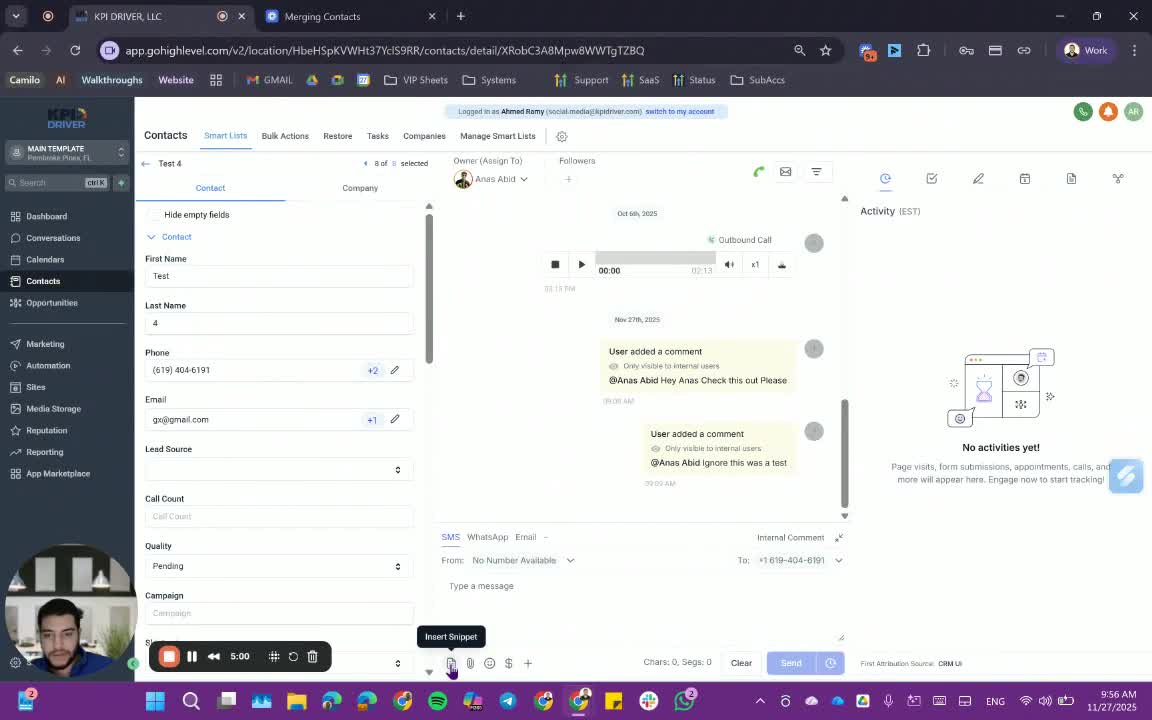
- When composing a message, click on 'Insert Snippet'.
- Select the appropriate snippet (SMS or Email) to insert it into your message.
8. Sending the Message 5:31
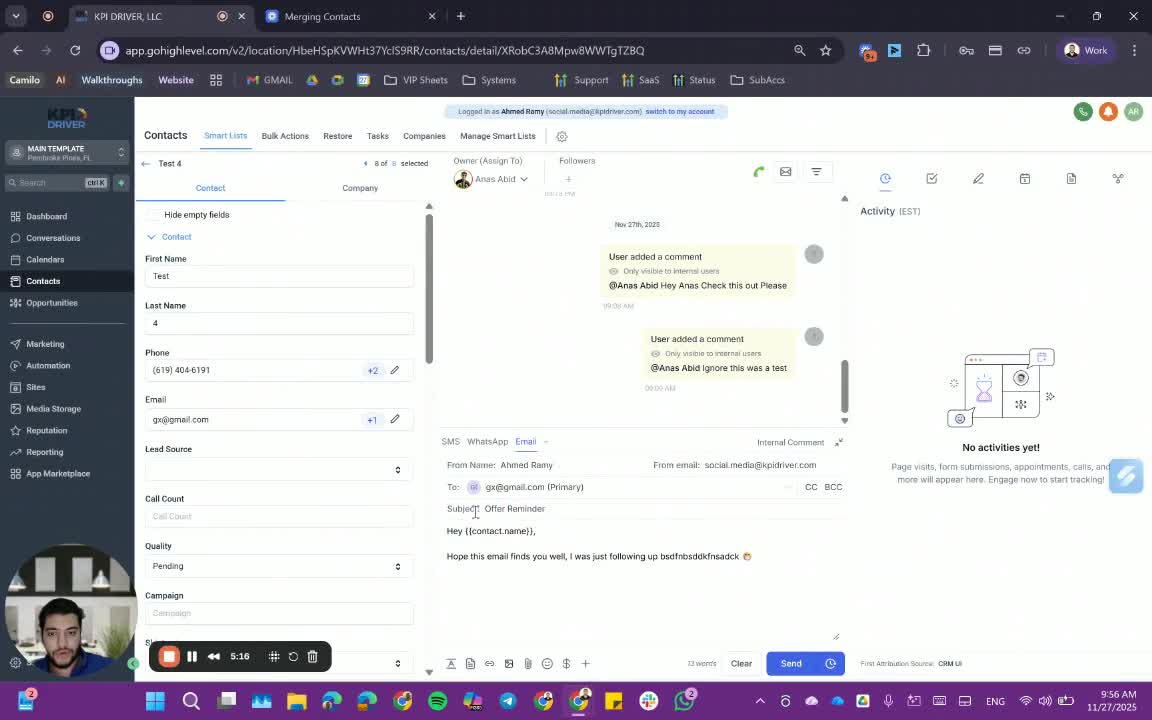
- Ensure the message is sent from the correct user account or phone number.
- Review the message for accuracy before sending.
Cautionary Notes
- Always double-check the contact names and details before sending to avoid errors.
- Be mindful of the tone and content of your snippets to ensure they align with your communication standards.
Tips for Efficiency
- Name your snippets clearly to avoid confusion when selecting them.
- Regularly review and update snippets to keep them relevant and effective.
- Use consistent formatting across snippets for a professional appearance.
Link to Loom
https://loom.com/share/7cf09478dd4a409d99d9032326b5c6b5
Articles
Other Related Articles
FAQ
FAQ
What makes KPI DRIVER different from other real estate CRMs?
Do I need separate systems for document signatures, dispo, or rentals?
How long does it take to migrate my CRM to KPI DRIVER?
Will KPI DRIVER work if I’m new to real estate or don’t have a CRM yet?
Is the KPI Dashboard customizable?
How does KPI DRIVER help me scale my business?
Do you offer support or training?
How many leads, calls, and deals can KPI DRIVER handle?
How much does KPI DRIVER cost?

@KPI DRIVER LLC 2025. All Rights Reserved.
Design and developed by YAVACADO