
Bulk SMS & Emails 📞 💬
In this video, I demonstrate a cool trick for sending bulk SMS effectively, which is crucial for anyone looking to reach out to a specific customer base. I walk you through the process of creating smart lists to filter contacts, ensuring that your messages reach the right buyers for a particular property. I emphasize the importance of sending messages in drip mode to avoid being flagged, recommending a batch size of five messages every five minutes. I also highlight the need for consent from contacts to prevent any legal issues. Please make sure to follow these steps carefully to maximize your outreach efforts.
Bulk SMS and Email Sending Procedure
Objective
This SOP outlines the steps to effectively send bulk SMS and emails to targeted contacts using smart lists, ensuring compliance and efficiency.
Key Steps
1. Create Smart Lists 0:15
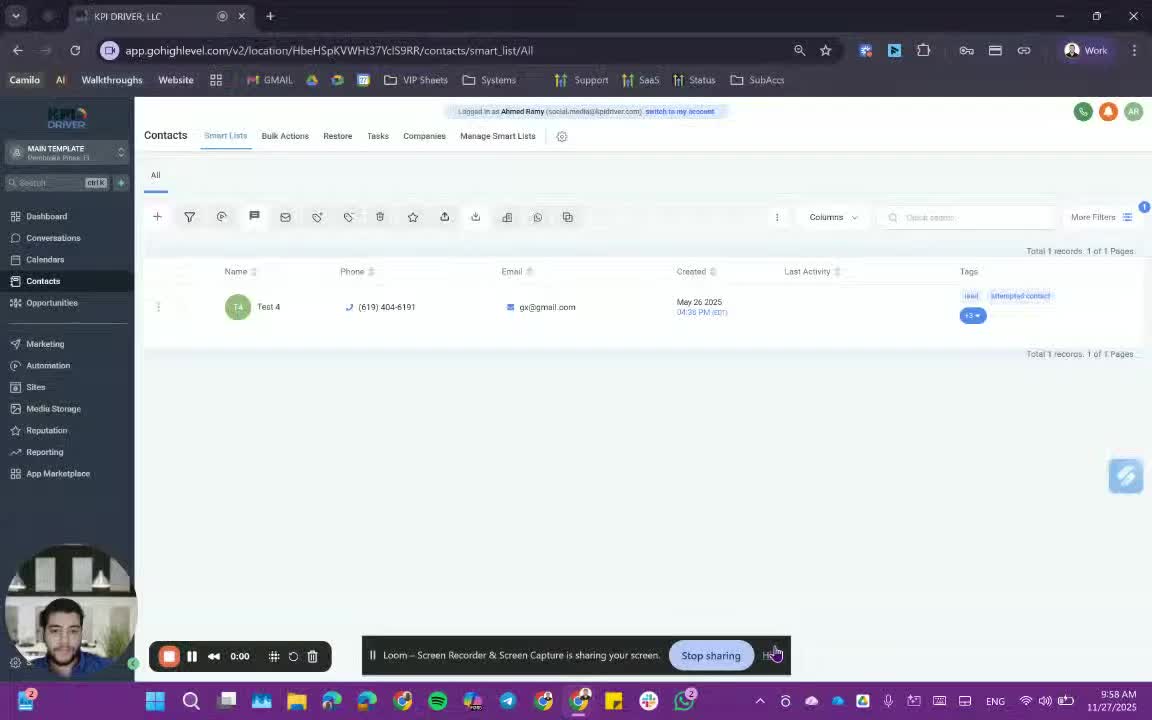
- Refer to the smart list usage video to understand how to create smart lists based on your customer base.
- Use filters to narrow down contacts to those who are relevant for your message.
2. Select Contacts 1:46
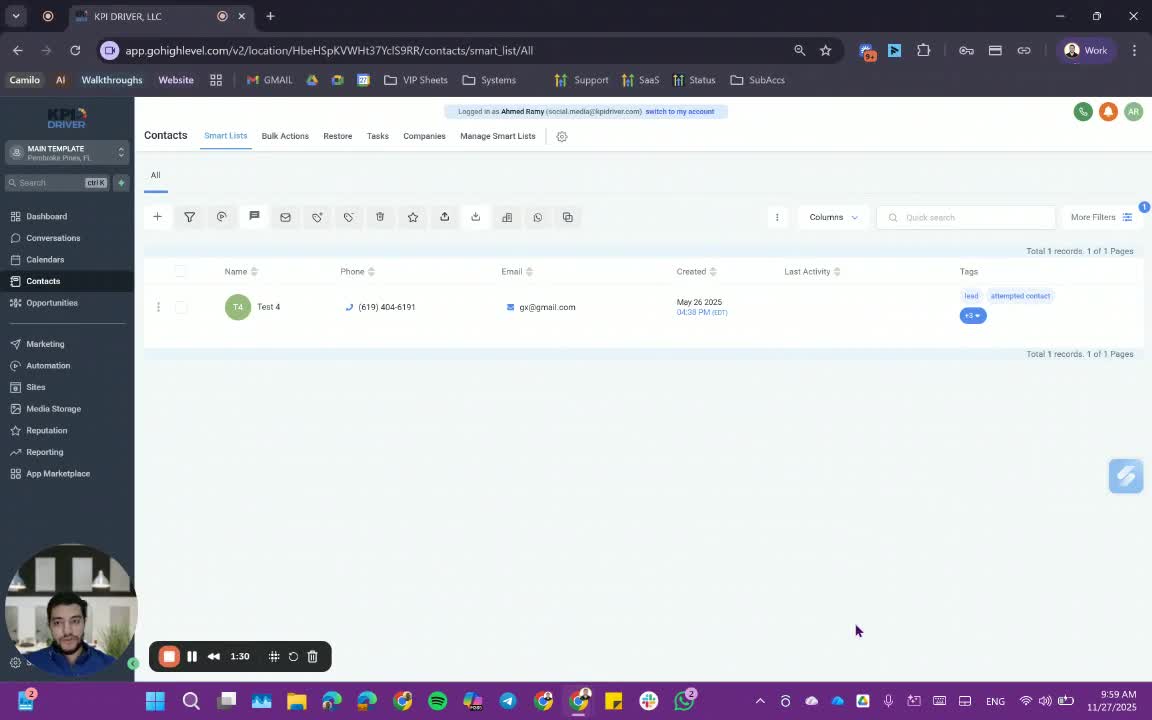
- Highlight all contacts you wish to send messages to (e.g., 1,000 contacts).
- Ensure you select 'Send SMS' or 'Send Email' based on your communication preference.
3. Prepare SMS Content 2:03
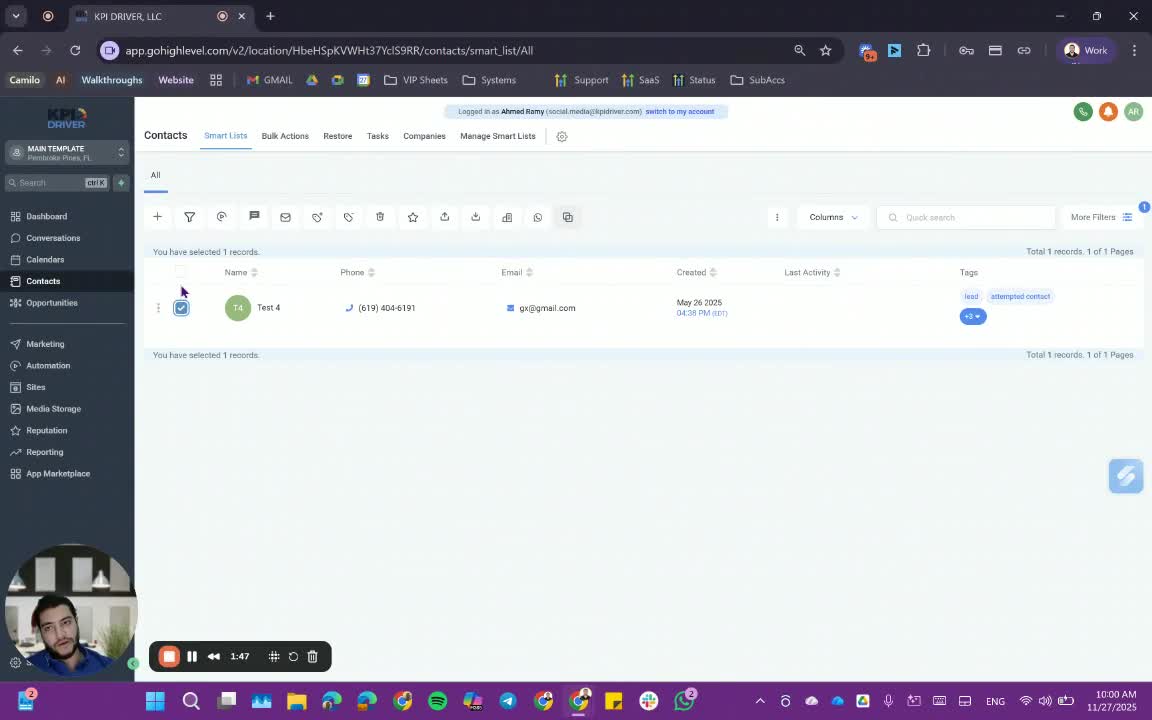
- Choose the phone number from which the SMS will be sent.
- Use snippets or type your message from scratch.
- Include any custom fields or emojis as needed.
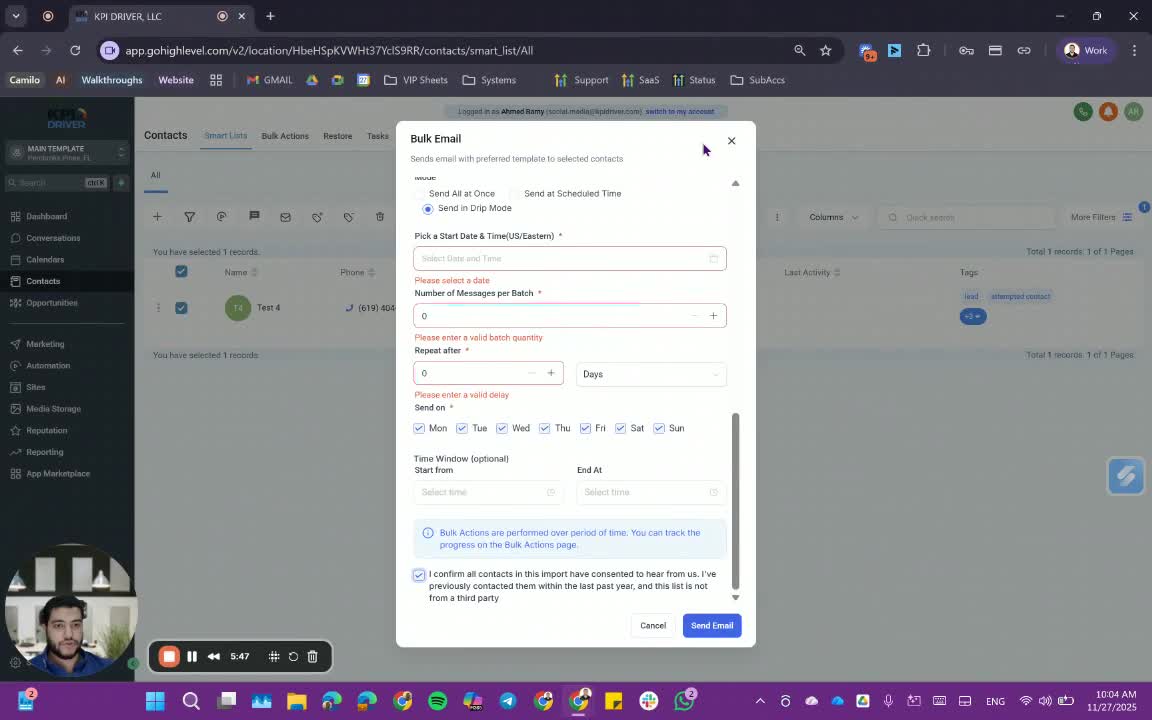
4. Set Drip Mode 3:01
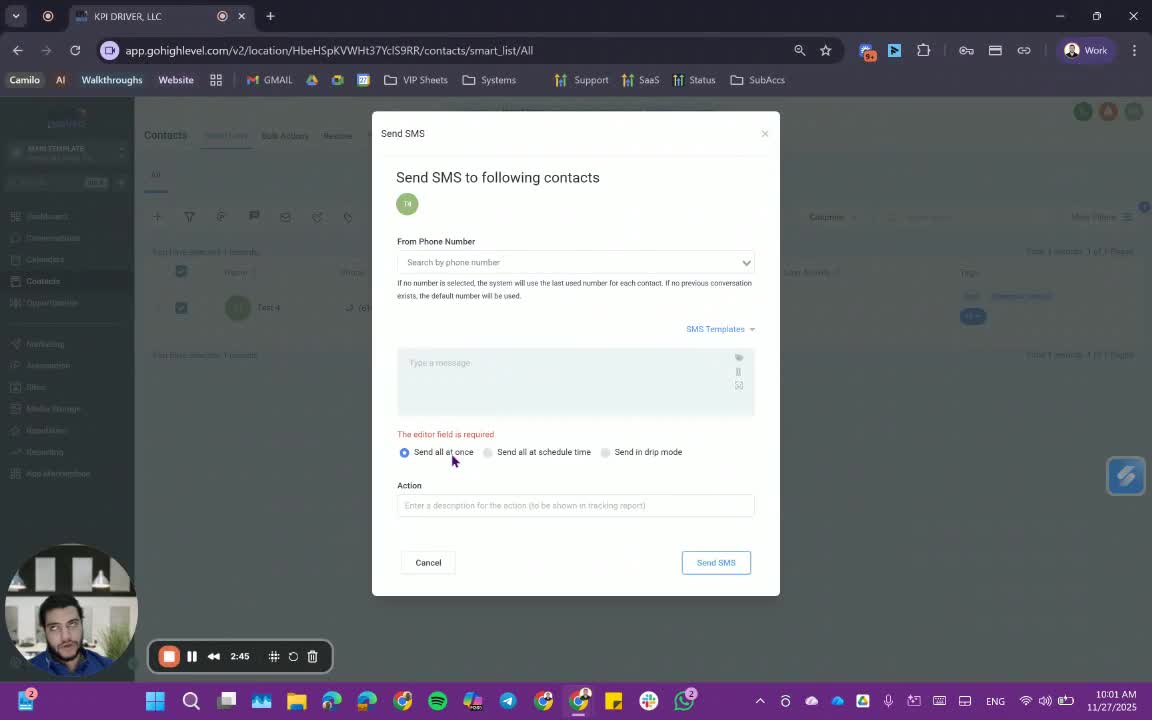
- Name your action (e.g., 'Bulk SMS on [Date]').
- Schedule the start time (e.g., next Monday at 9 AM Eastern Time).
- Set batch quantity (recommended: 5 messages at a time).
- Define the repeat interval (e.g., every 5 minutes).
5. Define Sending Hours 4:15
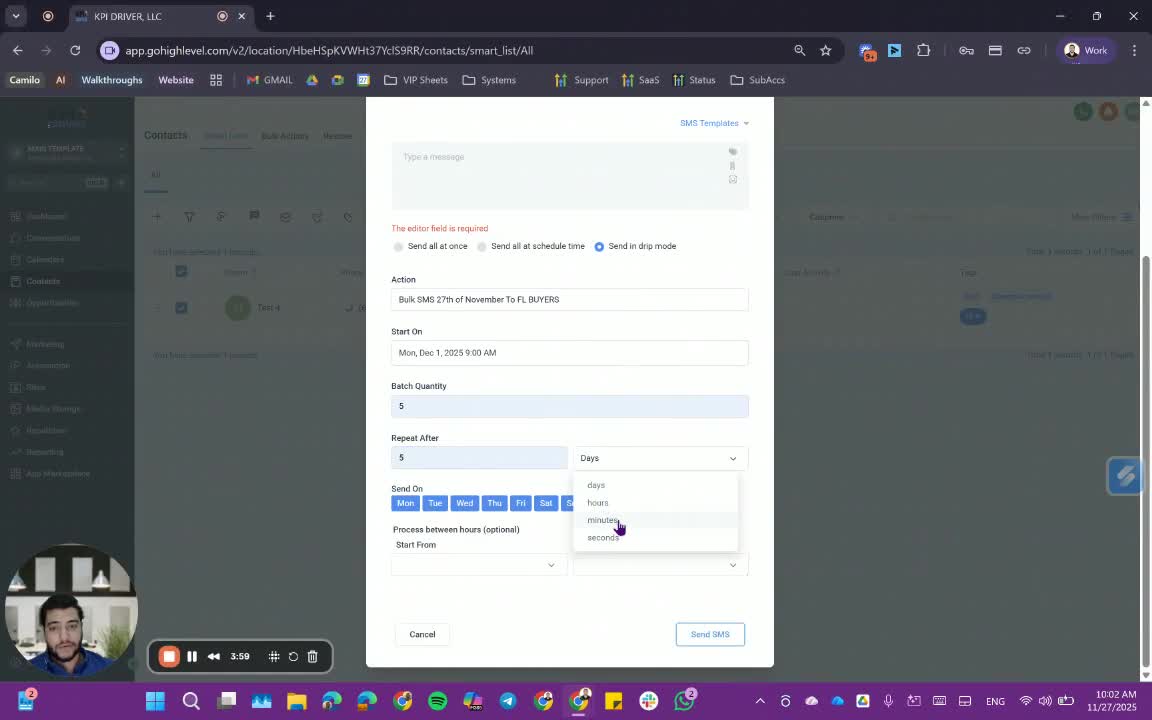
- Set the start time (e.g., 9 AM) and end time (e.g., 7 PM) for sending messages.
- Avoid sending messages after 8 PM to allow for responses.
6. Send SMS 4:53
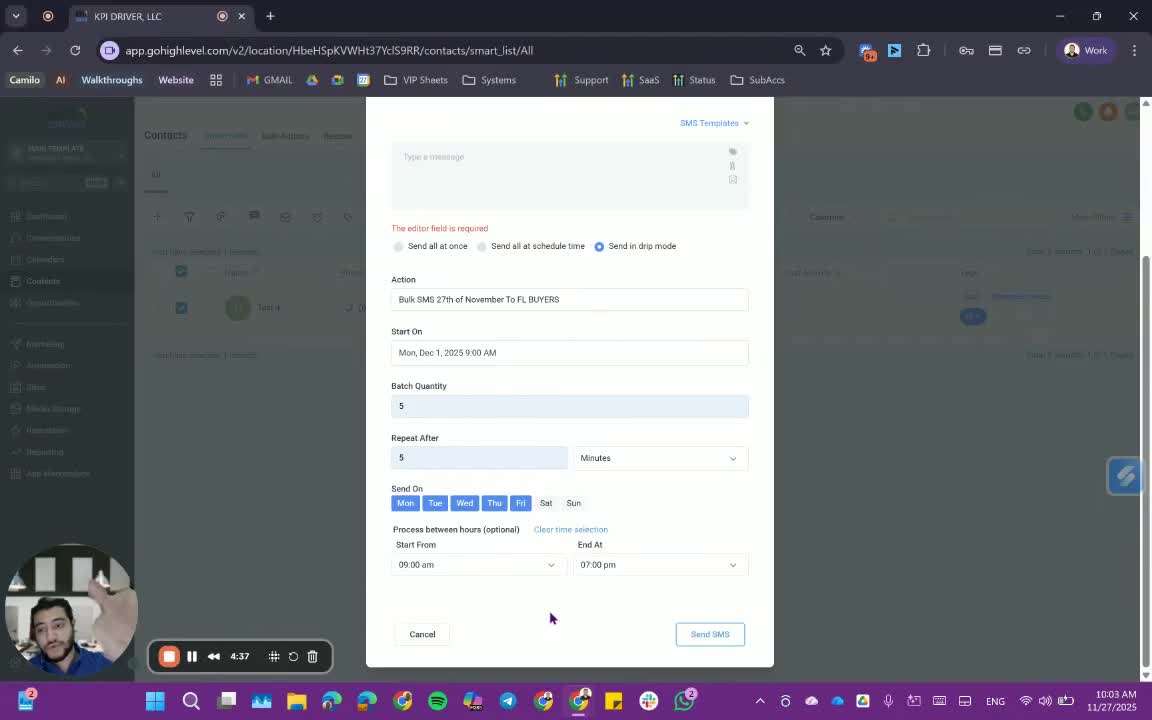
- Click 'Send SMS' to initiate the process.
7. Prepare Email Content 5:09
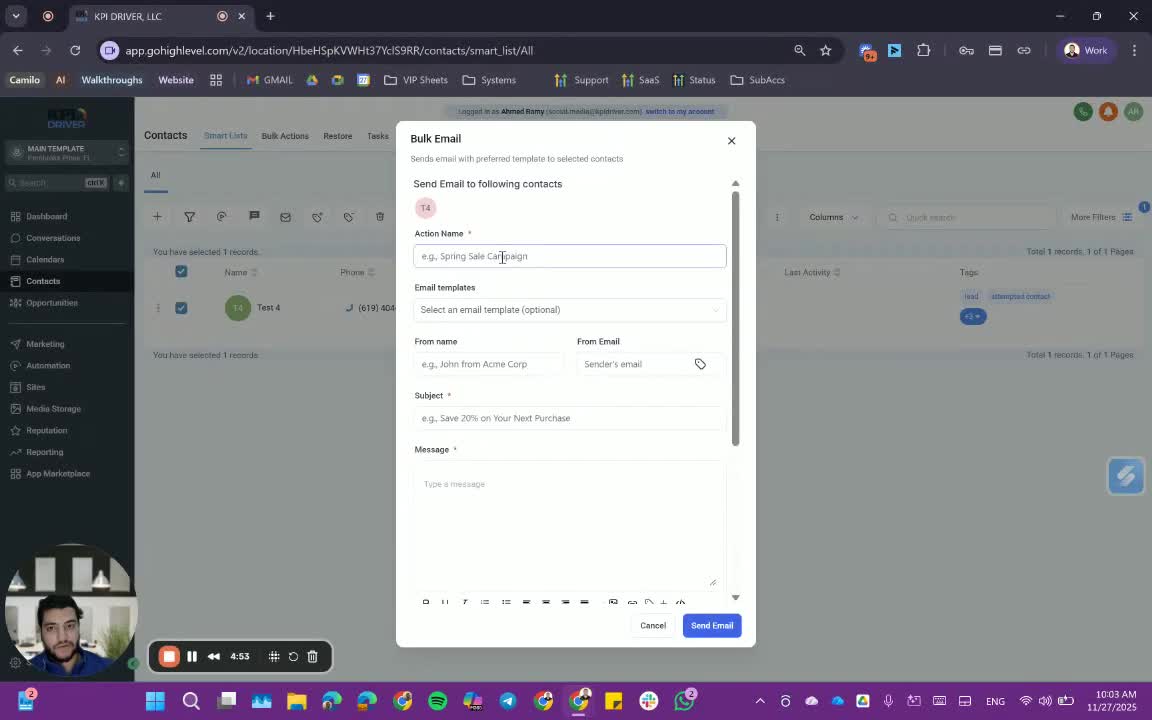
- Choose the email sender name and email address.
- Set the subject and message content.
- Attach any necessary files.
8. Confirm Consent 5:29
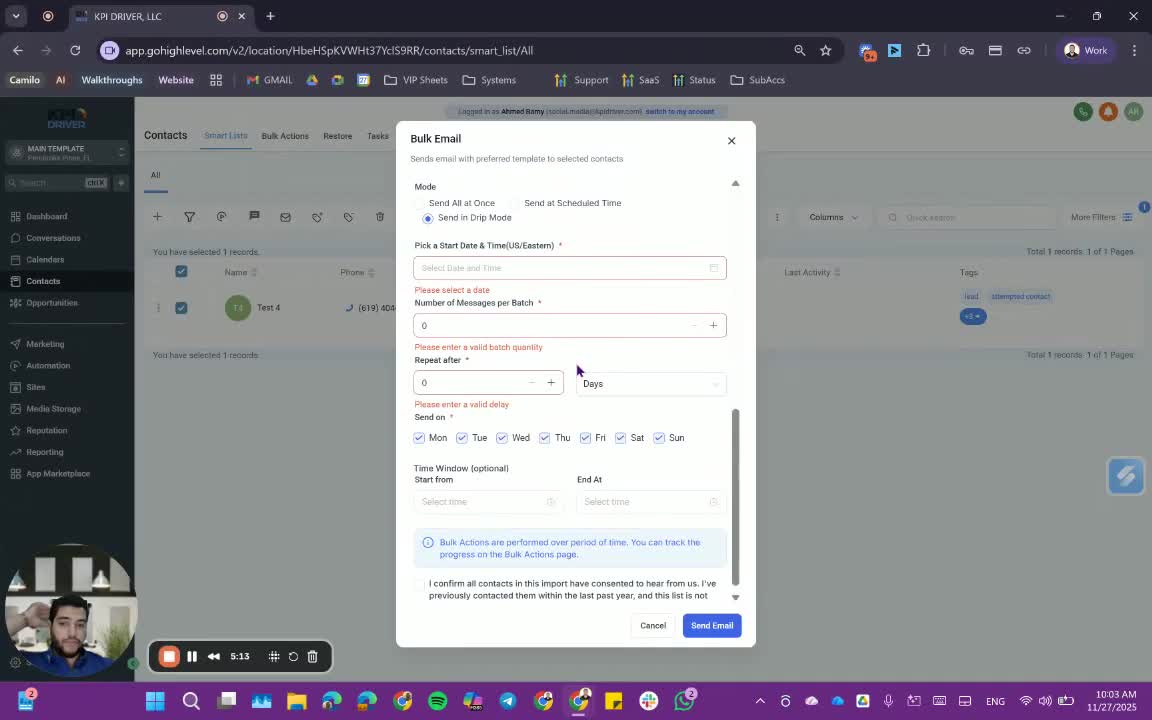
- Ensure that all contacts have opted in to receive messages to avoid legal issues.
9. Monitor Sending Status 6:03
- Review the bulk actions to check the status of sent messages (e.g., sent, delivered, undelivered).
- Understand the different statuses: processing, complete, paused, canceled, queued.
Cautionary Notes
- Never send all messages at once unless the recipient count is very low (5-15).
- Always use drip mode to avoid being flagged as spam.
Tips for Efficiency
- Batch sending: Limit to 5 messages at a time to reduce the risk of being flagged.
- Schedule wisely: Choose optimal sending times to increase engagement and response rates.
- Track performance: Regularly review sending statistics to improve future campaigns.
Link to Loom
https://loom.com/share/8984e03c54ea4cdb993774d98b333524
Articles
Other Related Articles
FAQ
FAQ
What makes KPI DRIVER different from other real estate CRMs?
Do I need separate systems for document signatures, dispo, or rentals?
How long does it take to migrate my CRM to KPI DRIVER?
Will KPI DRIVER work if I’m new to real estate or don’t have a CRM yet?
Is the KPI Dashboard customizable?
How does KPI DRIVER help me scale my business?
Do you offer support or training?
How many leads, calls, and deals can KPI DRIVER handle?
How much does KPI DRIVER cost?

@KPI DRIVER LLC 2025. All Rights Reserved.
Design and developed by YAVACADO