
Merging Contacts 👥 📂
In this video, I cover the important process of merging contacts, which is essential when you have multiple numbers for the same person. I explain how to select the main contact first, followed by the extra contact, and then simply click on merge contacts. Remember, you can merge up to 10 contacts at once, and the master contact retains all existing information while adding new details. I also highlight that once you merge contacts, it cannot be undone, so it’s crucial to do it correctly. Make sure to follow these steps to keep your contact list organized and efficient!
Standard Operating Procedure for Merging Contacts
Objective
This SOP outlines the steps to merge contacts in the system to ensure all relevant information is consolidated into a single contact record.
Key Steps
Step 1: Identify Main Contact 0:54
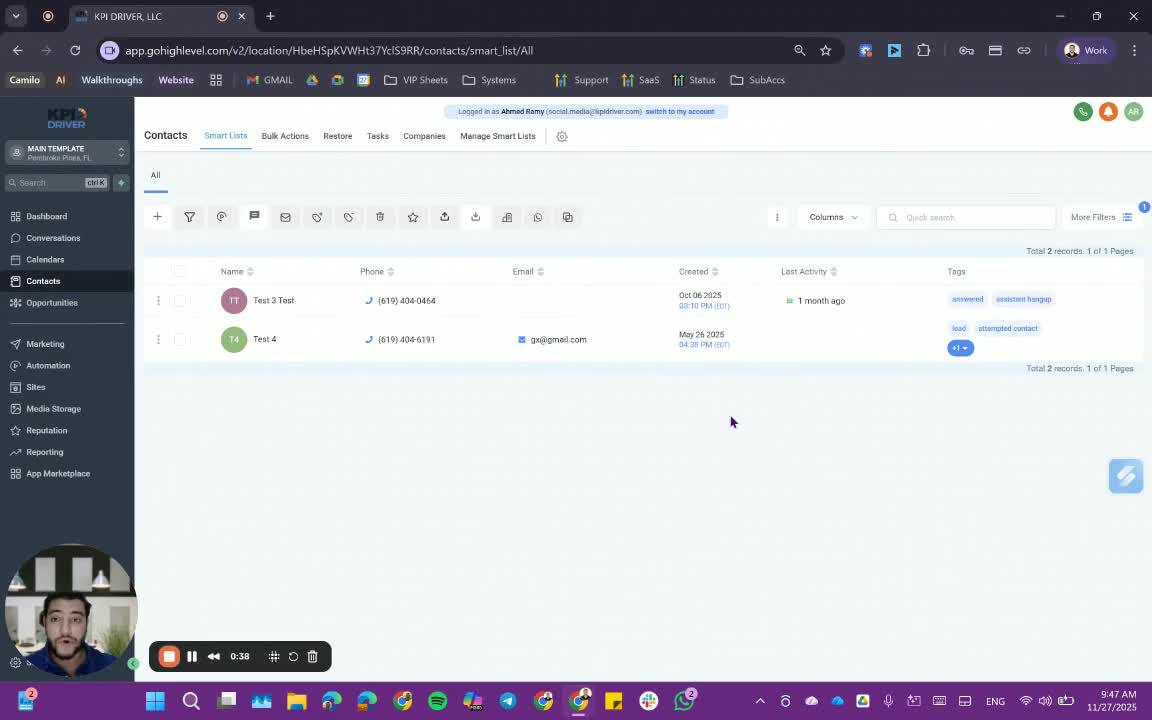
- Check the main contact that you want to retain.
- Ensure this contact has the most important information.
Step 2: Select Additional Contacts 1:04
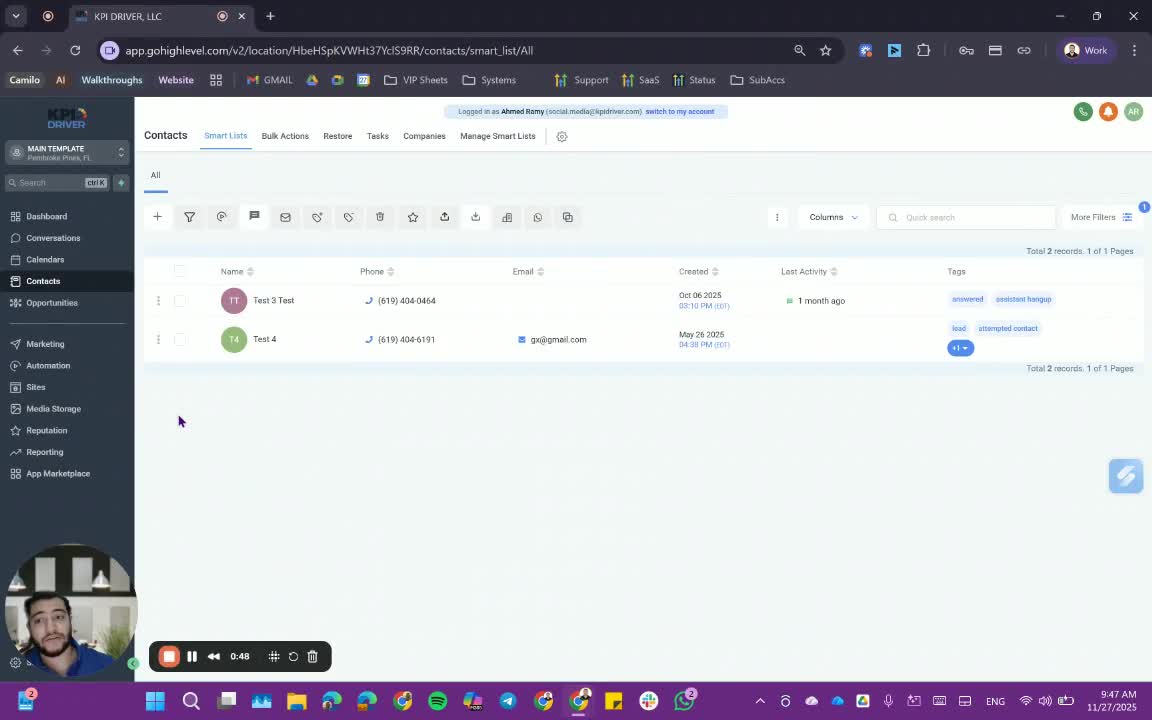
- Select the additional contact(s) you want to merge with the main contact.
- You can merge up to 10 contacts at a time.
Step 3: Merge Contacts 1:15
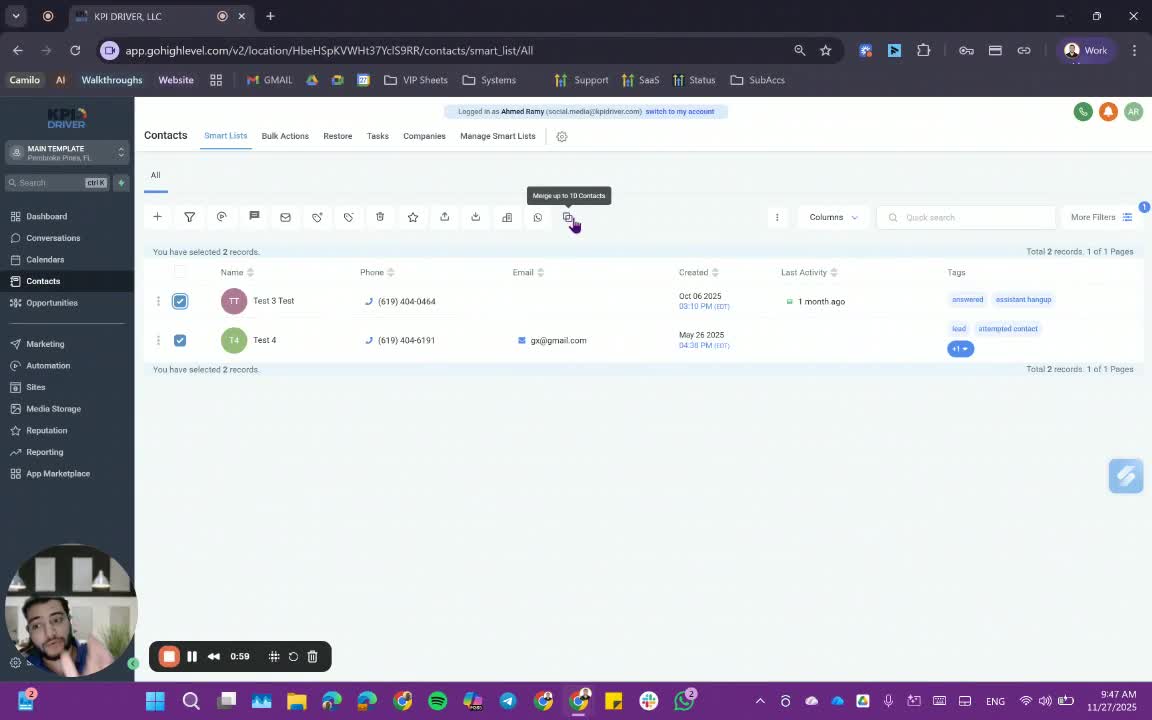
- Click on the 'Merge Contacts' button.
- The main contact will automatically be set as the master contact.
Step 4: Review Merged Information 1:31
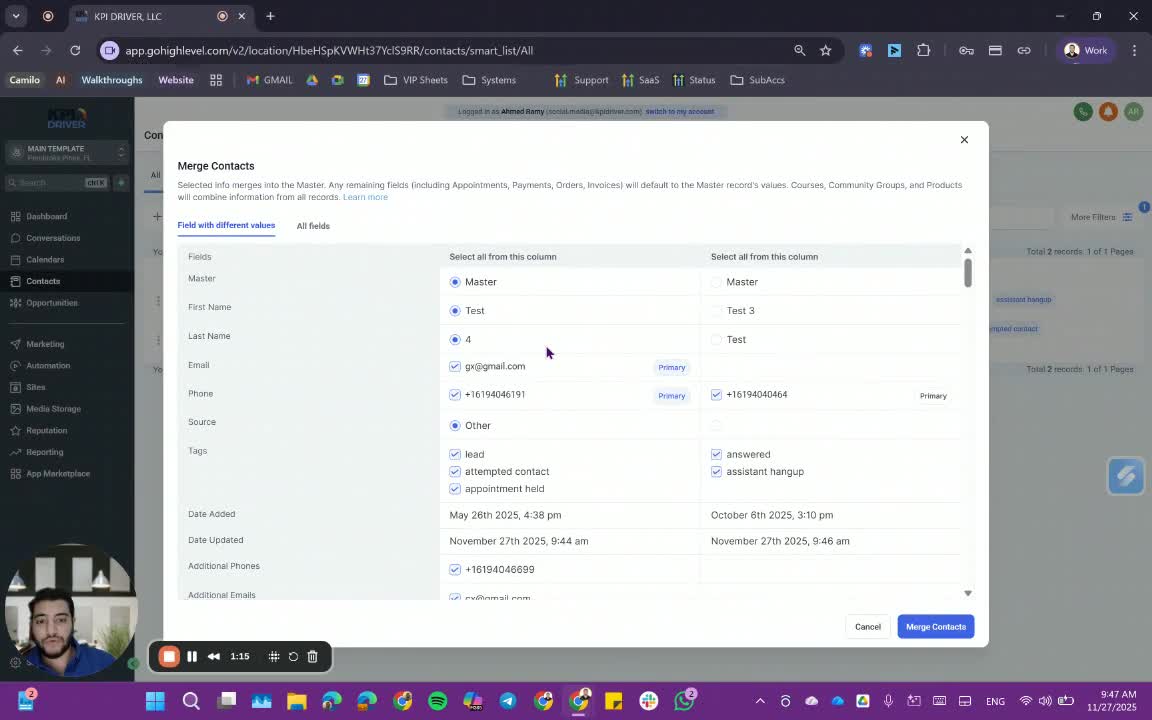
- Confirm that the master contact retains all existing information.
- New information from the additional contact(s) will be added without replacing existing data.
Step 5: Finalize Merge 2:54
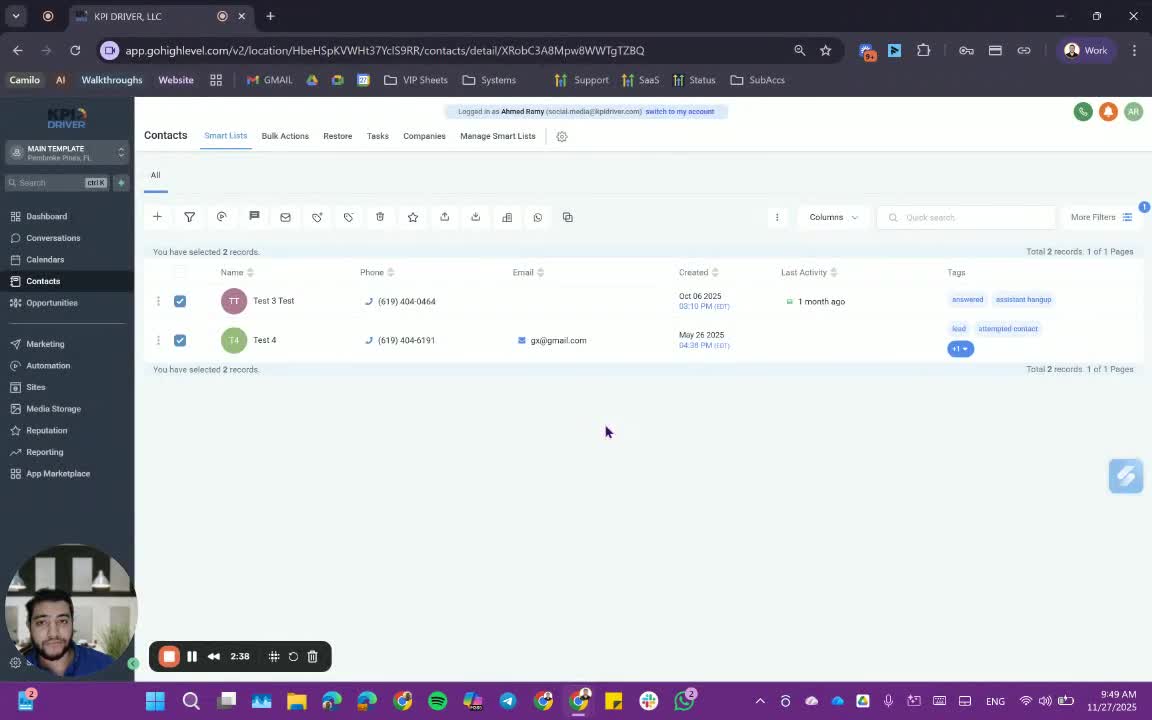
- Click on 'Merge Contacts' to finalize the process.
- Verify that the contact now has all relevant numbers, notes, and tags.
Cautionary Notes
- Merging contacts cannot be undone, so ensure you have selected the correct main contact before proceeding.
- Double-check all information to avoid losing important data.
Tips for Efficiency
- Always keep your contacts organized to minimize the need for merging.
- Regularly review and update contact information to prevent duplicates.
Link to Loom
https://loom.com/share/03e80b22ac3343f7ab9b790acdb1f608
Articles
Other Related Articles
FAQ
FAQ
What makes KPI DRIVER different from other real estate CRMs?
Do I need separate systems for document signatures, dispo, or rentals?
How long does it take to migrate my CRM to KPI DRIVER?
Will KPI DRIVER work if I’m new to real estate or don’t have a CRM yet?
Is the KPI Dashboard customizable?
How does KPI DRIVER help me scale my business?
Do you offer support or training?
How many leads, calls, and deals can KPI DRIVER handle?
How much does KPI DRIVER cost?

@KPI DRIVER LLC 2025. All Rights Reserved.
Design and developed by YAVACADO