
Contacts Overview 👥 📂
In this video, I walk you through the key features of our contact management system, focusing on custom fields, tags, and automations. I demonstrate how to access and interpret the contact details, including DND status and communication history, which is crucial for managing leads effectively. I also highlight the importance of tasks and notes, as well as how to handle appointments. Please pay attention to the DND feature, as it prevents sending messages to contacts who have opted out. Make sure to familiarize yourself with these functionalities to enhance your workflow.
Contact Management SOP
Objective
This SOP outlines the steps for managing contacts within the system, ensuring that team members can effectively navigate and utilize contact information and features.
Key Steps
1. Overview of Contact Fields 0:29

- Familiarize yourself with the contact fields on the left side:
- First Name
- Last Name
- Phone
- E-tools
- Custom fields
2. Understanding Tags and Automations 0:50
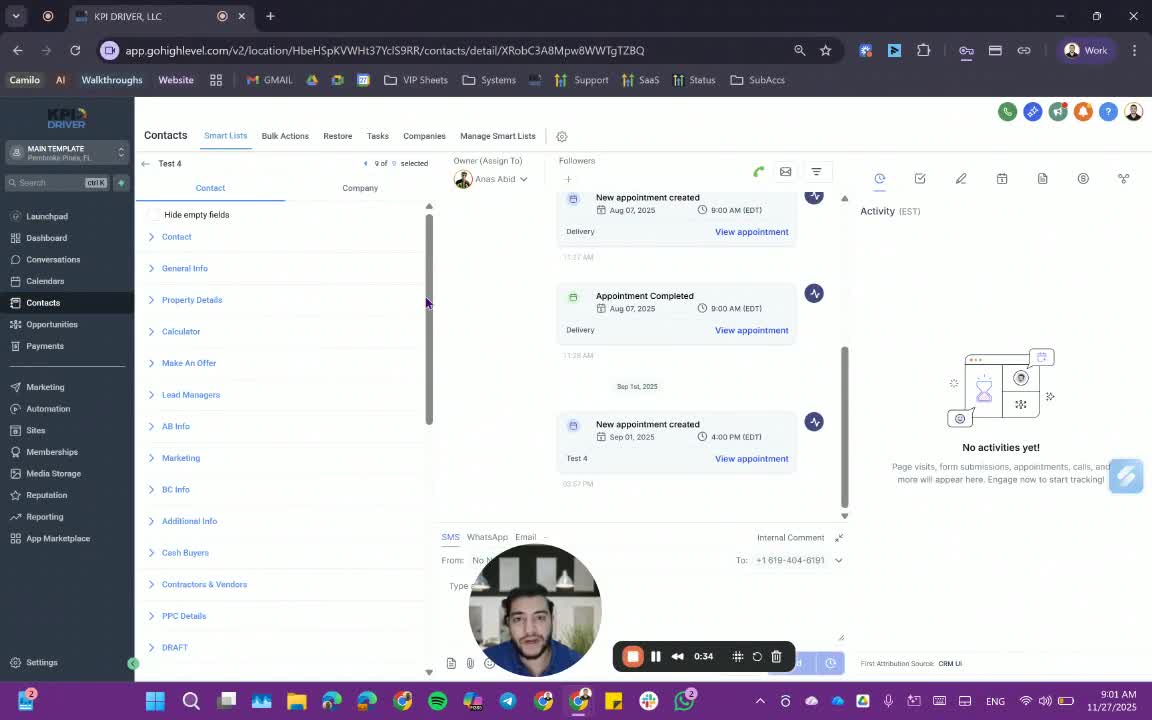
- Review the tags associated with the contact, as they are crucial for tracking.
- Check the active and completed automations related to the contact.
3. Reviewing Contact Opportunities 1:27
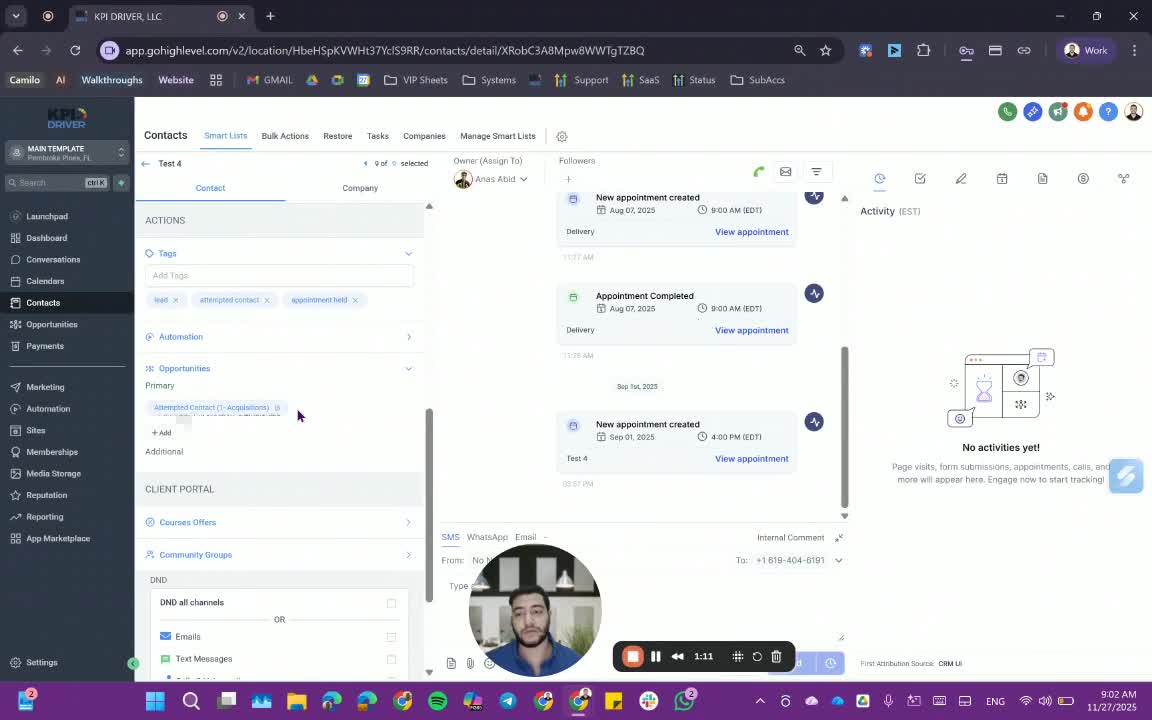
- Identify the number of opportunities associated with the contact:
- Typically, there is one opportunity (80-85% of the time).
- If the contact is moving towards closing, multiple opportunities may be present.
4. Checking D&D Status 1:39
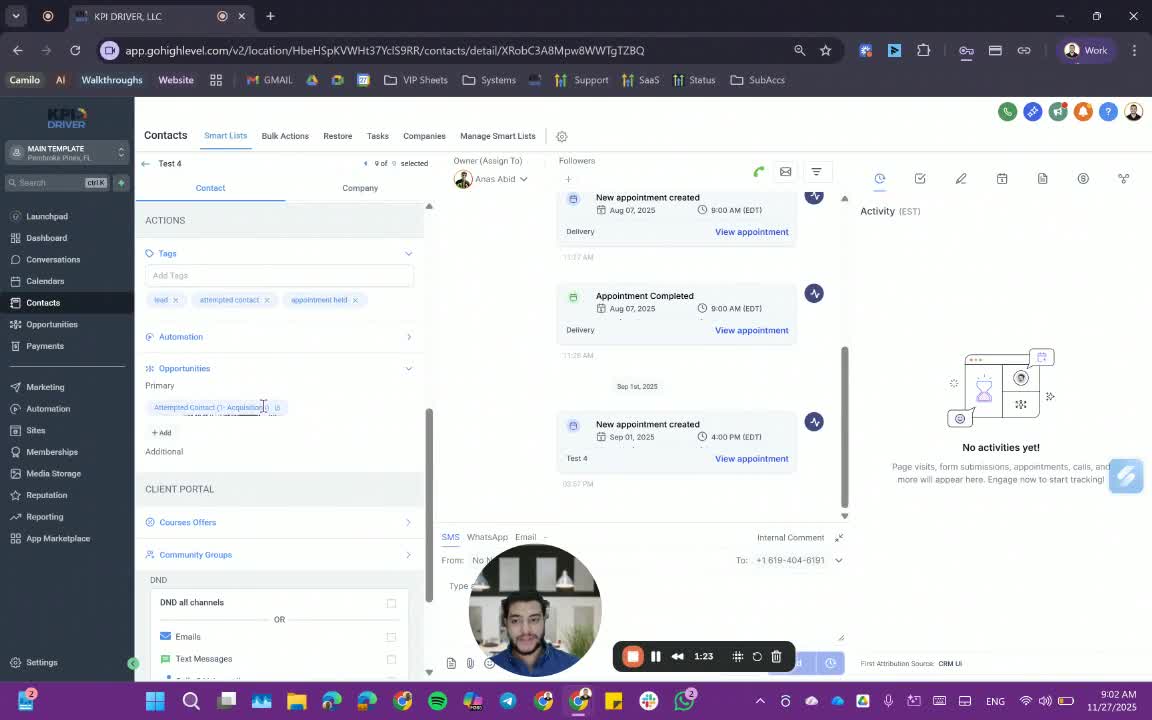
- Verify the Do Not Disturb (D&D) status of the contact to understand communication limitations.
5. Accessing Contact History 2:04
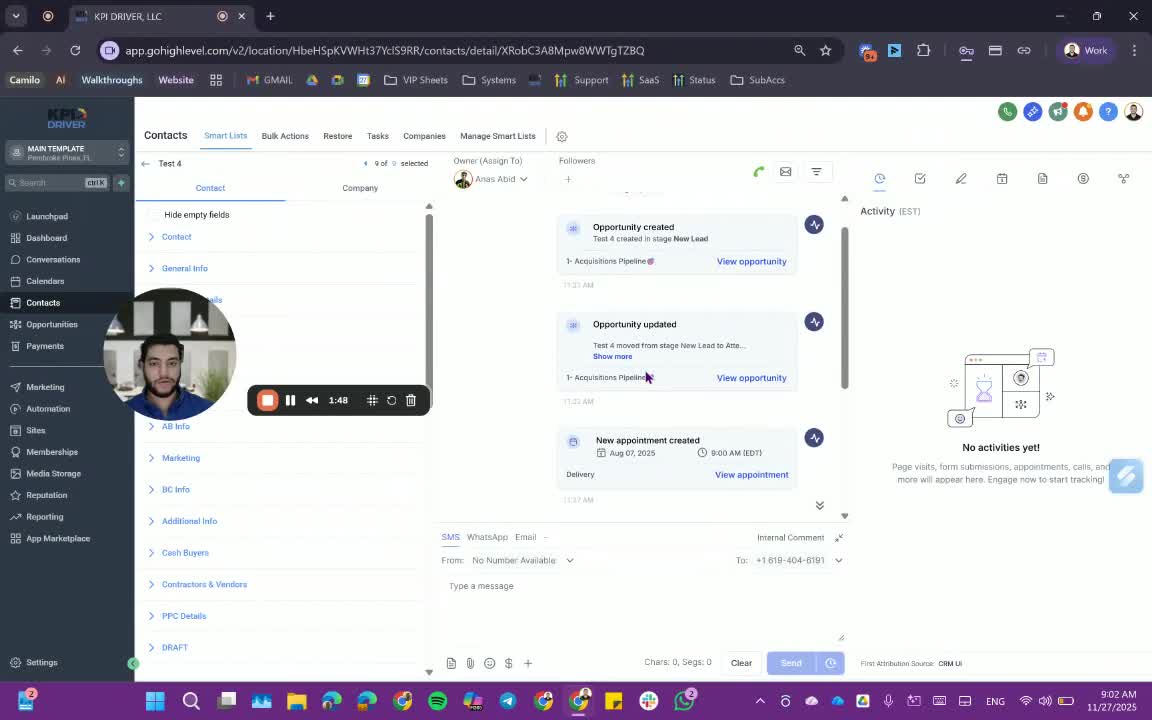
- Review the history section for:
- Calls made to the contact
- Text messages sent and received
6. Sending SMS and Making Calls 3:00
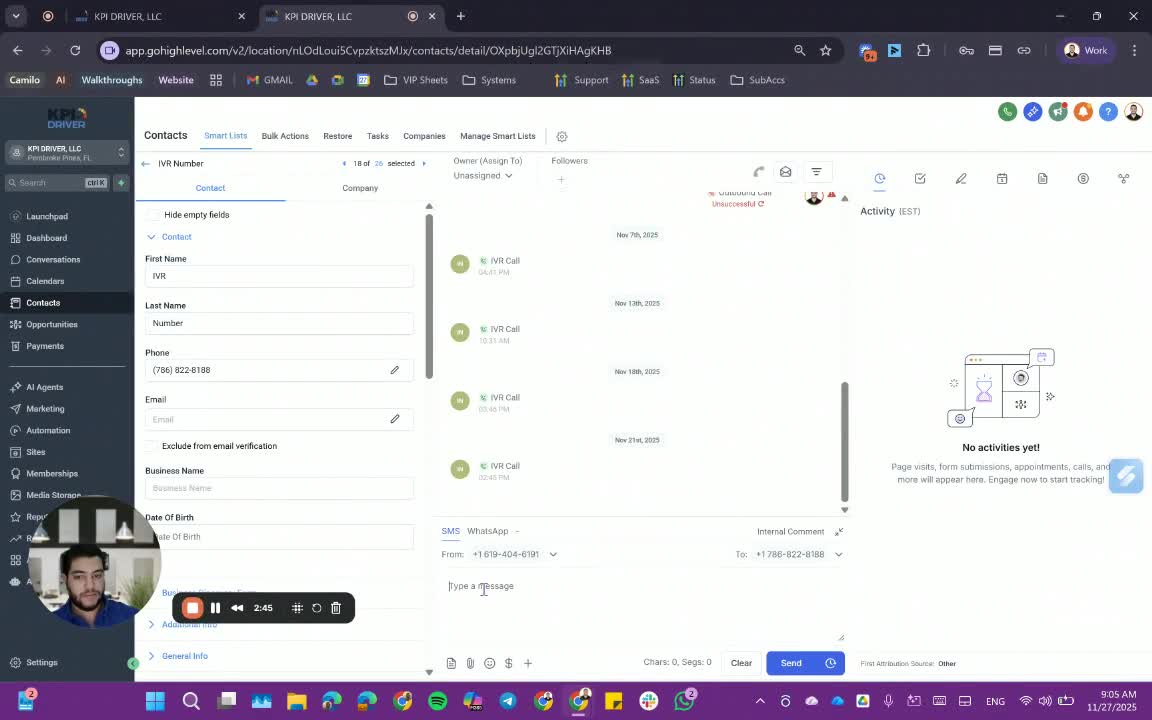
- Use the SMS feature to send messages:
- Type your message and utilize snippets or emojis as needed.
- Make calls directly from the contact page.
7. Managing D&D Settings 3:14
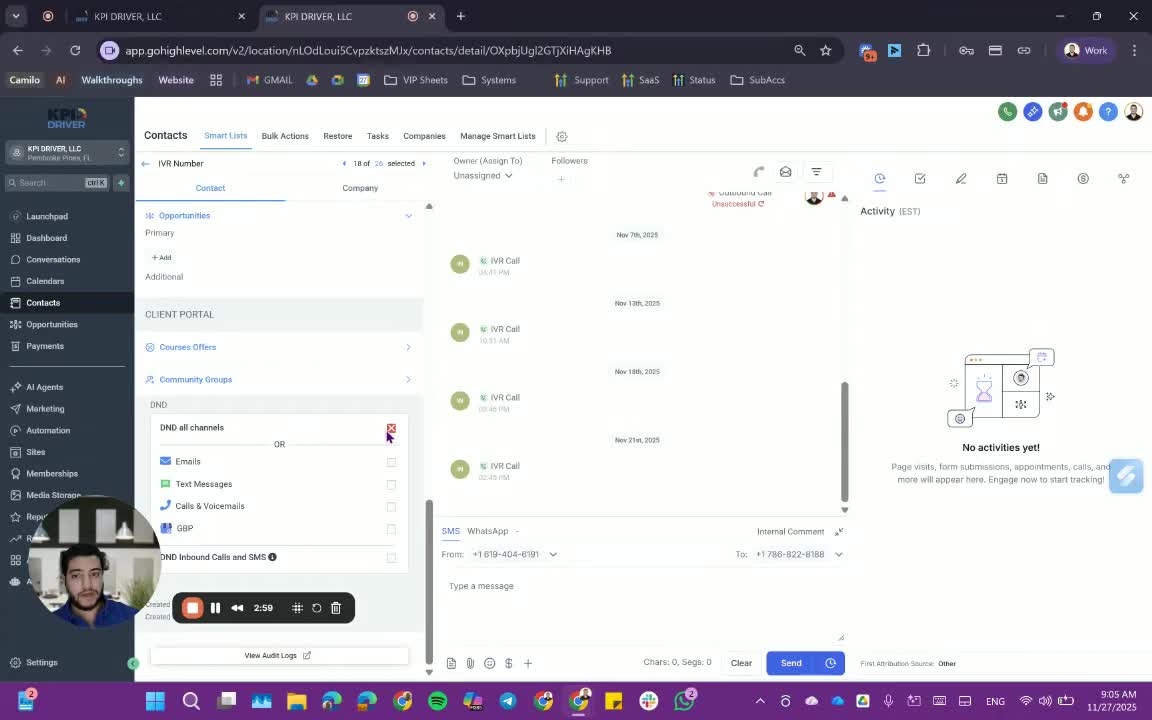
- Understand that if a contact is marked D&D, you cannot send texts or calls.
8. Reviewing Tasks and Notes 4:06
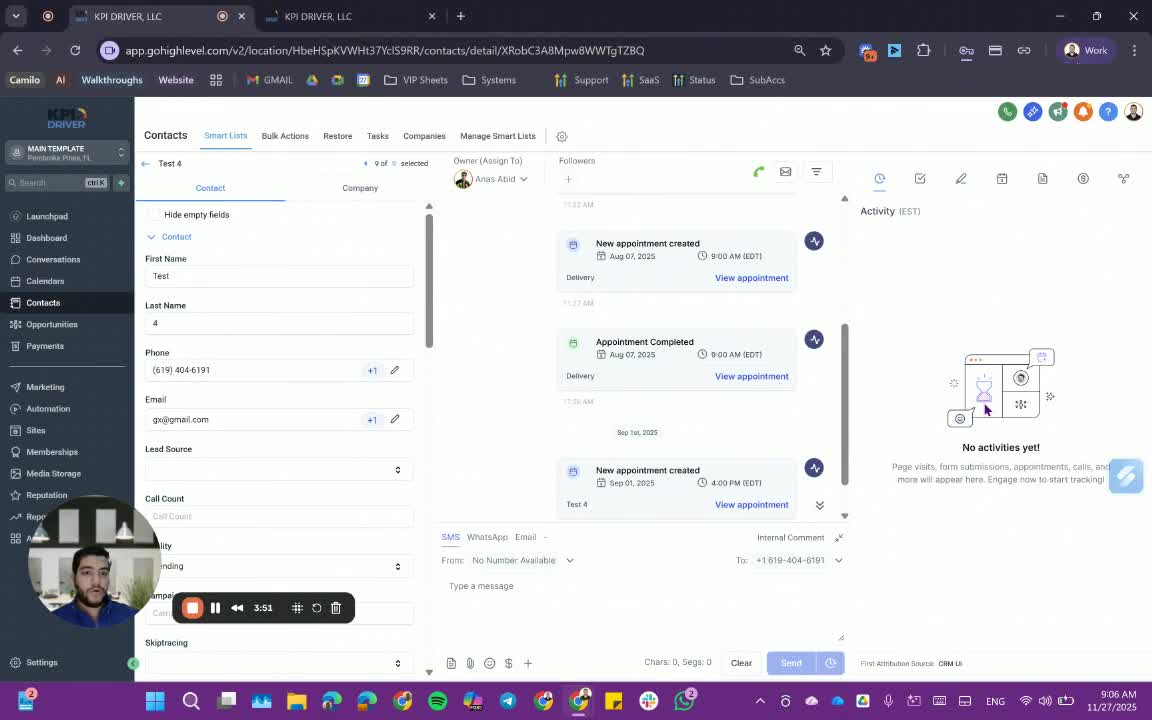
- Check for any tasks assigned to the contact and review notes made by team members.
9. Managing Appointments 4:23
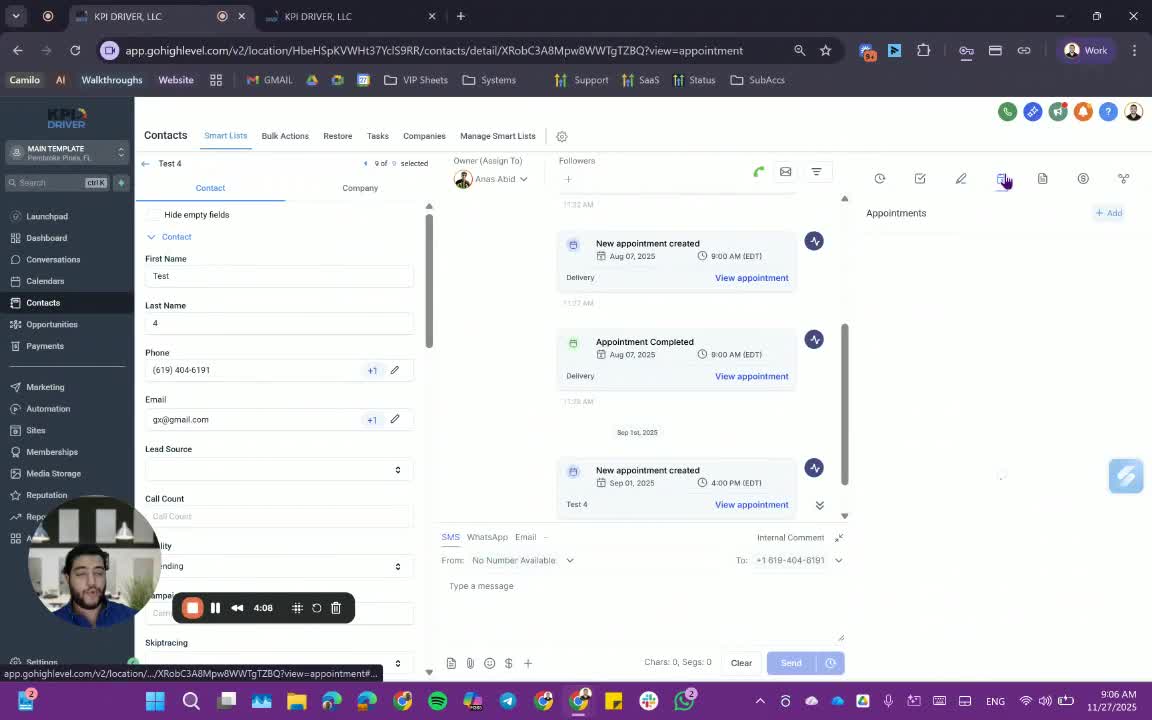
- View past appointments and edit them as necessary.
10. Handling Documents and Associations 4:53
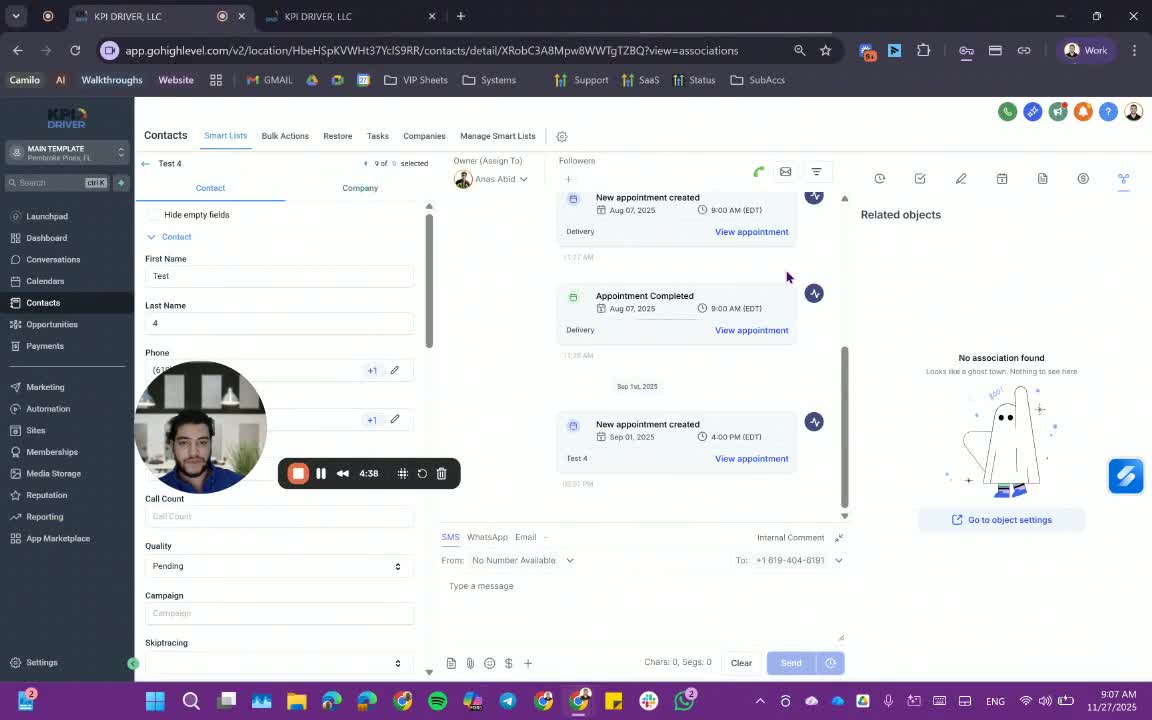
- Add or review any documents associated with the contact.
- Check for any associations with other contacts.
11. Selecting Contact Information for Communication 5:09
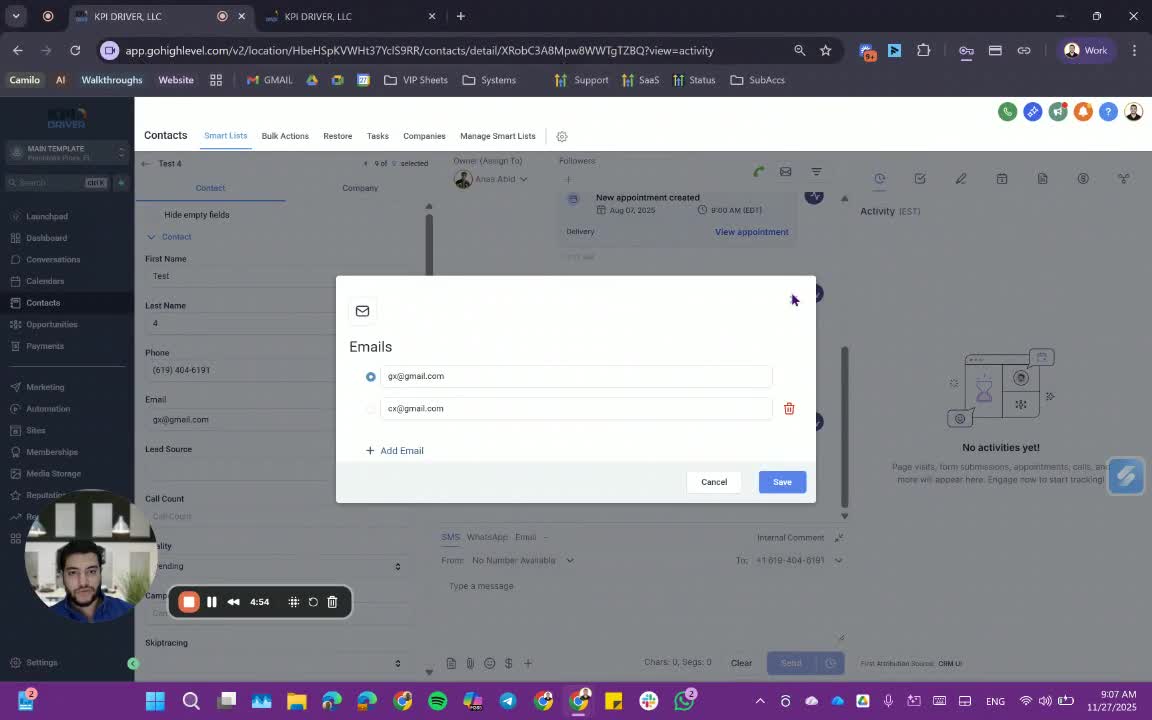
- Choose the appropriate phone number or email address when contacting the individual.
12. Sending Emails 5:27
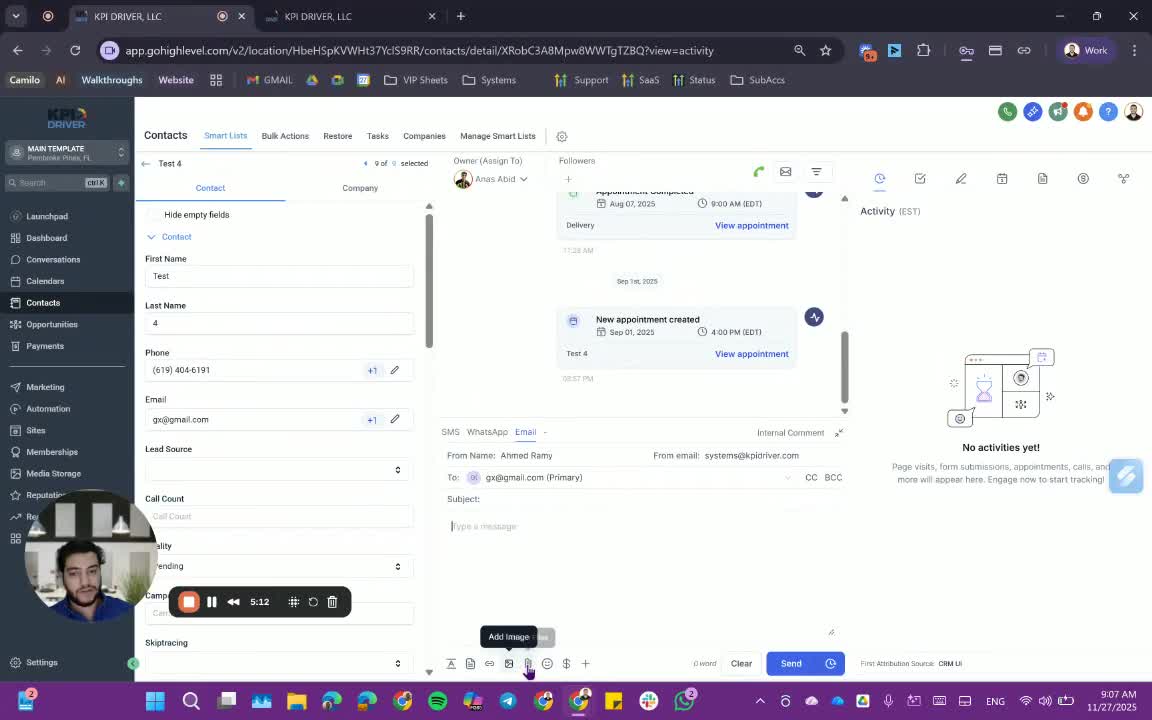
- Format your email, including subject and message, and send it out.
13. Utilizing Internal Comments 6:03
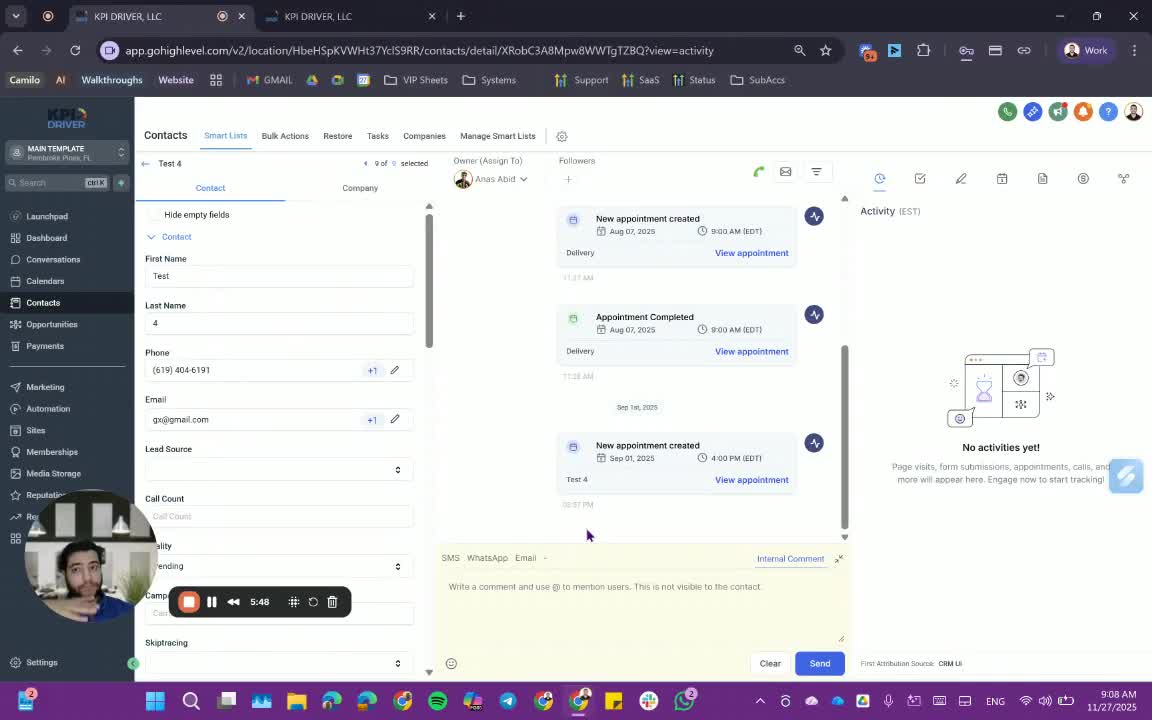
- Use internal comments to communicate with team members about the contact:
- Mention team members for notifications.
14. Assigning and Following Up on Contacts 7:13
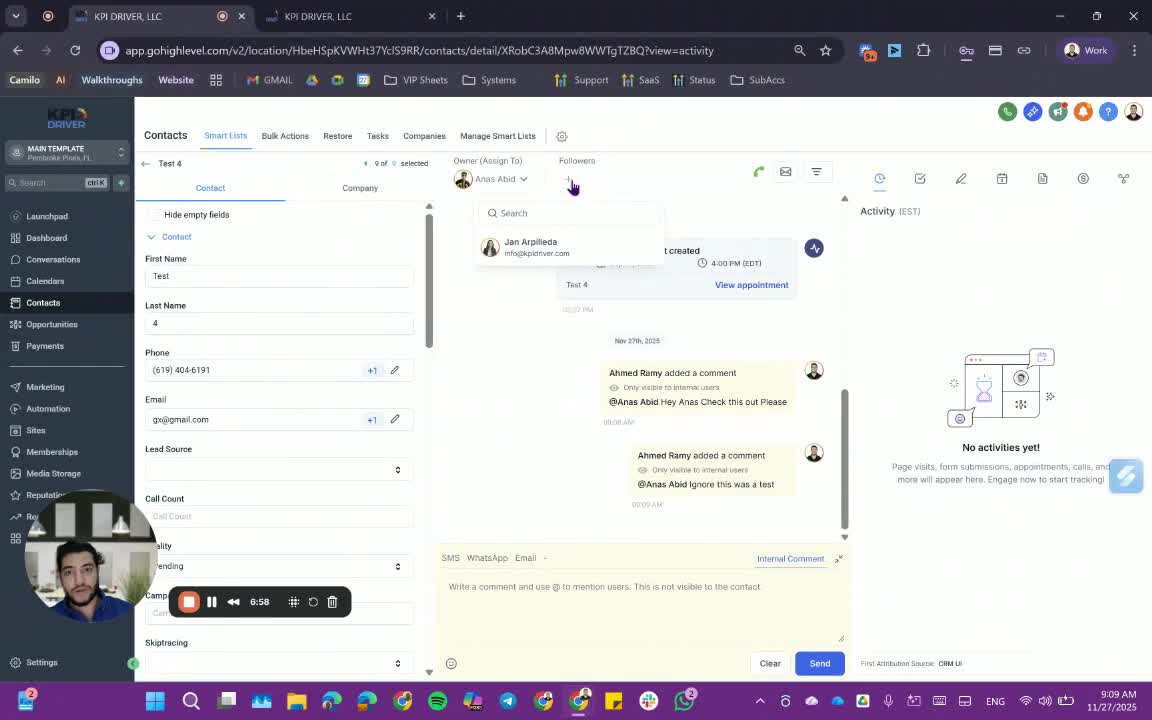
- Assign contacts to team members and add followers for updates.
Cautionary Notes
- Ensure you respect the D&D status of contacts to maintain compliance with communication policies.
- Internal comments are only visible to team members and should not contain sensitive information.
Tips for Efficiency
- Regularly update contact information to ensure accuracy.
- Use tags effectively to categorize contacts for easier retrieval.
- Familiarize yourself with the automation features to streamline communication.
Link to Loom
https://loom.com/share/82219f3e1cc24e25bf227e44d4425c3a
Articles
Other Related Articles
FAQ
FAQ
What makes KPI DRIVER different from other real estate CRMs?
Do I need separate systems for document signatures, dispo, or rentals?
How long does it take to migrate my CRM to KPI DRIVER?
Will KPI DRIVER work if I’m new to real estate or don’t have a CRM yet?
Is the KPI Dashboard customizable?
How does KPI DRIVER help me scale my business?
Do you offer support or training?
How many leads, calls, and deals can KPI DRIVER handle?
How much does KPI DRIVER cost?

@KPI DRIVER LLC 2025. All Rights Reserved.
Design and developed by YAVACADO