
Conversations Overview 👥 📂
In this video, I'm diving into the conversations view, which many of you might find useful alongside the contact overview we've discussed before. Here, you can easily manage unread messages, filter by what's assigned to you, and access important details like contact information and tasks. I also show how to mark conversations as important or read, and how to utilize various filters to streamline your workflow. If you haven't already, I encourage you to explore this feature and see how it can enhance your productivity. Remember, some people prefer this view over others, so find what works best for you!
Conversations View SOP
Objective
This SOP outlines the steps to effectively use the Conversations View for managing communications within the system.
Key Steps
1. Accessing the Conversations View 0:16

- Navigate to the Conversations View from the main menu.
- Understand that this view focuses on conversations rather than contacts.
2. Viewing Unread Conversations 0:37
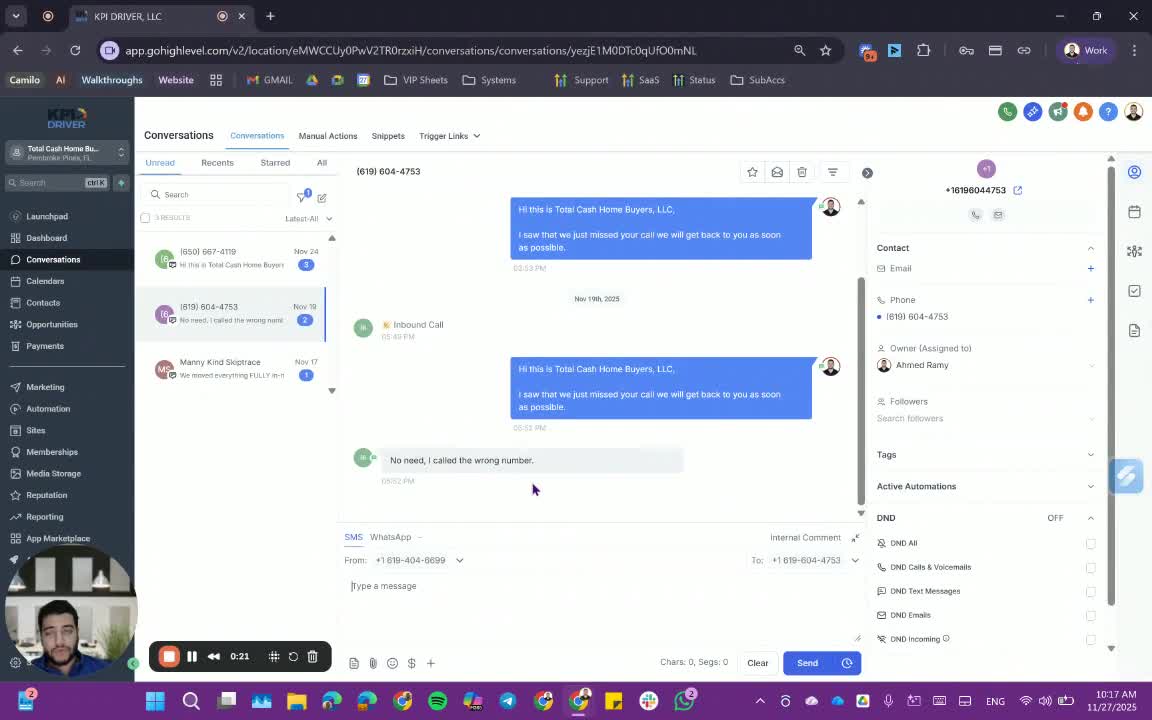
- By default, the Conversations View opens to the 'Unread' section.
- This section displays conversations that are unread and assigned to you.
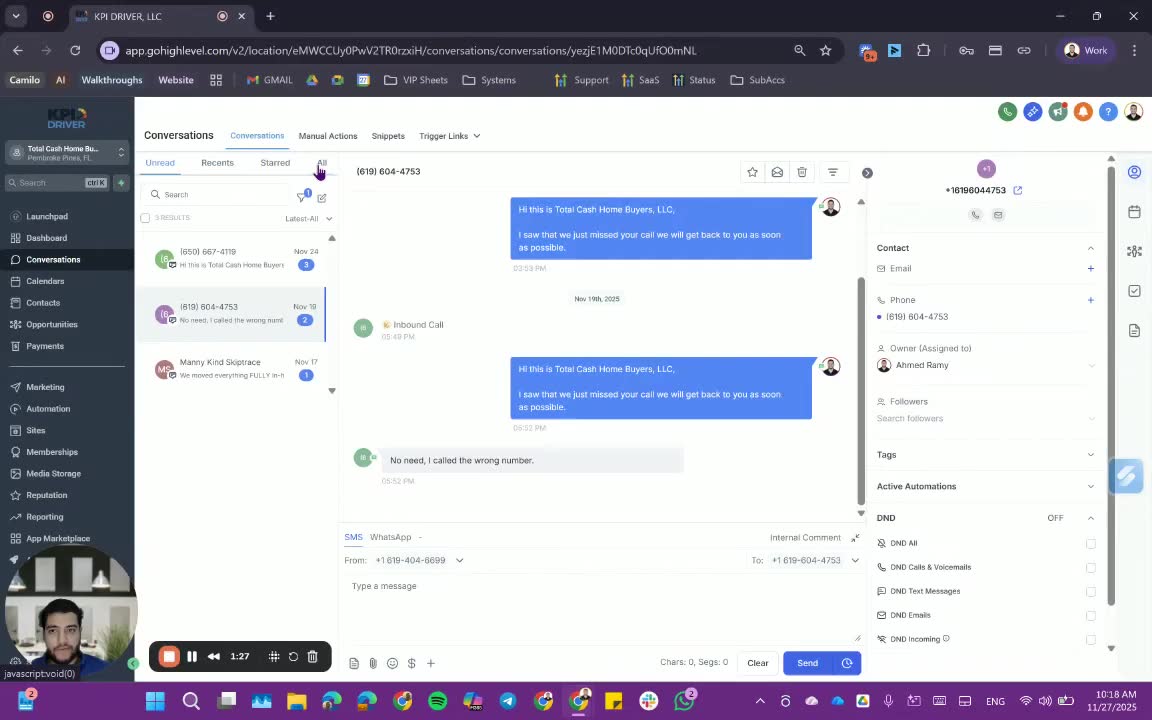
3. Filtering Conversations 1:45
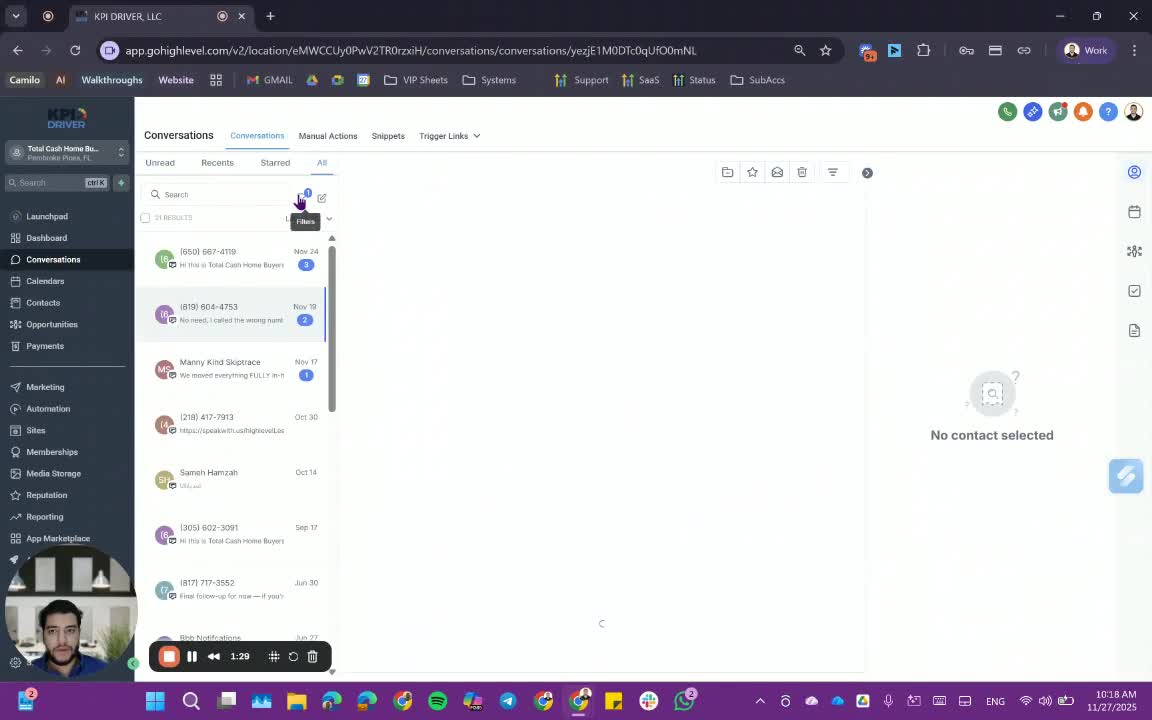
- To filter conversations, select the 'All' option.
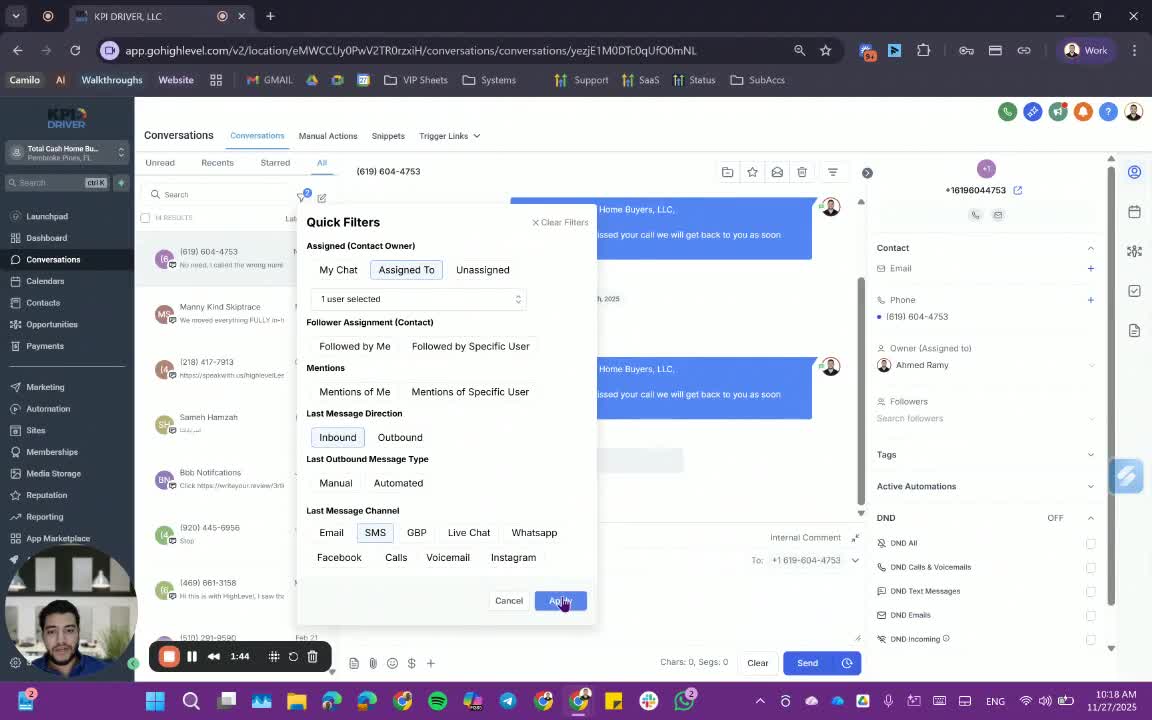
- Choose filters such as 'Assigned to Me' or 'Followed by Me'.
- Click 'Apply' to see the filtered results.
4. Further Filtering Conversations 1:31
- To narrow down results, apply additional filters:
- Last message direction (e.g., received).
- Last message channel (e.g., SMS).
5. Marking Conversations 2:00
- Mark conversations as read by selecting the appropriate option.
- To prioritize a conversation, mark it as 'Starred'.
6. Viewing Contact Information 2:29
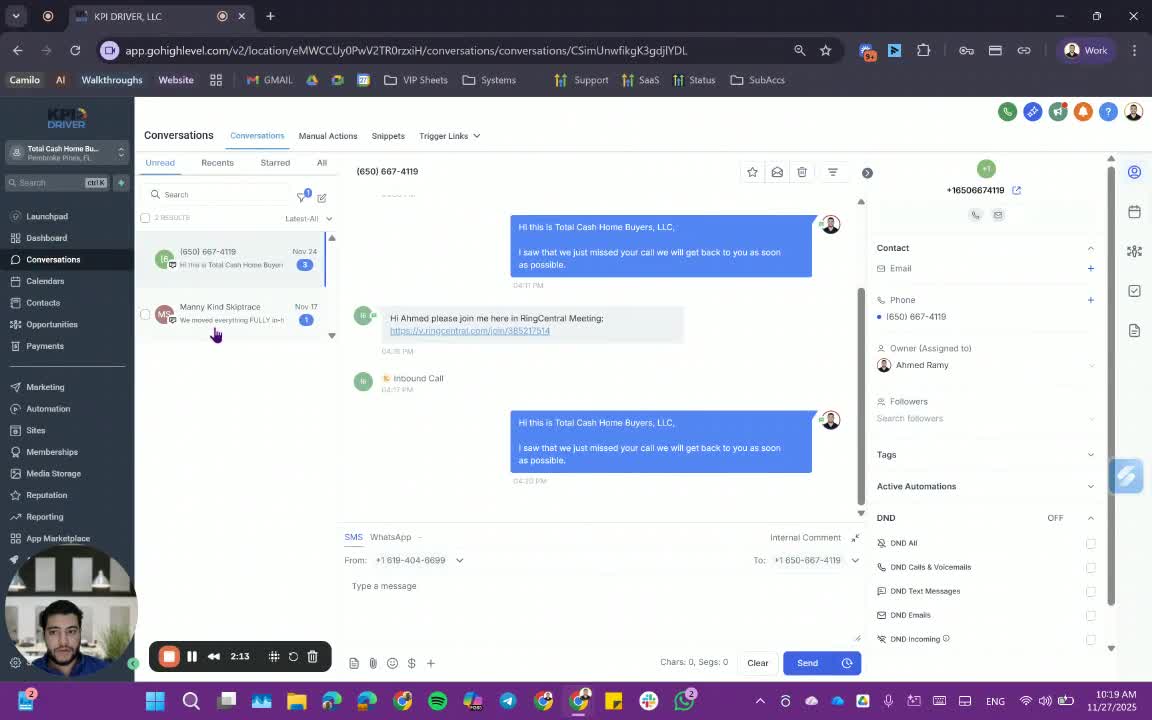
- On the right side of the Conversations View, review contact details:
- Contact email and phone number.
- Assigned user and tags.
- Automation status and creation details.
7. Accessing Additional Features 3:25
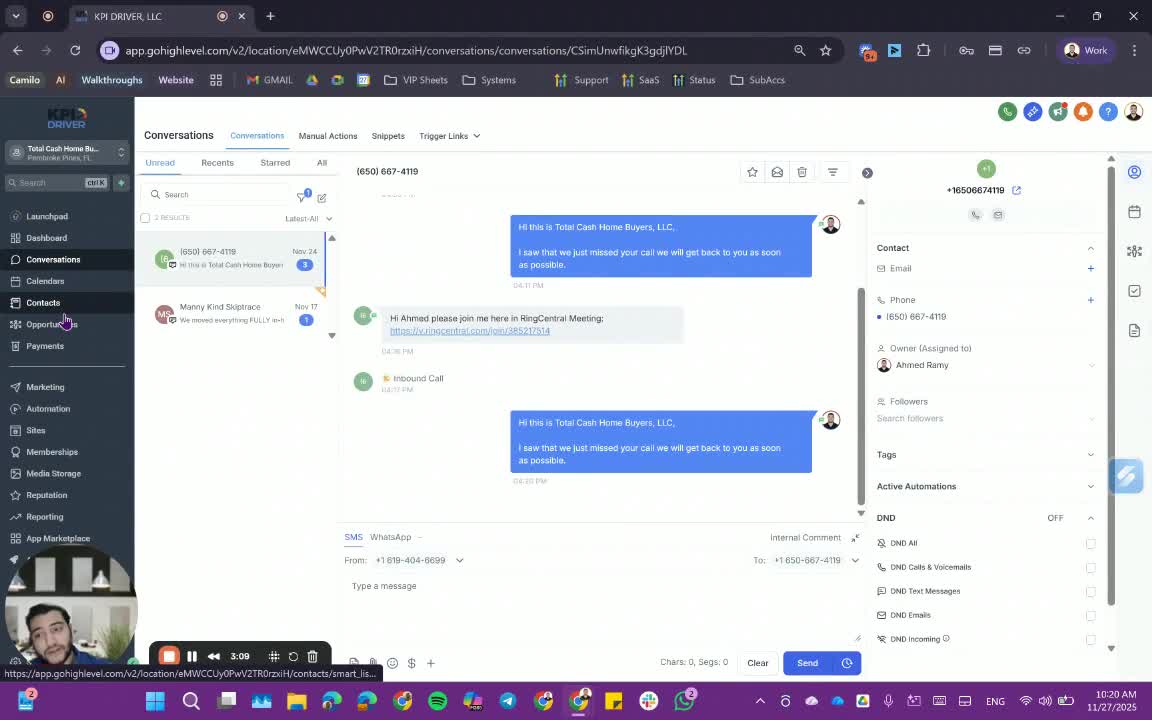
- Explore other views such as Contacts and Opportunities for different functionalities.
- Note that Opportunities do not display conversations.
8. Utilizing Snippets 3:34
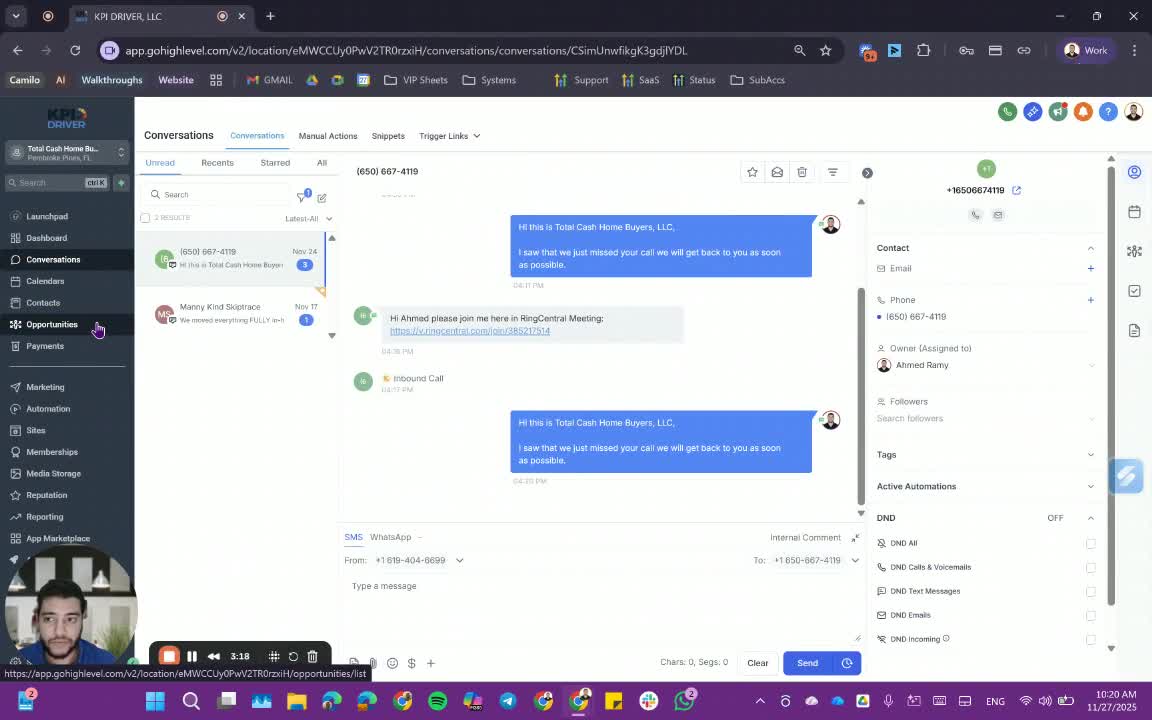
- Access snippets from the Conversations View for quick responses.
9. Manual Actions and Dialer 3:53
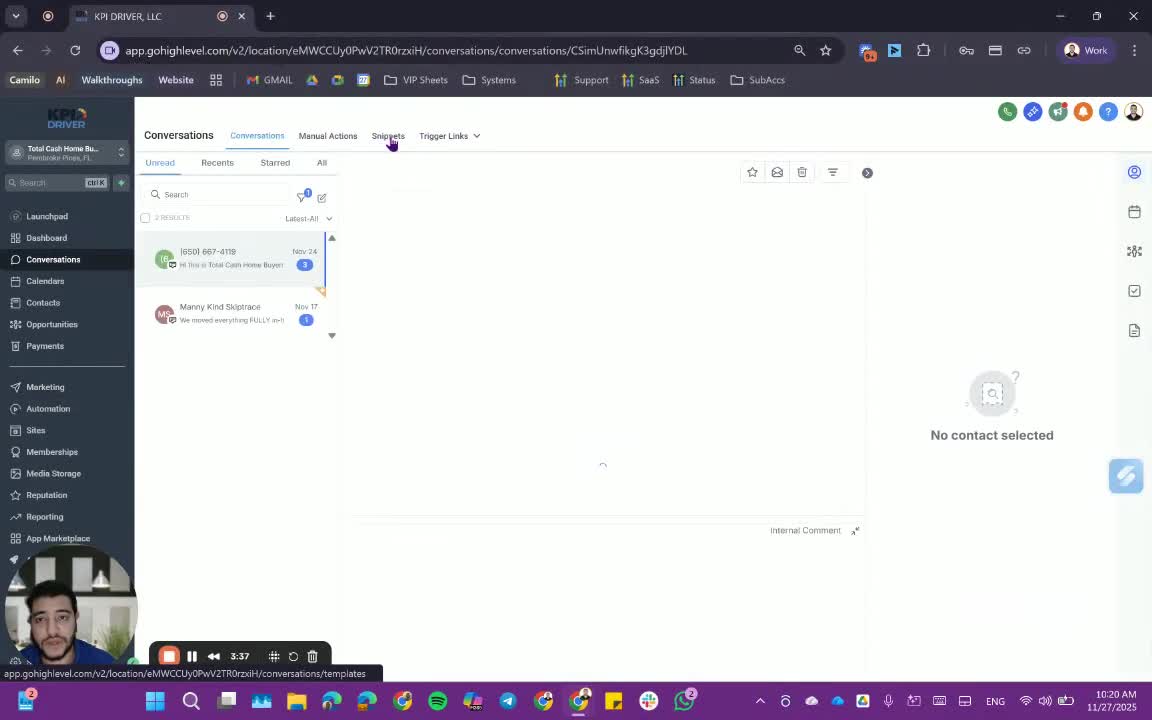
- Familiarize yourself with manual actions and the dialer feature available in the system.
Cautionary Notes
- Ensure to regularly check the 'Unread' section to stay updated on important conversations.
- Be mindful of the filters applied to avoid missing relevant conversations.
Tips for Efficiency
- Use the 'Starred' feature to keep track of important conversations.
- Regularly clear filters to view all conversations when needed.
- Familiarize yourself with snippets to save time on responses.
Link to Loom
https://loom.com/share/f9861fbf90924920953832d51b71cd44
Articles
Other Related Articles
FAQ
FAQ
What makes KPI DRIVER different from other real estate CRMs?
Do I need separate systems for document signatures, dispo, or rentals?
How long does it take to migrate my CRM to KPI DRIVER?
Will KPI DRIVER work if I’m new to real estate or don’t have a CRM yet?
Is the KPI Dashboard customizable?
How does KPI DRIVER help me scale my business?
Do you offer support or training?
How many leads, calls, and deals can KPI DRIVER handle?
How much does KPI DRIVER cost?

@KPI DRIVER LLC 2025. All Rights Reserved.
Design and developed by YAVACADO