
ACQ Pipeline & Drips & KPIs 📊 🔄
In this Loom, I walked you through the acquisition pipeline, detailing the stages, drips, and automations that trigger key performance indicators (KPIs). We discussed how leads are categorized as inbound buyers or sellers based on their contact methods and how they progress through stages like new lead, attempted contact, and perseverance. I emphasized the importance of timely follow-ups and the need for skip tracing when leads become unresponsive. Additionally, I outlined how to set appointments and the significance of updating statuses to reflect the current state of opportunities. Please make sure to implement these processes and keep an eye on the KPIs as we move forward.
Acquisition Pipeline SOP
Objective
This SOP outlines the steps for managing leads through the acquisition pipeline, ensuring proper tracking and follow-up to optimize conversion rates.
Key Steps
1. Lead Entry and Initial Response 0:38
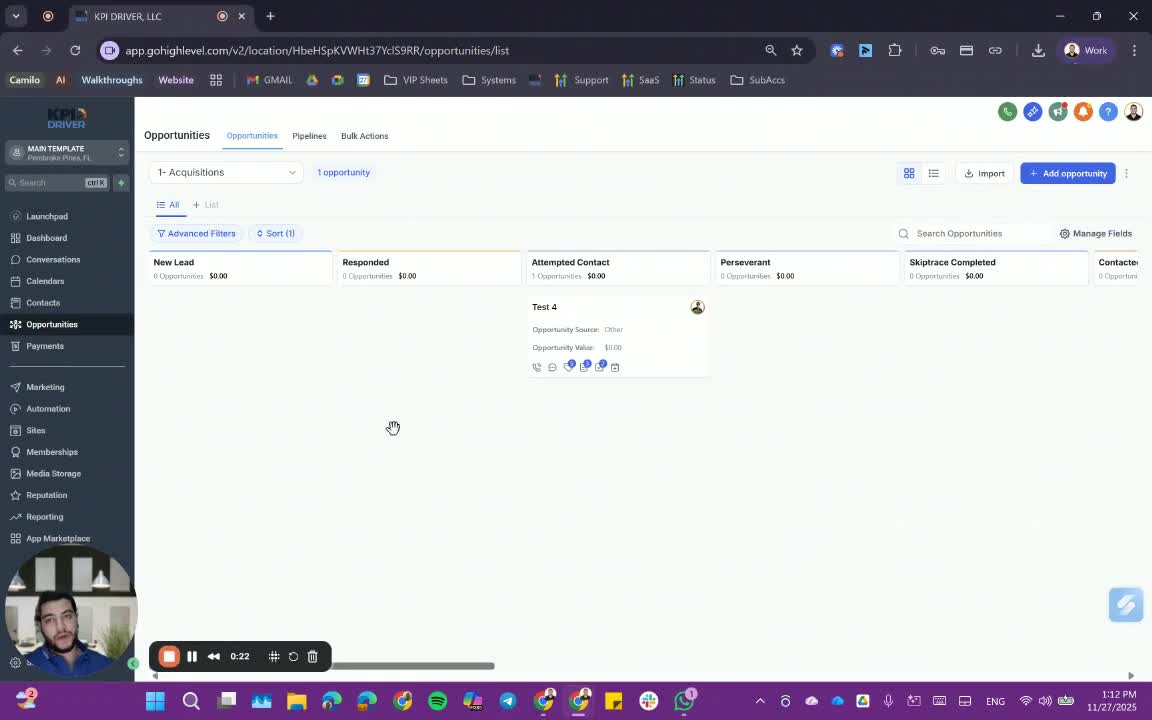
- Leads arrive in the system as either inbound sellers or buyers based on the phone number used to contact us.
- Respond to leads immediately using the correct methods.
2. Drip Campaigns for New Leads 1:34
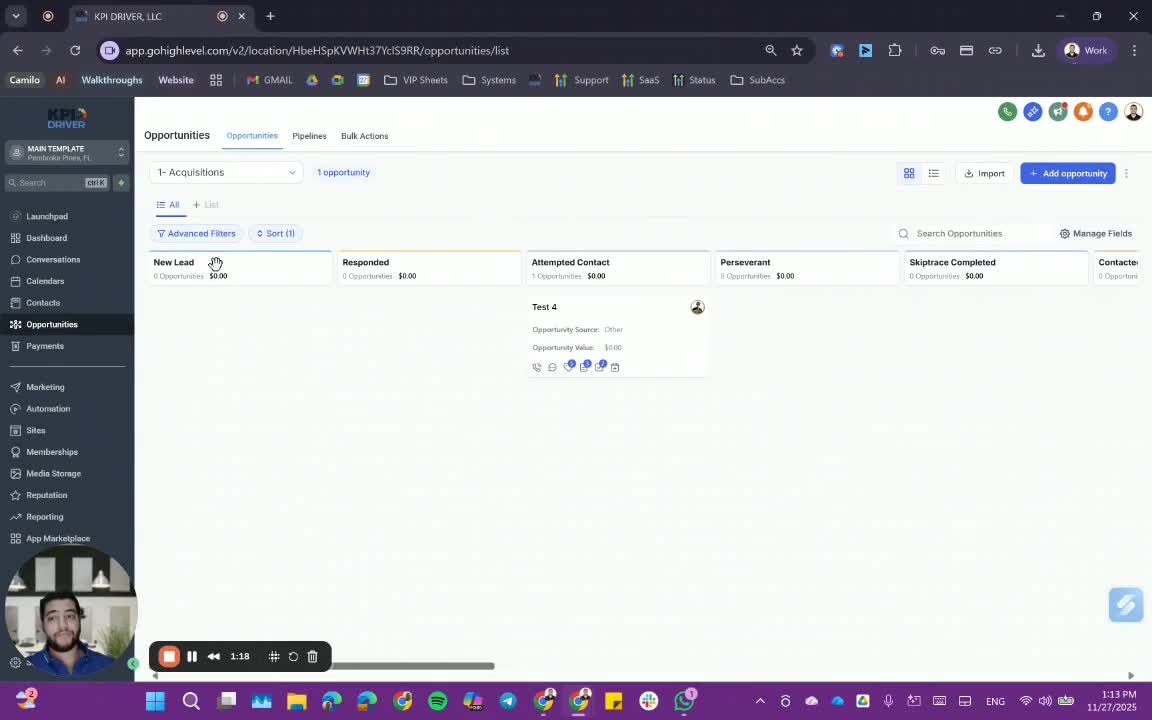
- New leads receive different drip campaigns based on their source for two days.
- As an acquisition or follow-up specialist, reach out to these leads to move them down the pipeline.
3. Moving to Attempted Contact 2:09
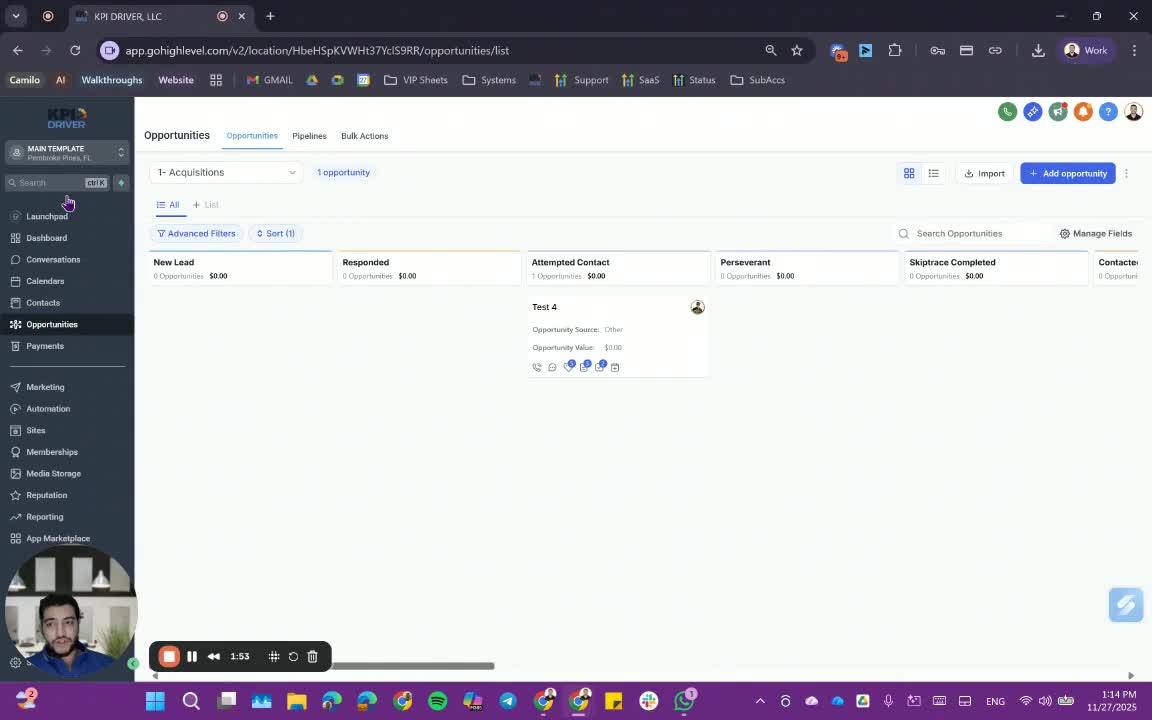
- If unable to reach the lead, move them to 'Attempted Contact' by:
- Removing them from the current stage or updating their status from within the system.
4. Automations in Attempted Contact 2:32
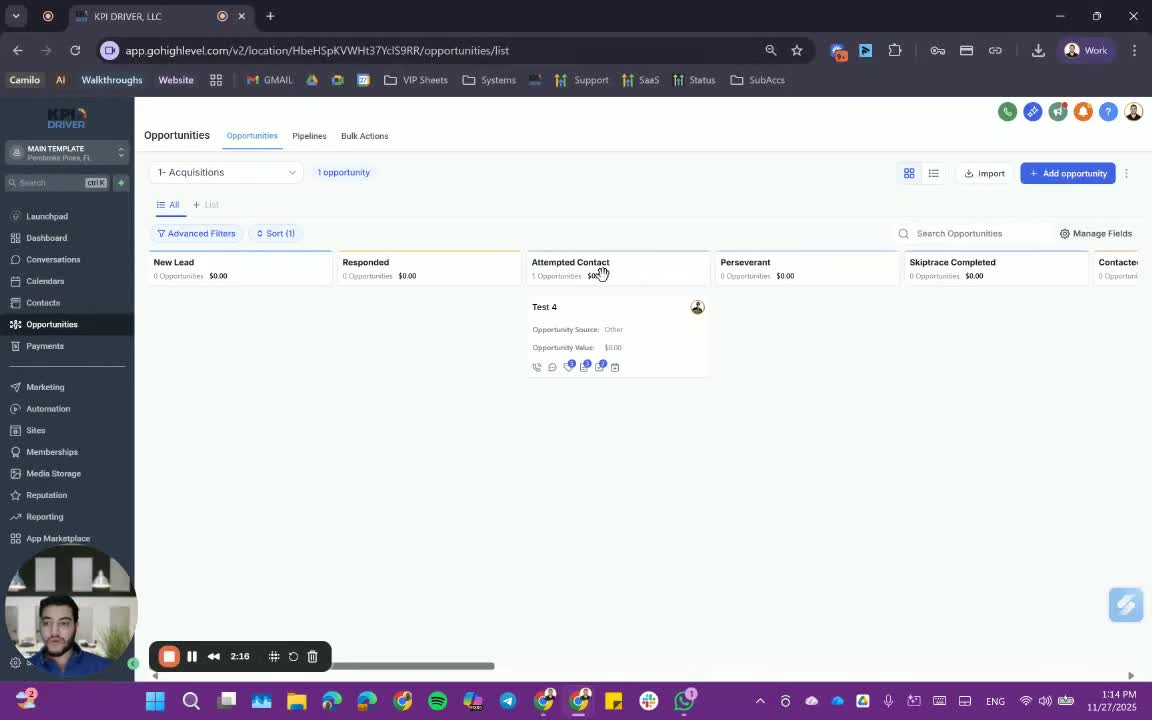
- Leads in 'Attempted Contact' receive additional automations for four days.
- If no response is received, they will automatically move to 'Perseverance'.
5. Respondent Management 3:06
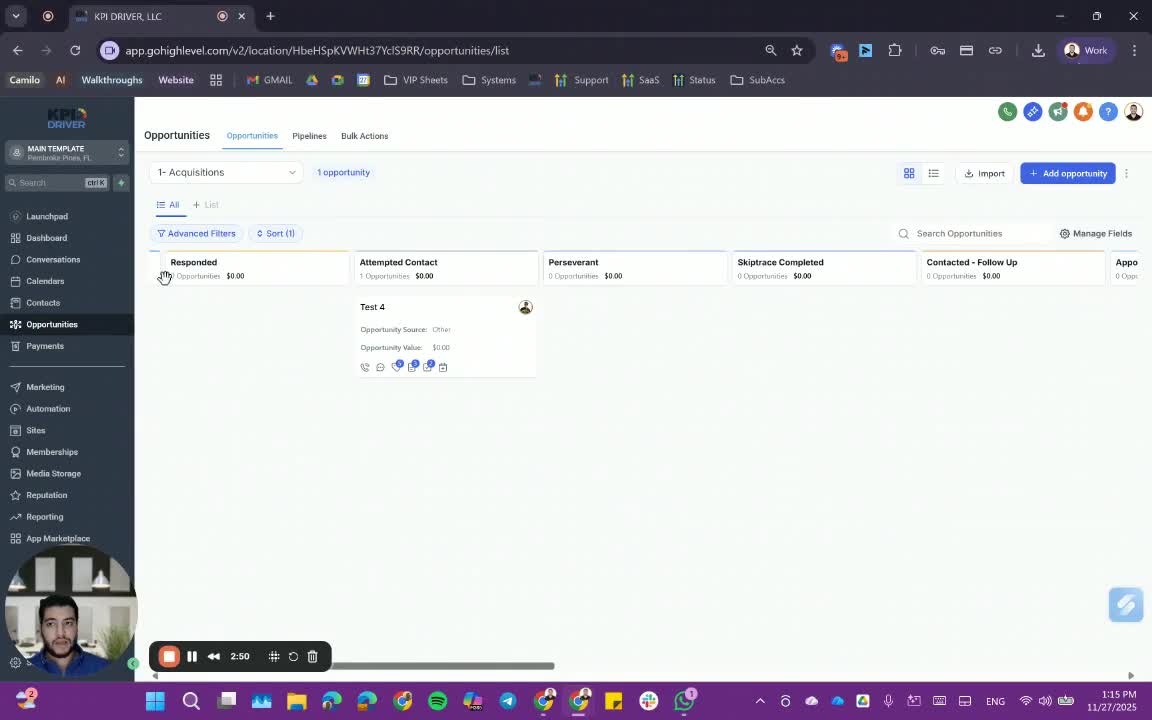
- If a lead responds after being contacted, they will automatically move to 'Respondent'.
- Start your day by addressing respondents from the previous day.
6. Contact Follow-Up 3:54
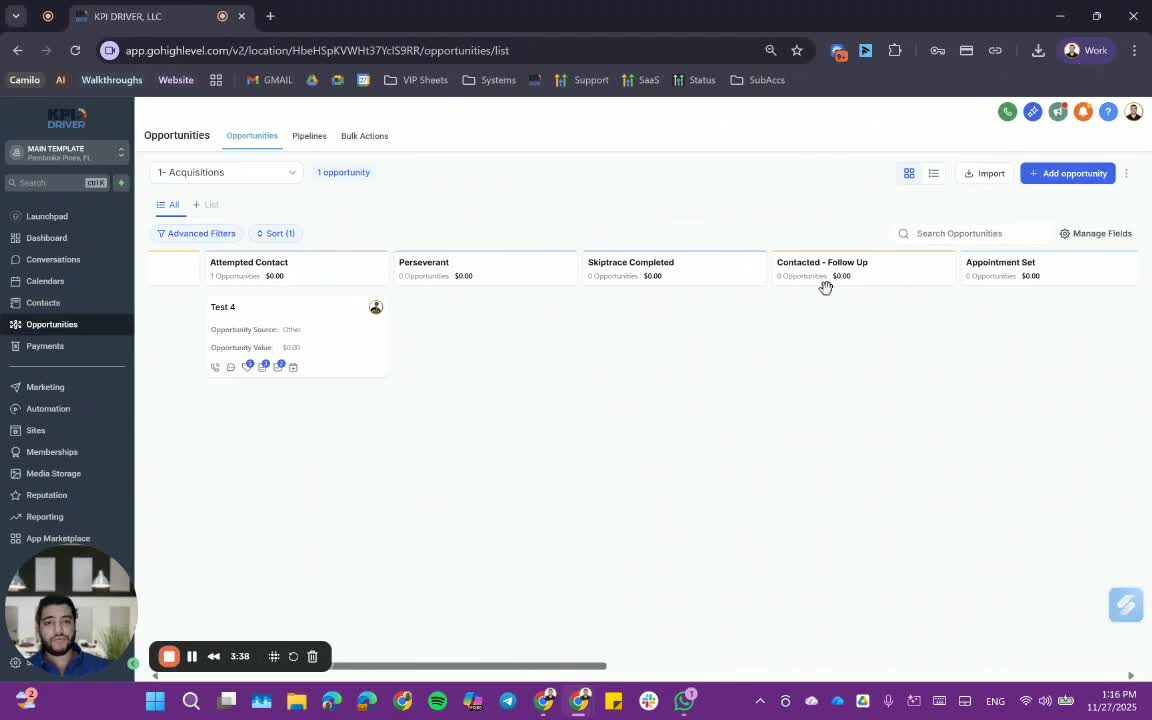
- If a lead requests a follow-up at a specific time, move them to 'Contacted Follow'.
- Add a task to remind yourself to reach out at the specified time.
7. Skip Tracing Process 4:43
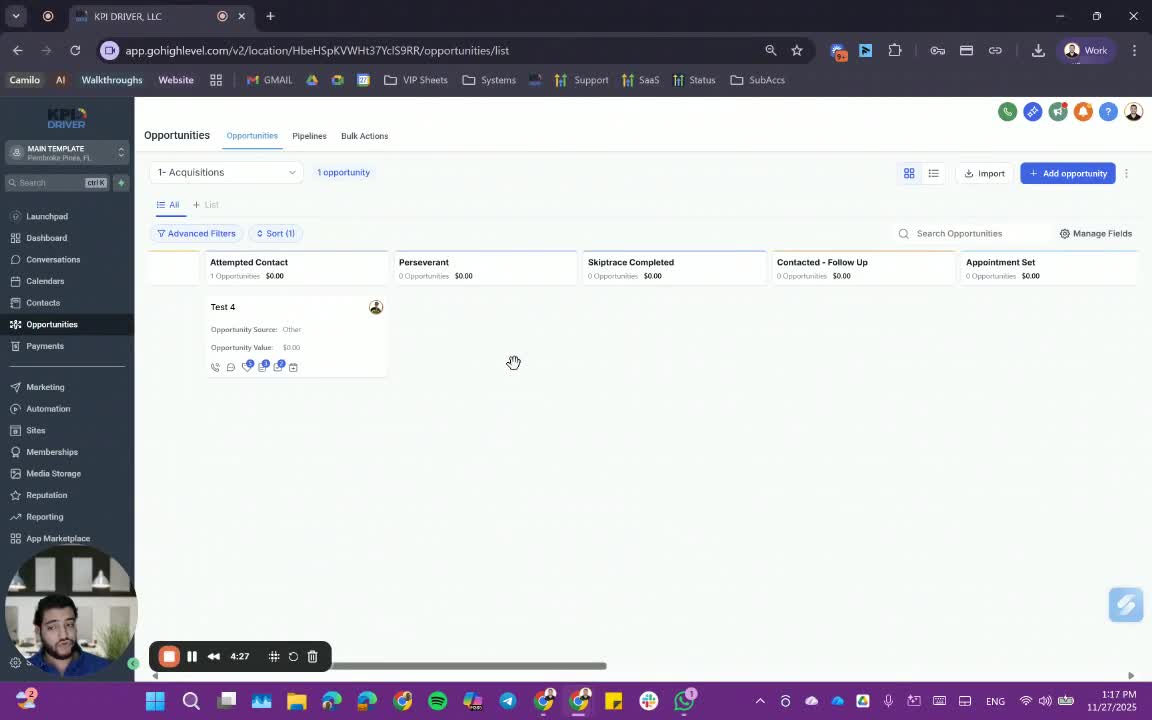
- If a lead remains in 'Perseverance' for 30 days without response, consider skip tracing.
- Move the lead to 'Needs Skip Tracing' and notify your admin.
8. Admin Skip Tracing 5:03
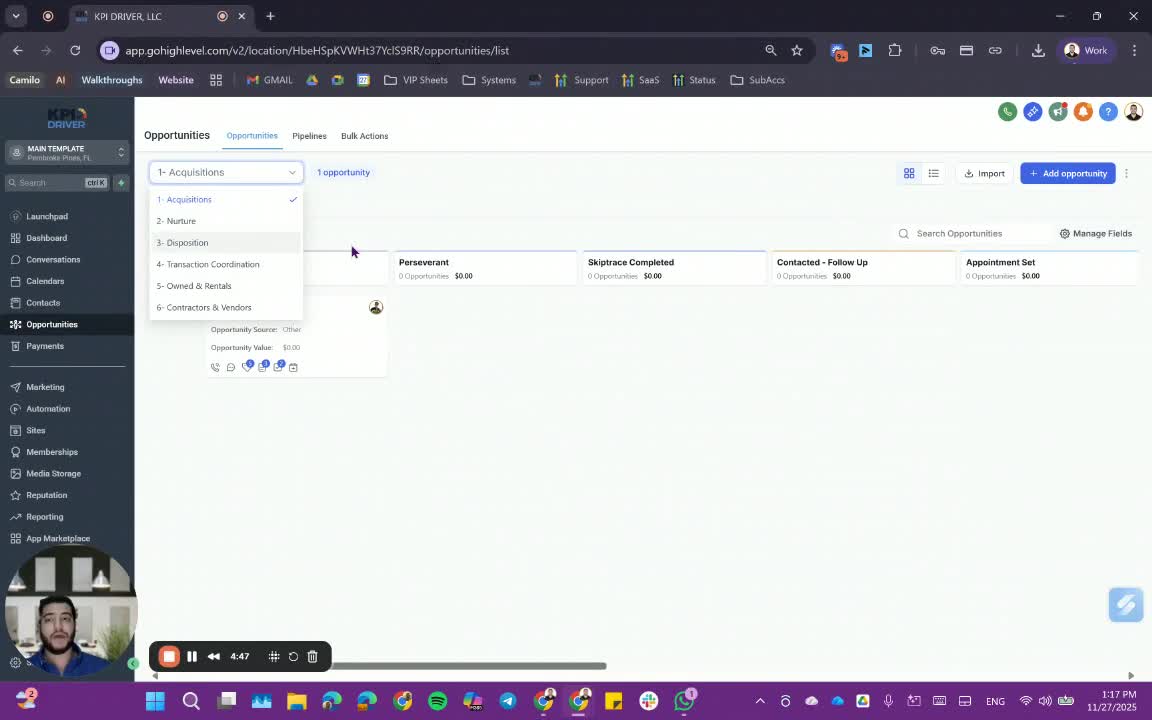
- Admin will skip trace the lead and update the status based on results:
- 'Skip Traced' for successful results.
- 'No Results' for unsuccessful attempts.
9. Setting Appointments 7:46
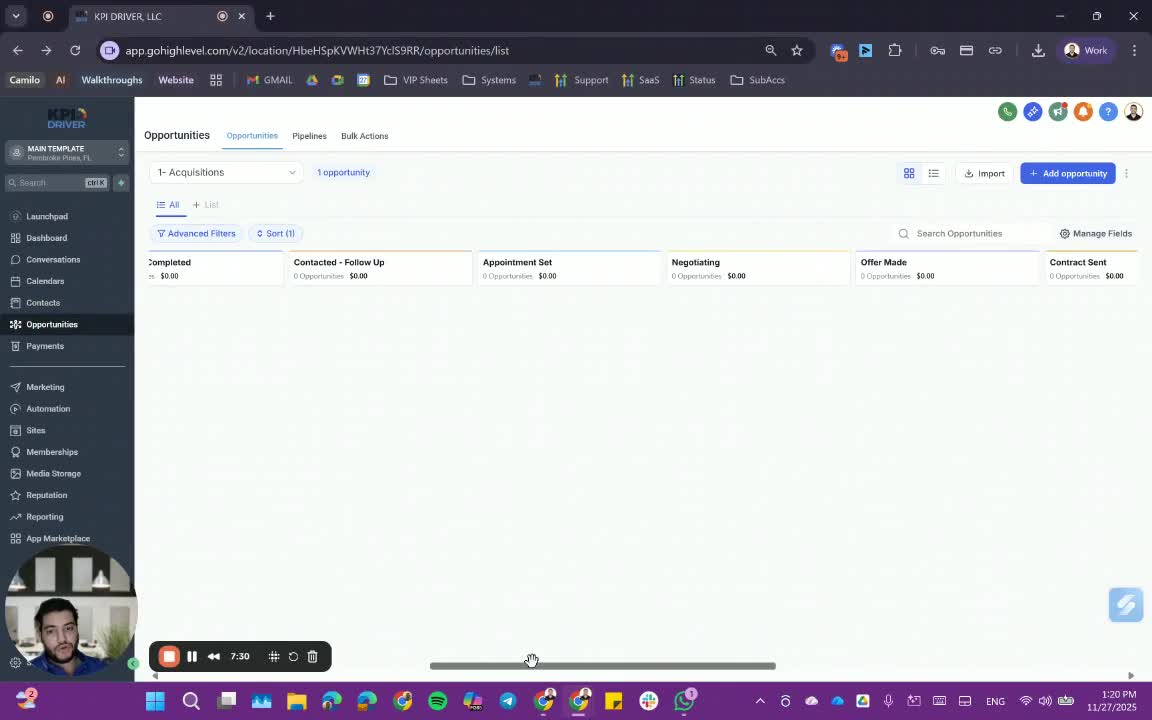
- To set an appointment, go to the contact or opportunity and select 'Book/Update Appointment'.
- Choose the calendar, time slot, and confirm the appointment.
10. KPI Triggers 9:05
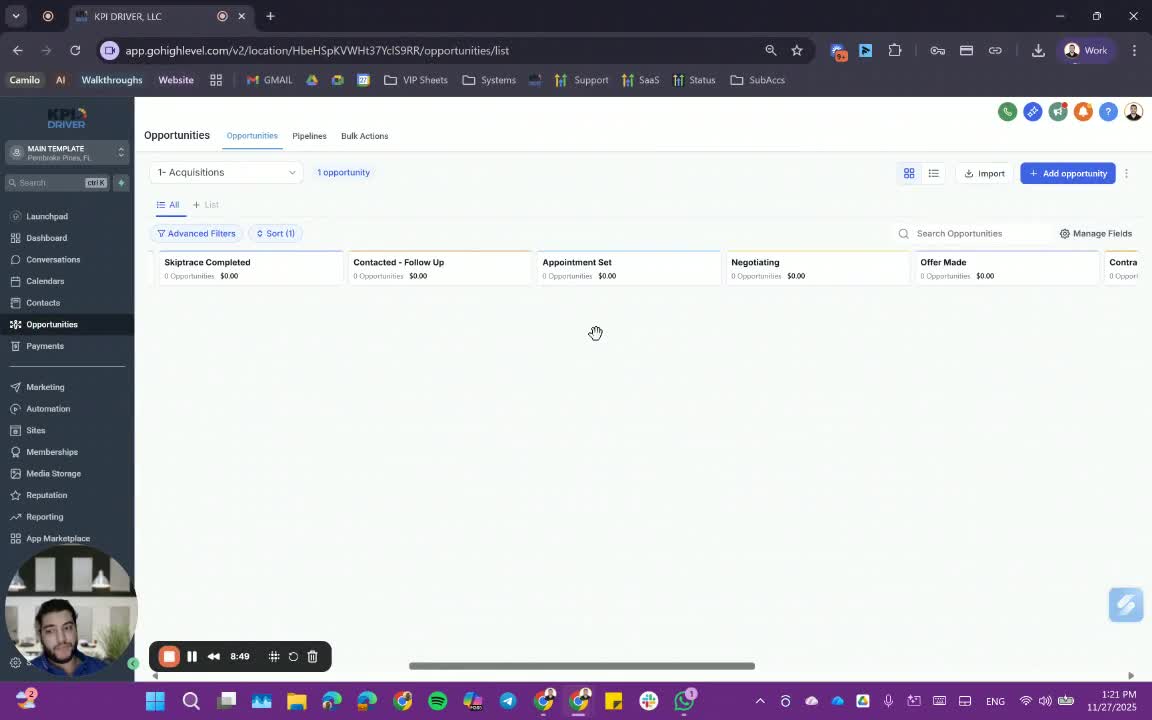
- Moving a lead to 'Appointment Set' triggers the first KPI metric.
11. Negotiation Stage 9:54
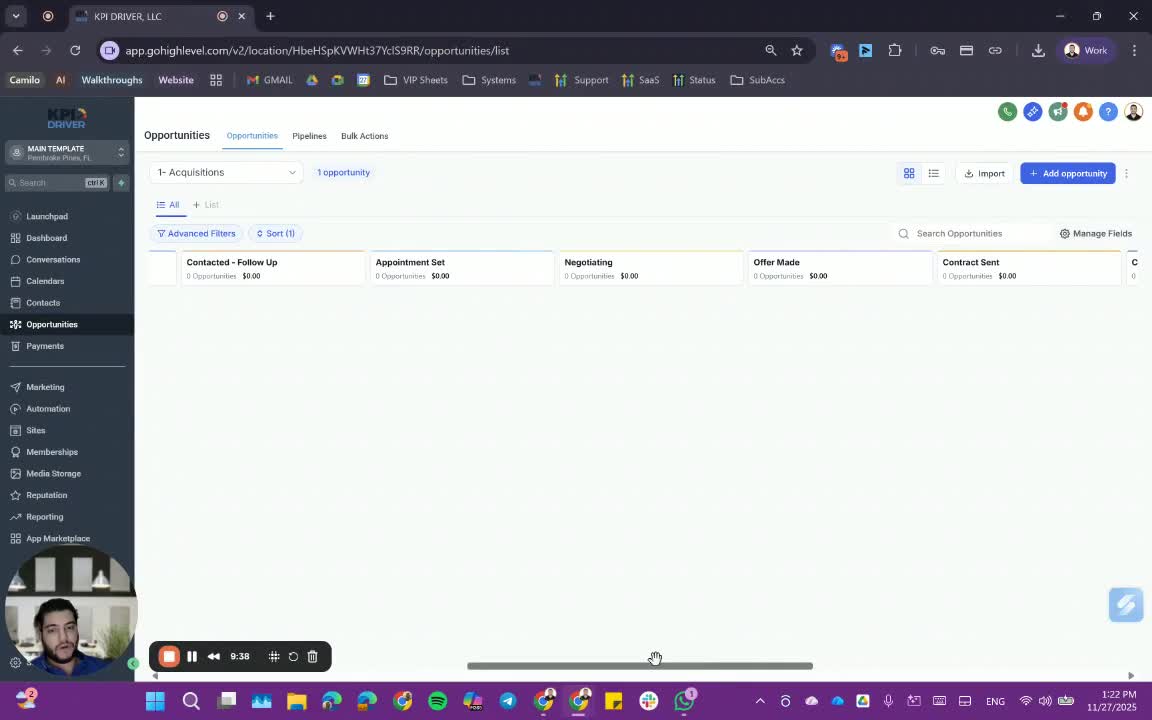
- After setting an appointment, assess the lead's temperature:
- Move to 'Negotiating' for warm leads.
- Move to 'Contacted Follow Up' for colder leads.
12. Offer Management 10:36
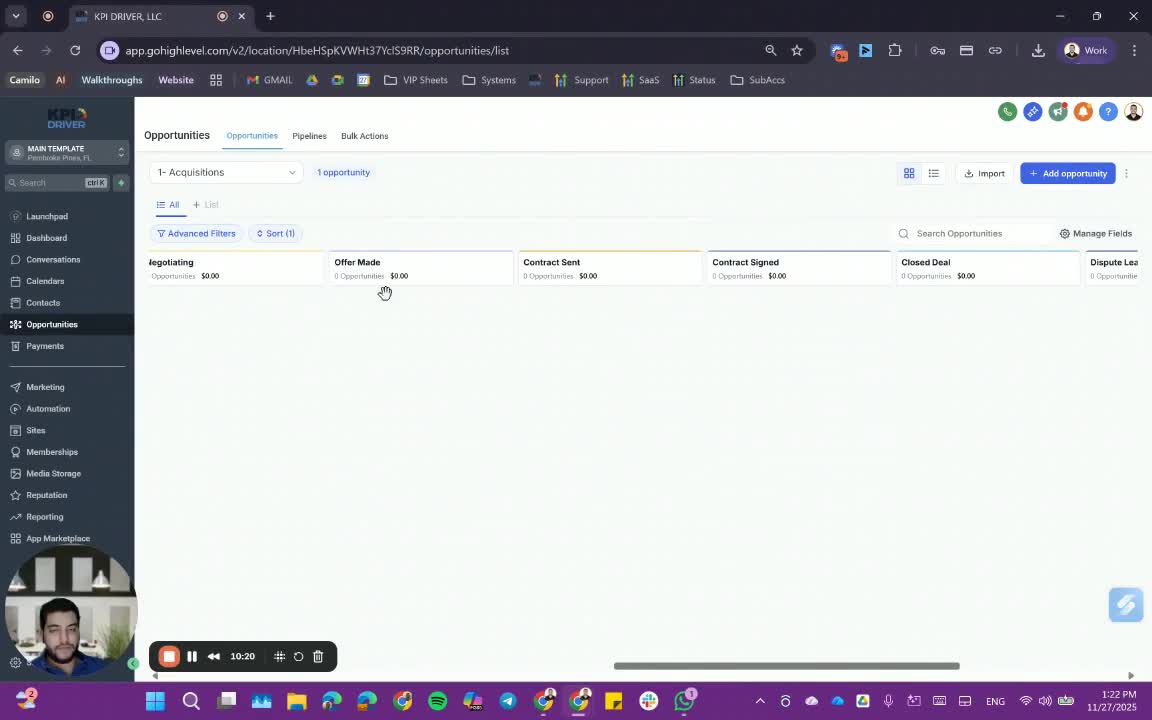
- If an offer is made, move the lead to 'Offer Made' to trigger another KPI.
- After sending a contract, move to 'Contract Sent'.
13. Handling Offer Rejections 11:31
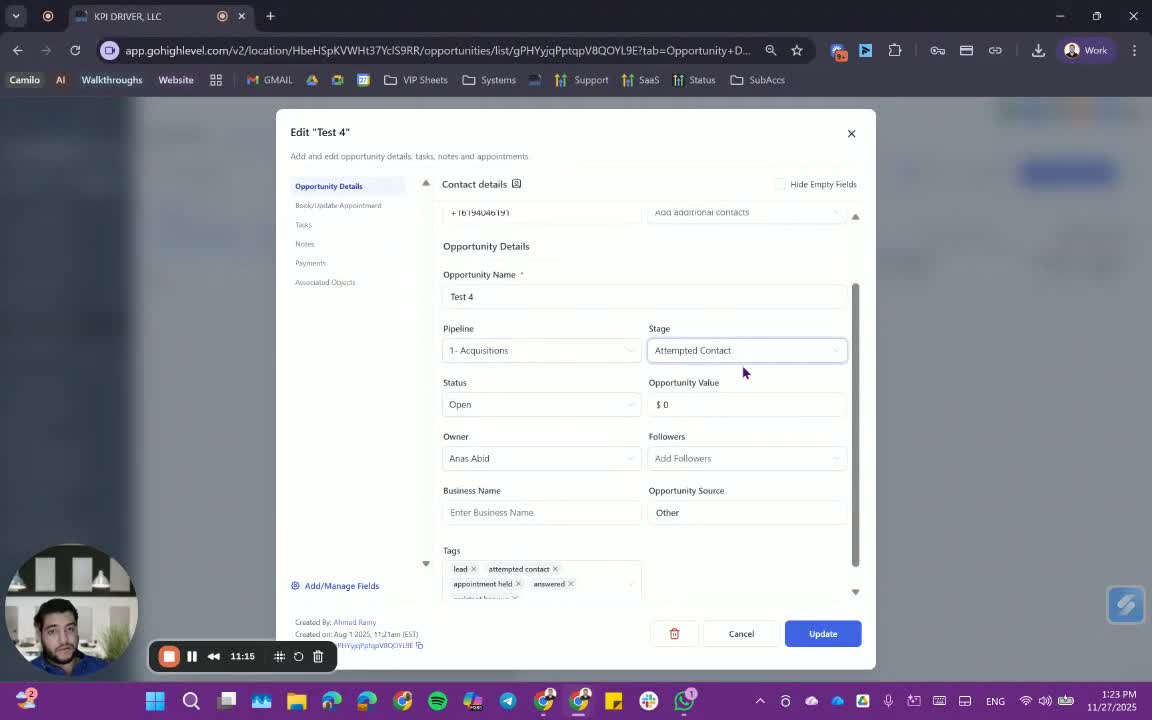
- If an offer is declined, update the status to 'Offer Rejected' and initiate a nurture campaign.
14. Closing Process 12:19
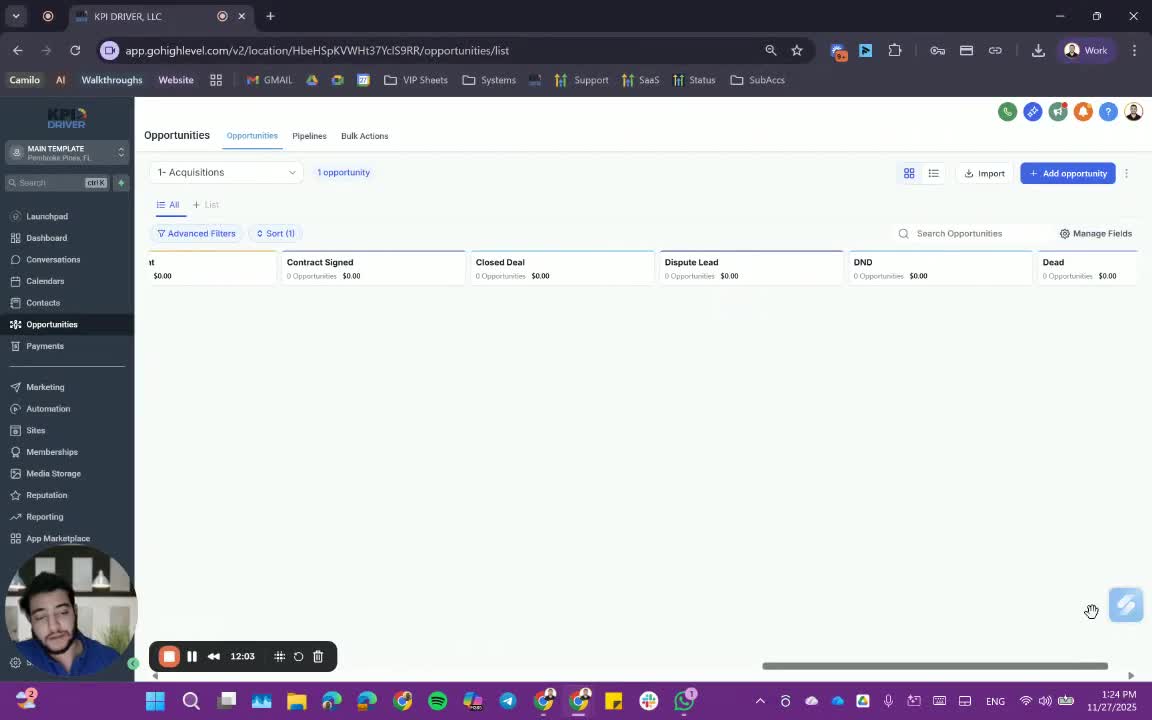
- If a contract is signed, move to 'Closed'.
- Ensure to mark any lost opportunities appropriately.
15. Final Status Updates 14:01
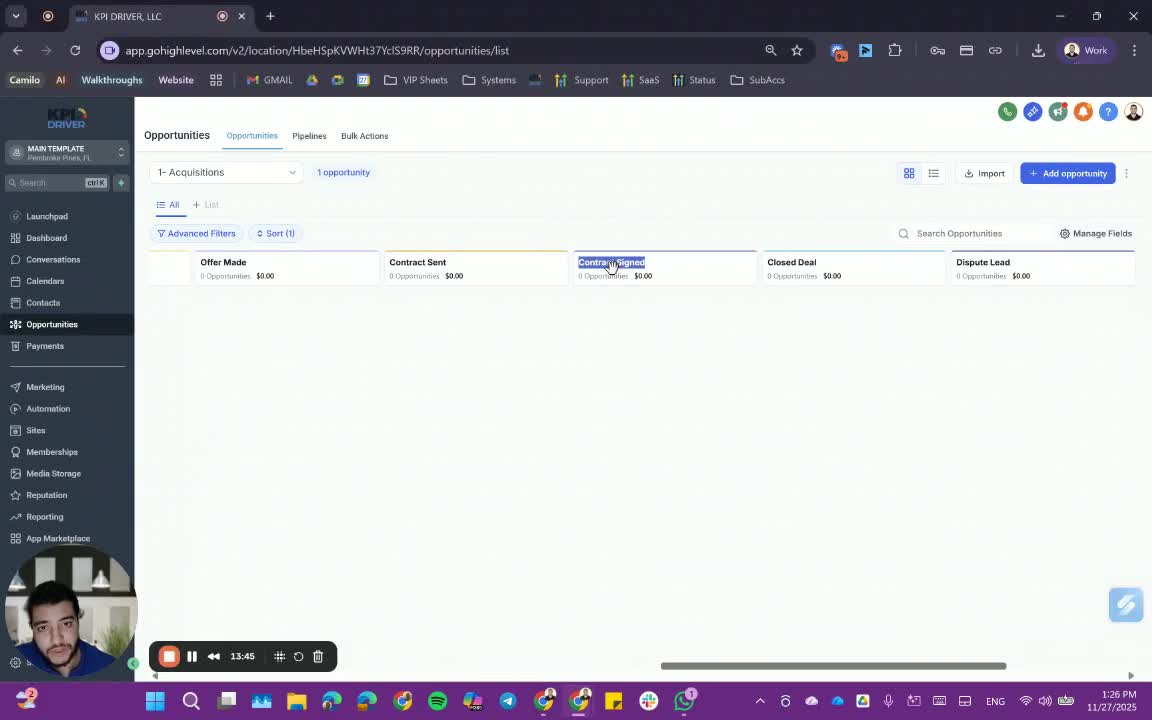
- Once closed, update the opportunity status to 'Won' and ensure it does not appear in active filters.
Cautionary Notes
- Always ensure that leads are moved to the correct stages to avoid confusion.
- Double-check contact information before initiating skip tracing.
Tips for Efficiency
- Use templates for common responses to save time.
- Regularly review and update your follow-up tasks to stay organized.
Link to Loom
https://loom.com/share/5b5755a87ac14e9892396cb2e0853f3a
Articles
Other Related Articles
FAQ
FAQ
What makes KPI DRIVER different from other real estate CRMs?
Do I need separate systems for document signatures, dispo, or rentals?
How long does it take to migrate my CRM to KPI DRIVER?
Will KPI DRIVER work if I’m new to real estate or don’t have a CRM yet?
Is the KPI Dashboard customizable?
How does KPI DRIVER help me scale my business?
Do you offer support or training?
How many leads, calls, and deals can KPI DRIVER handle?
How much does KPI DRIVER cost?

@KPI DRIVER LLC 2025. All Rights Reserved.
Design and developed by YAVACADO