
CRM Dashboard Walkthrough 📈 🧭
Hey everyone, this video is for those of you not on the Enterprise Optimization Suite, as you might find this dashboard limited compared to what you have. It mainly provides live data on leads, appointments, calls, and offers, but lacks historical views and accumulative data for certain metrics. I encourage you to utilize this dashboard for daily insights, especially if you're not accessing the local studio dashboard. If you have any questions or need further updates, feel free to reach out. Thank you!
Using the Custom Dashboard for Lead Management
Objective
This SOP outlines the steps to effectively use the custom dashboard for managing leads, appointments, and calls in the Enterprise Optimization Suite.
Key Steps
1. Understanding the Dashboard Limitations 0:17
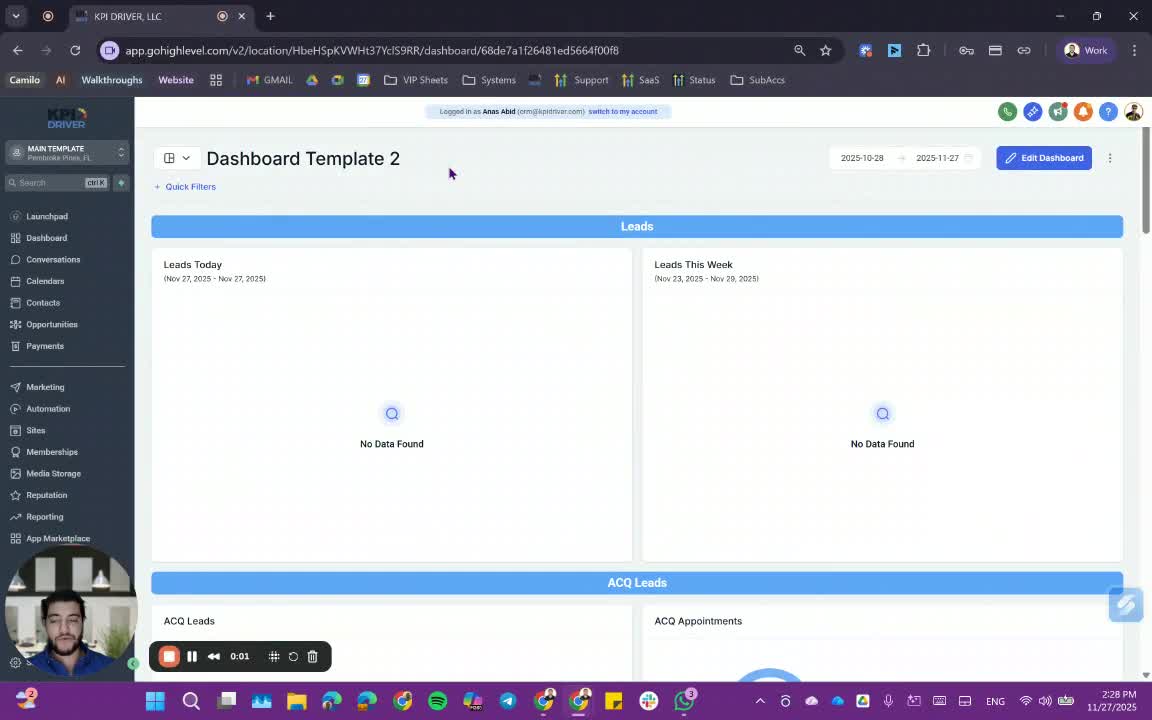
- The custom dashboard is designed for users not on the Enterprise Optimization Suite.
- It has limitations compared to the full version available in the Enterprise Optimization Suite.
- The dashboard primarily displays live data rather than historical data.
2. Daily Usage of the Dashboard 1:09
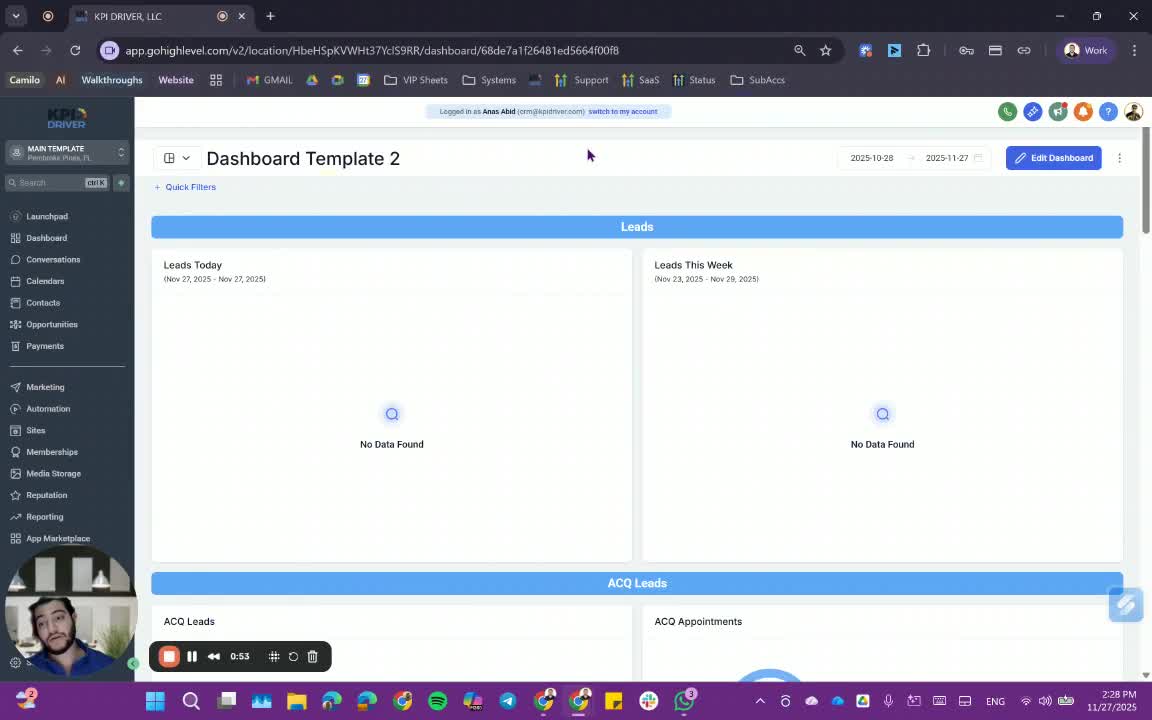
- Use the dashboard on a daily basis to monitor current leads and appointments.
- Understand that it does not accumulate historical data for KPIs.
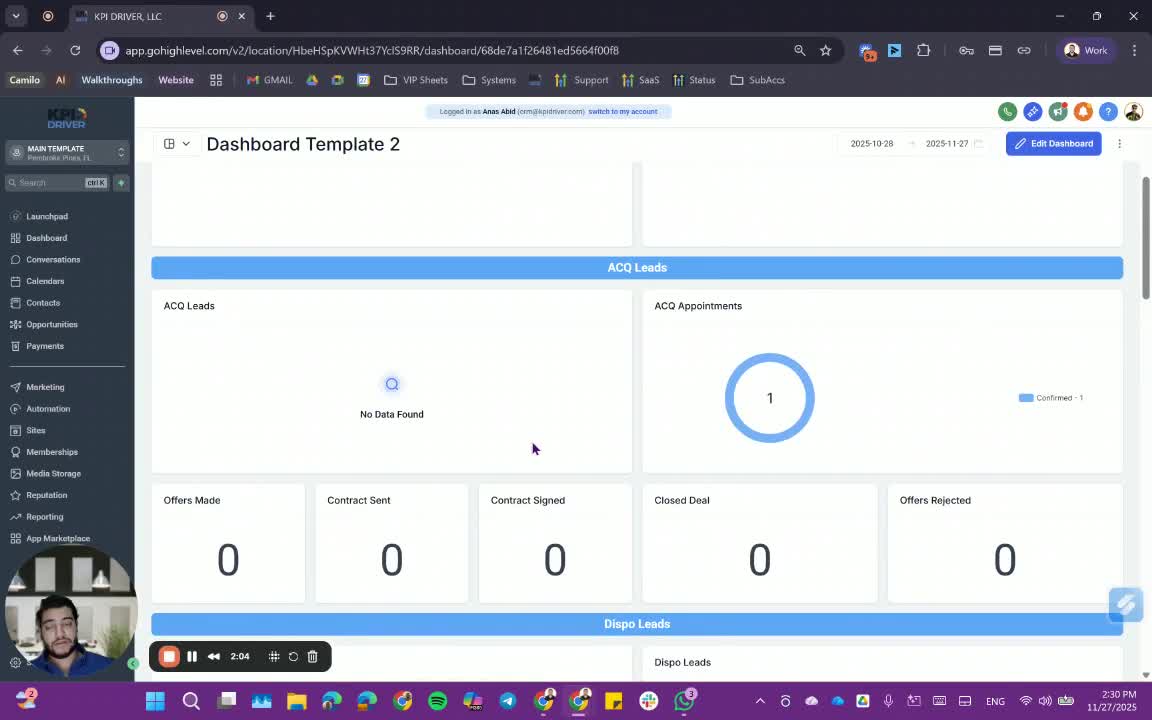
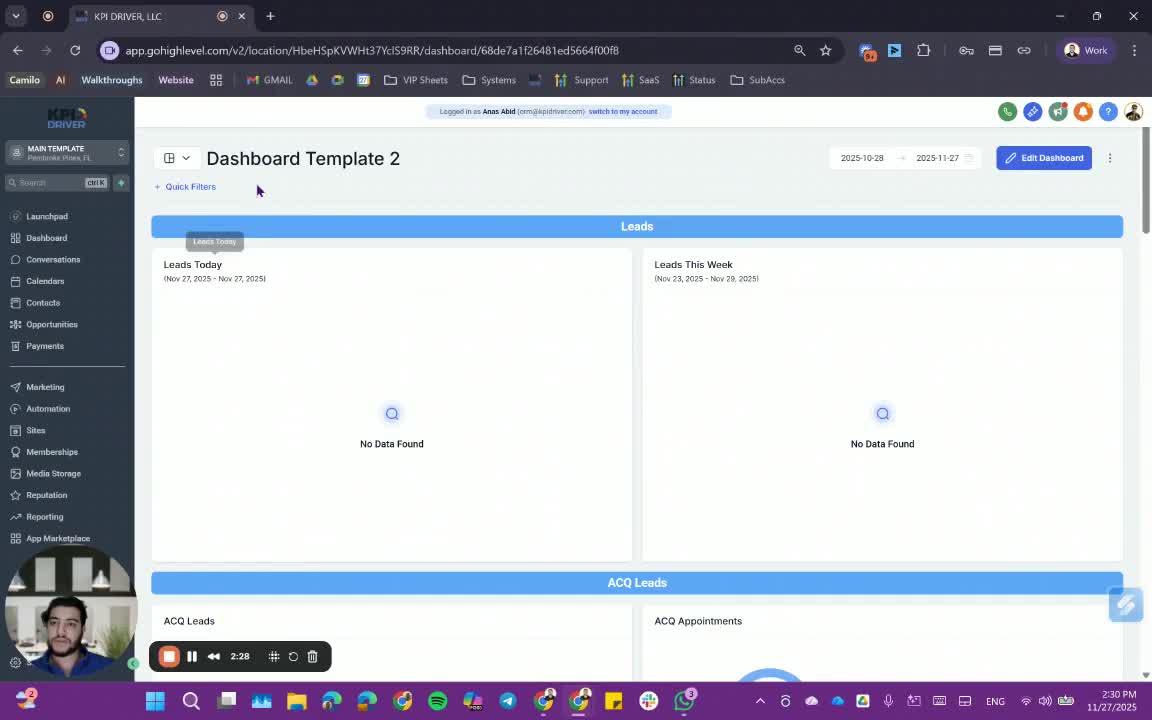
3. Viewing Current Leads and Appointments 1:34
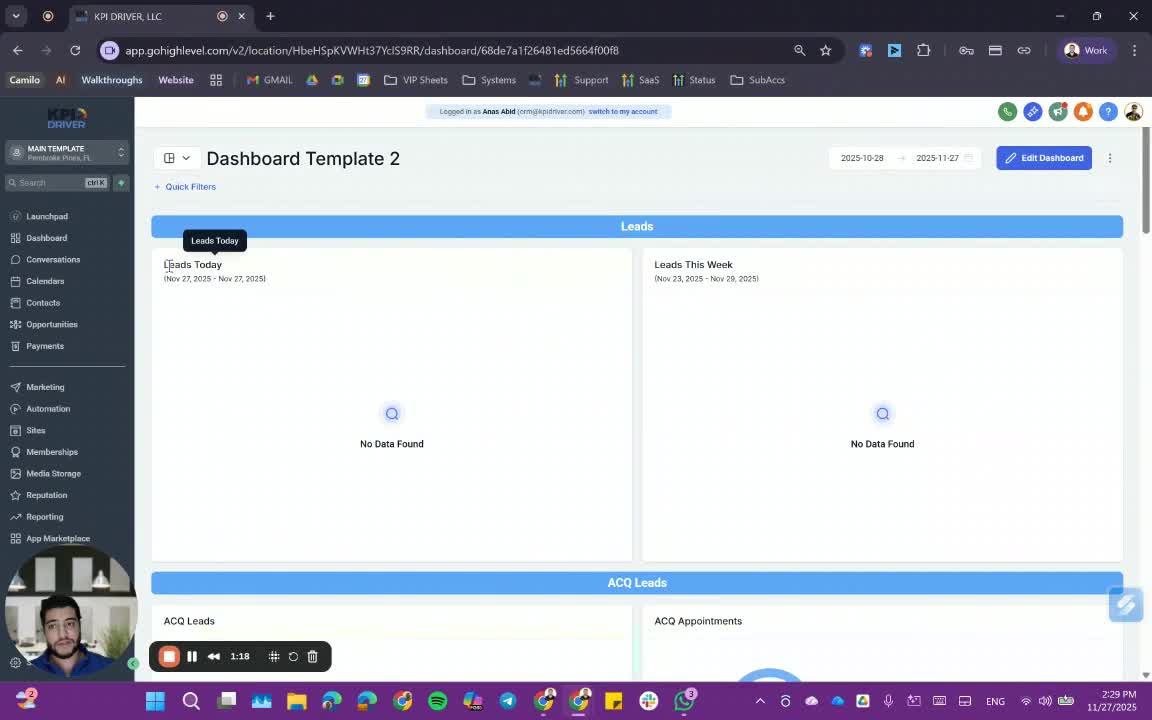
- Check the leads that came in today and this week.
- Review the appointments and easy-cue leads that are displayed.
4. Monitoring Offers and Contracts 1:50
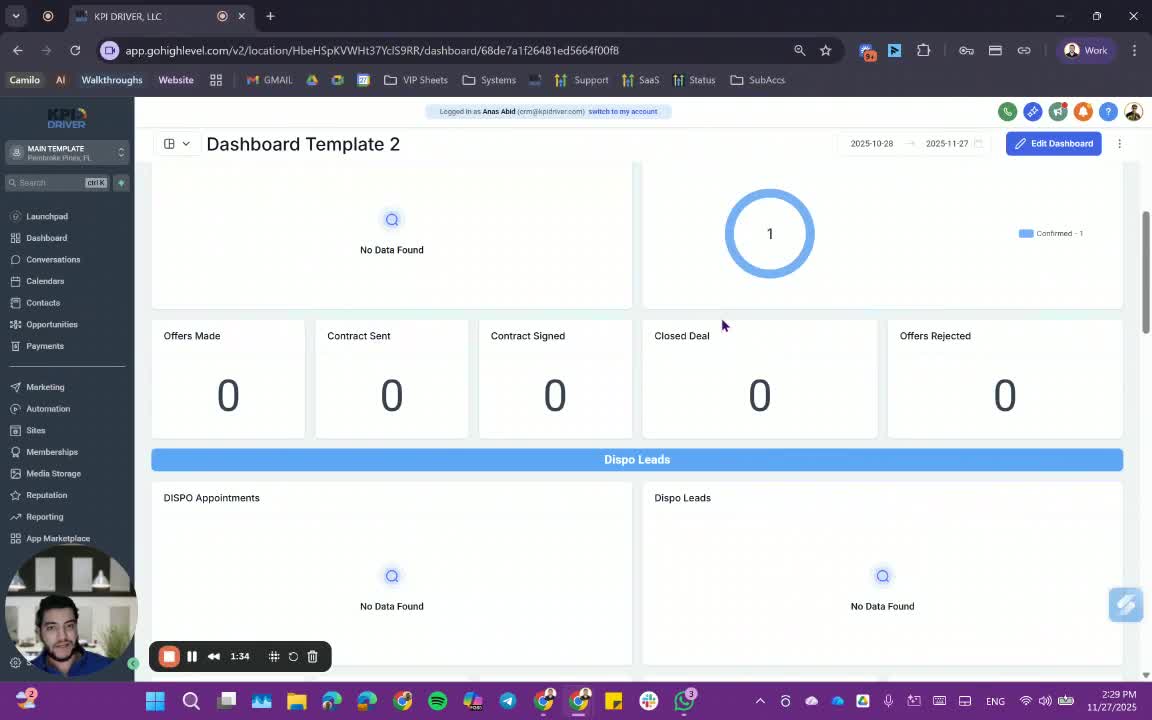
- Track the number of offers made and contracts signed.
- Note that this section does not accumulate data over time.
5. Analyzing Calls and Tasks 2:08
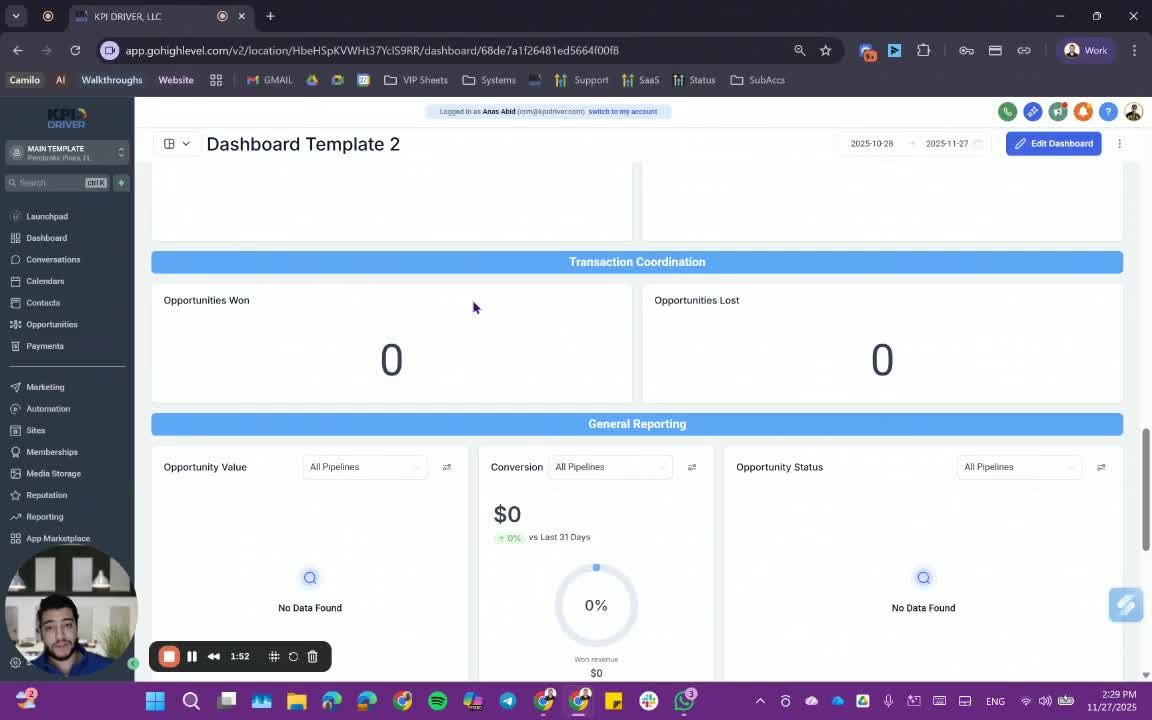
- Review outgoing and incoming calls, which are displayed with accumulated data.
- Check the tasks and manual actions available on the dashboard.
6. Recognizing Dashboard Limitations 2:20
- Be aware that the dashboard is limited in its functionality due to backend system constraints.
- It is intended to assist users who do not have access to the local studio dashboard.
7. Staying Updated 2:44
- Keep an eye out for any updates to the dashboard that may improve its functionality.
Cautionary Notes
- The dashboard does not provide historical data; rely on it for current metrics only.
- Ensure you are familiar with the limitations of the dashboard to avoid misinterpretation of data.
Tips for Efficiency
- Check the dashboard daily to stay updated on leads and appointments.
- Use the dashboard in conjunction with other tools for a comprehensive view of performance metrics.
Link to Loom
https://loom.com/share/e0d08a5042eb4aa68c021fc6f28eab6d
Articles
Other Related Articles
FAQ
FAQ
What makes KPI DRIVER different from other real estate CRMs?
Do I need separate systems for document signatures, dispo, or rentals?
How long does it take to migrate my CRM to KPI DRIVER?
Will KPI DRIVER work if I’m new to real estate or don’t have a CRM yet?
Is the KPI Dashboard customizable?
How does KPI DRIVER help me scale my business?
Do you offer support or training?
How many leads, calls, and deals can KPI DRIVER handle?
How much does KPI DRIVER cost?

@KPI DRIVER LLC 2025. All Rights Reserved.
Design and developed by YAVACADO