
Appointment Report Overview 📈 🧭
In this video, I walk you through the appointment report and how to effectively use the calendar features to track appointments. For instance, you can assess the follow-up specialists' calendars, where I noted that there were 23 booked appointments last month, with 11 confirmed. It's crucial that you keep the appointment statuses updated to ensure the KPIs reflect accurate data; otherwise, the numbers will be meaningless. If you don't have the custom dashboard, this information is essential for your understanding. Please make sure to update the statuses regularly to trigger the necessary actions and maintain visibility.
Appointment Report SOP
Objective
This SOP outlines the steps to generate and analyze the appointment report effectively to ensure accurate tracking of appointments and their statuses.
Key Steps
1. Accessing the Appointment Report 0:17
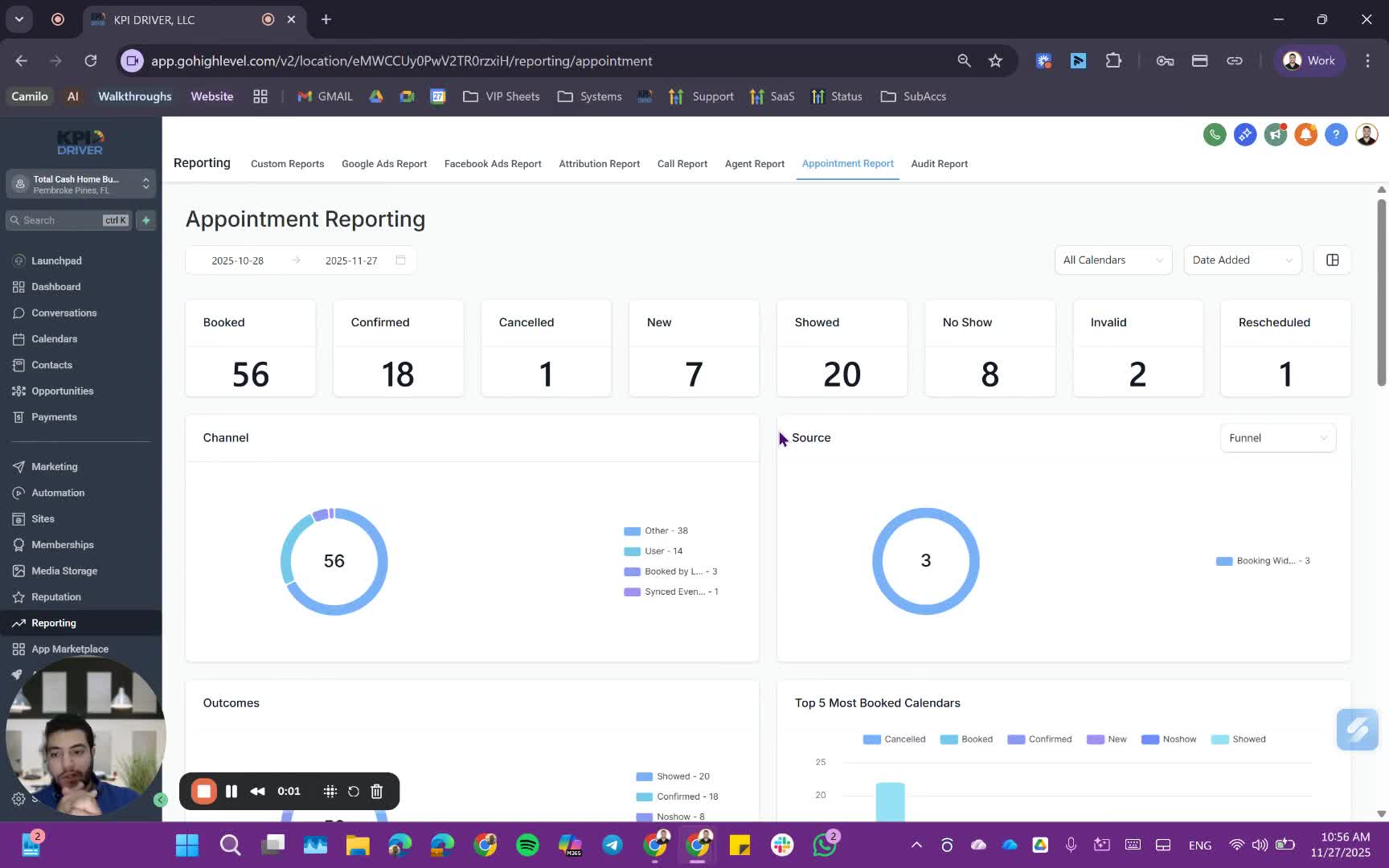
- Navigate to the appointment report section in the system.
- If you have a custom dashboard, you may not need to access this report directly.
2. Selecting the Calendar 0:28
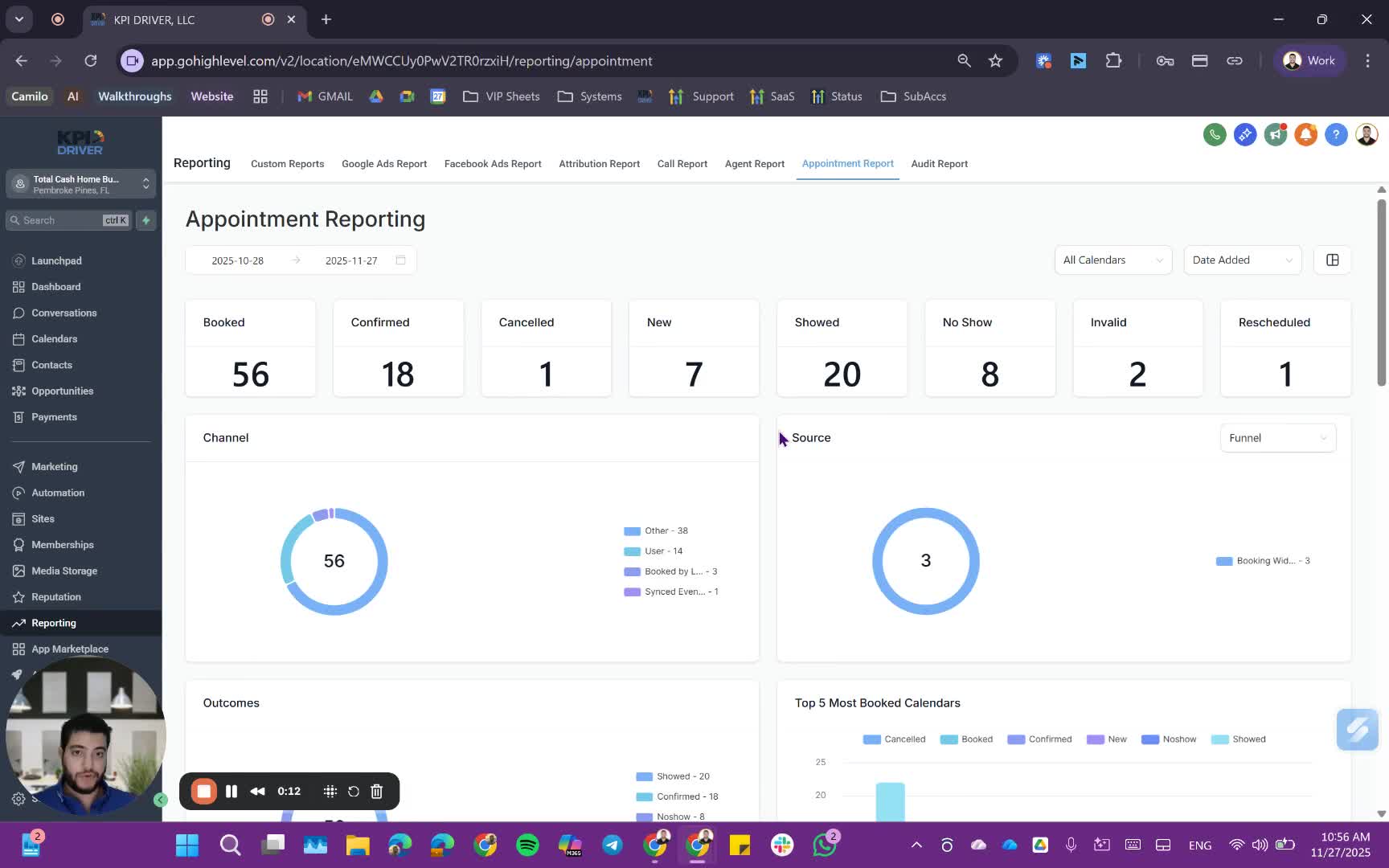
- Choose the specific calendar you want to assess (e.g., follow-up specialists).
- Alternatively, select 'All' to view all calendars.
3. Reviewing Appointment Statistics 0:40
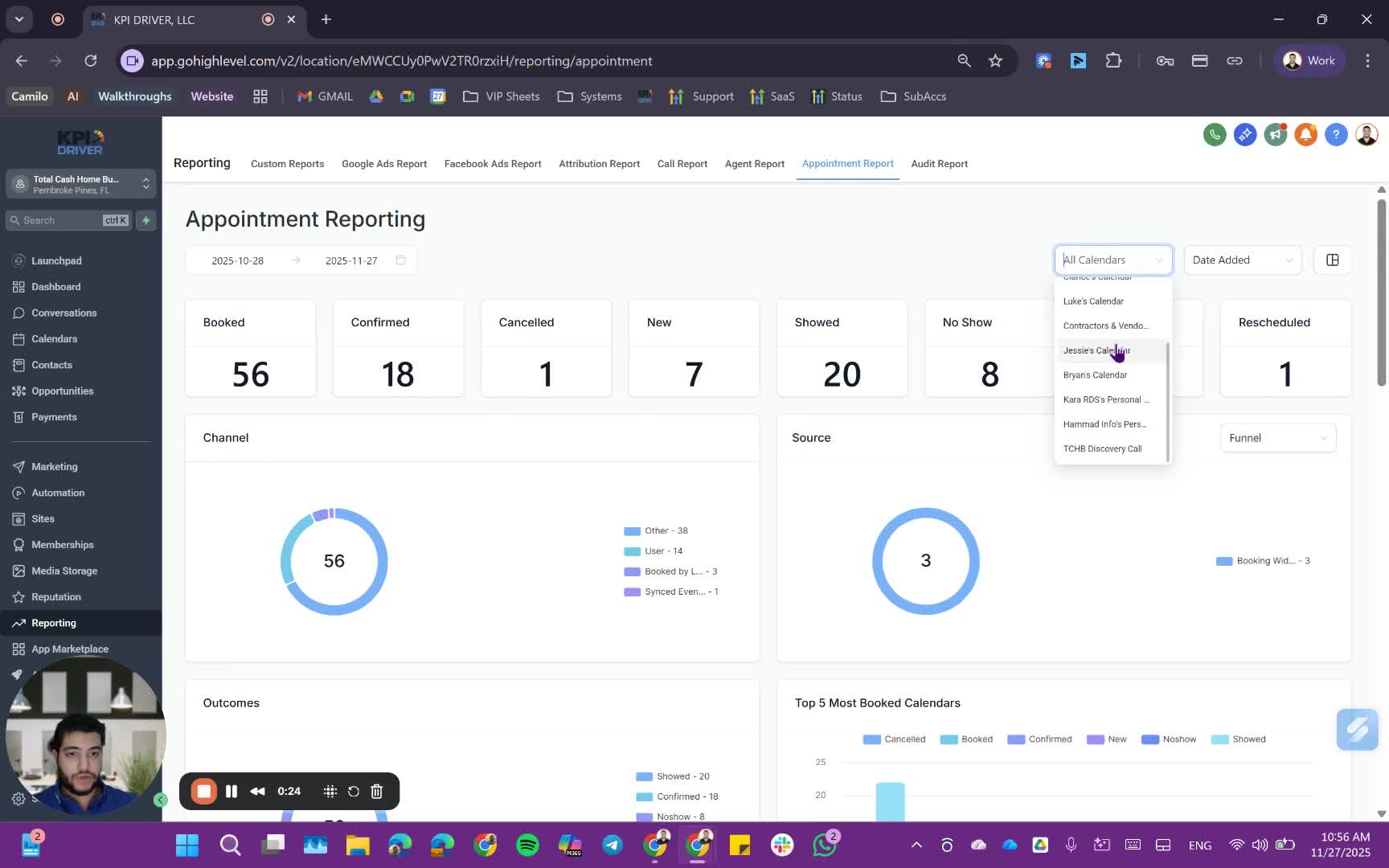
- Analyze the number of appointments booked, confirmed, cancelled, and no-shows.
- Review the stats for the top five most booked appointments.
4. Identifying Appointment Owners 1:12
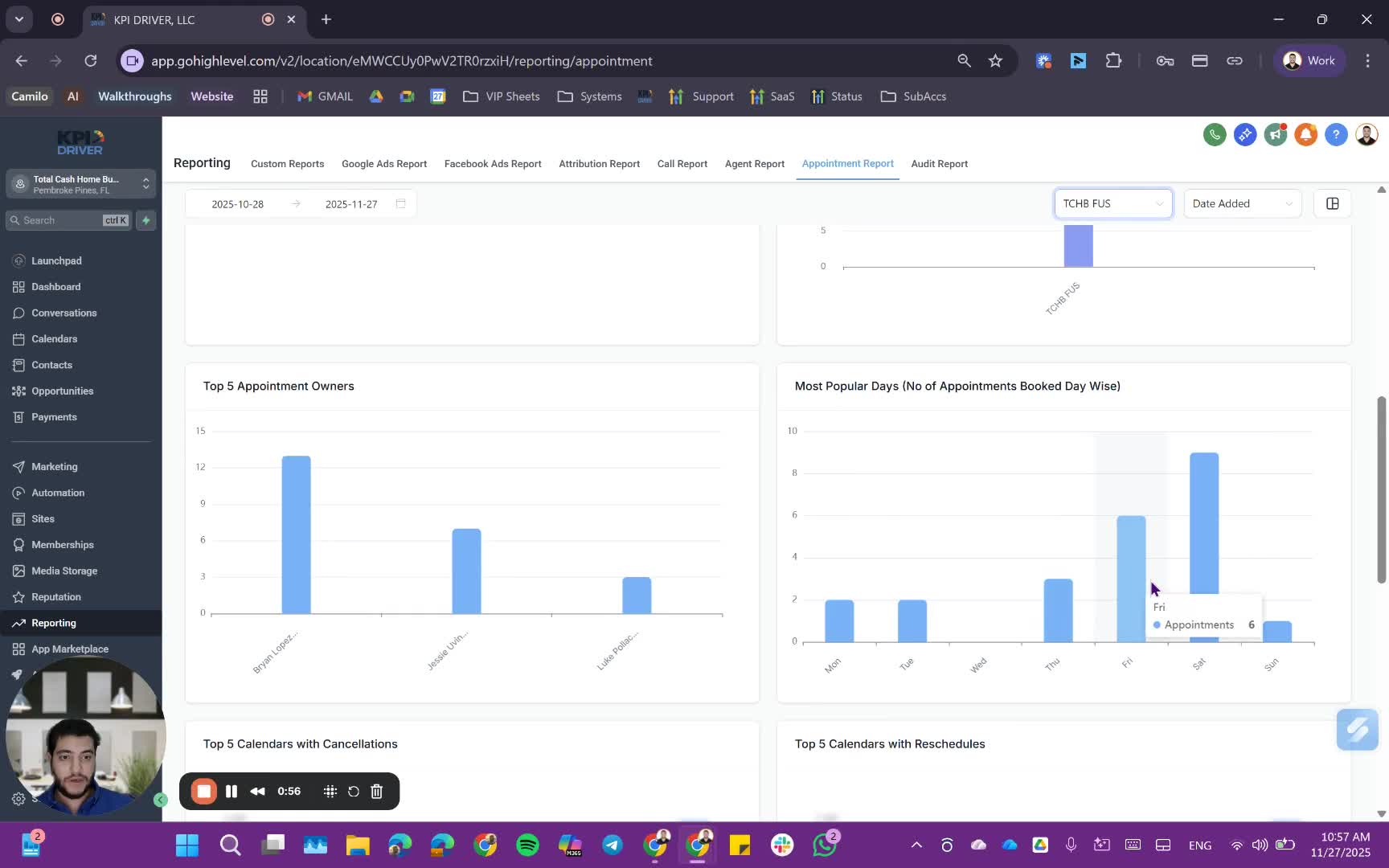
- Check which appointment owners are sending calls to acquisition specialists.
5. Analyzing Booking Trends 1:30
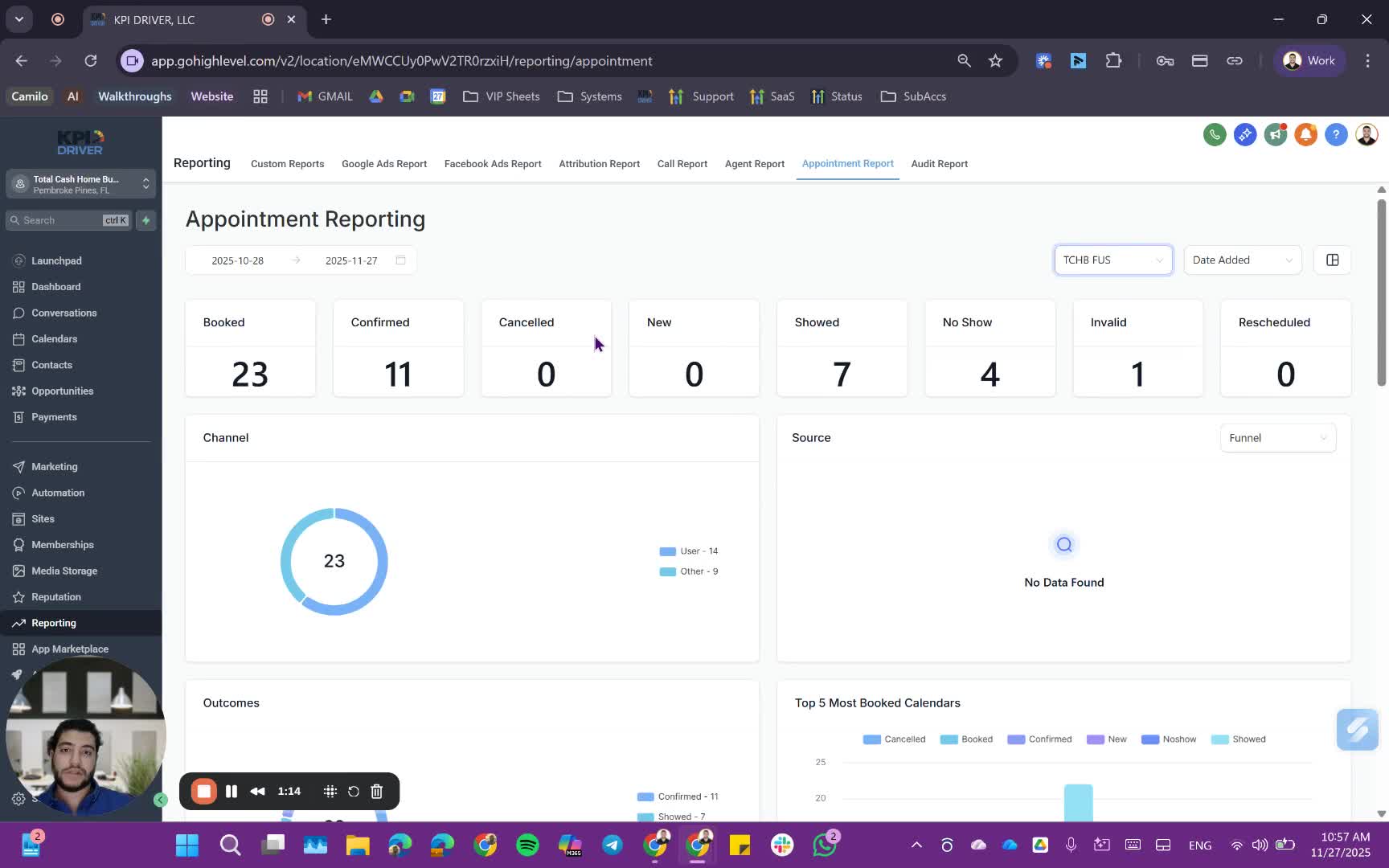
- Identify which days have the highest booking rates.
6. Ensuring Status Updates 1:41
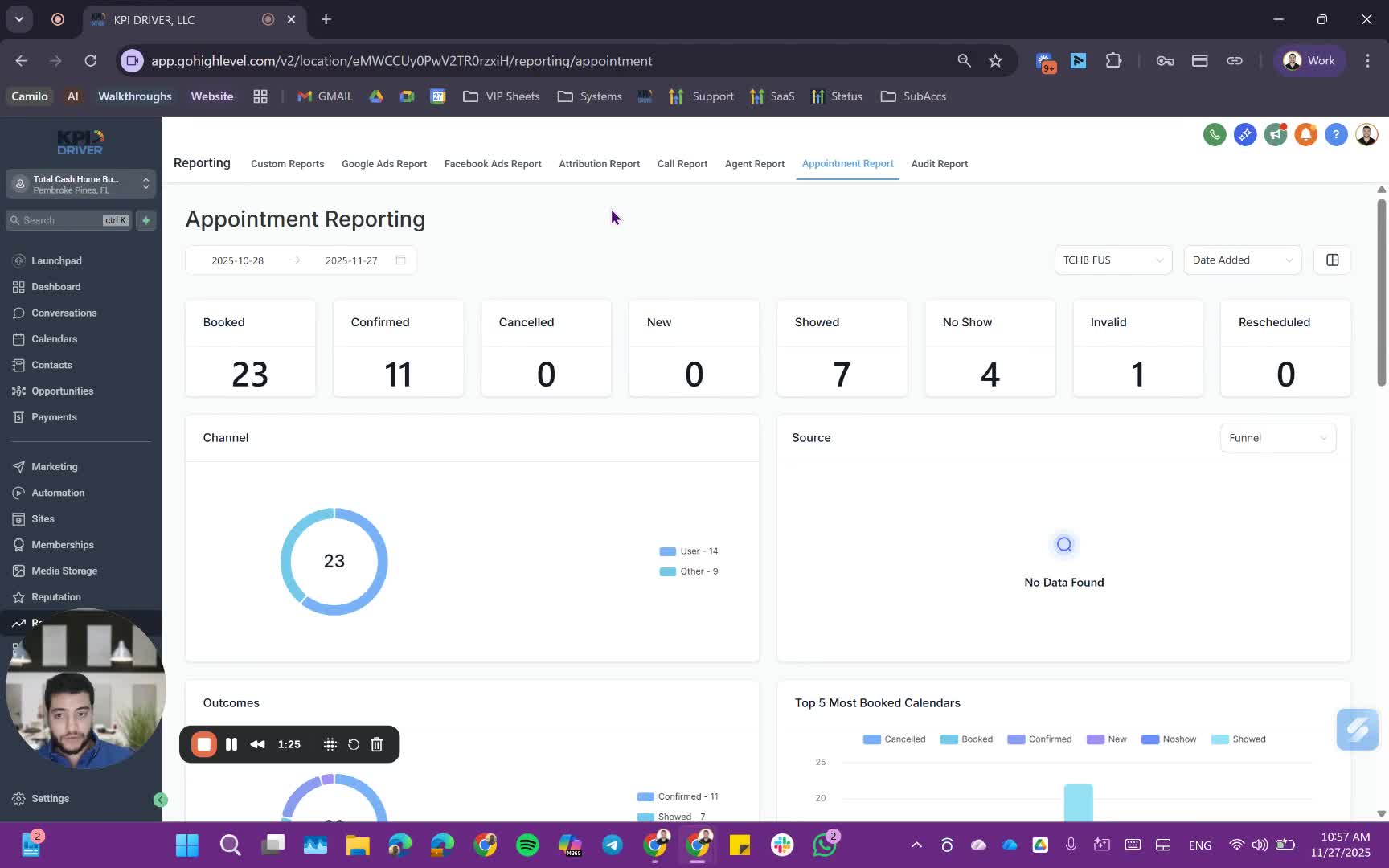
- Regularly update the statuses of appointments to ensure accurate reporting.
- Understand that the quality of KPIs depends on the accuracy of the data entered.
7. Integrating Other Reports 2:20
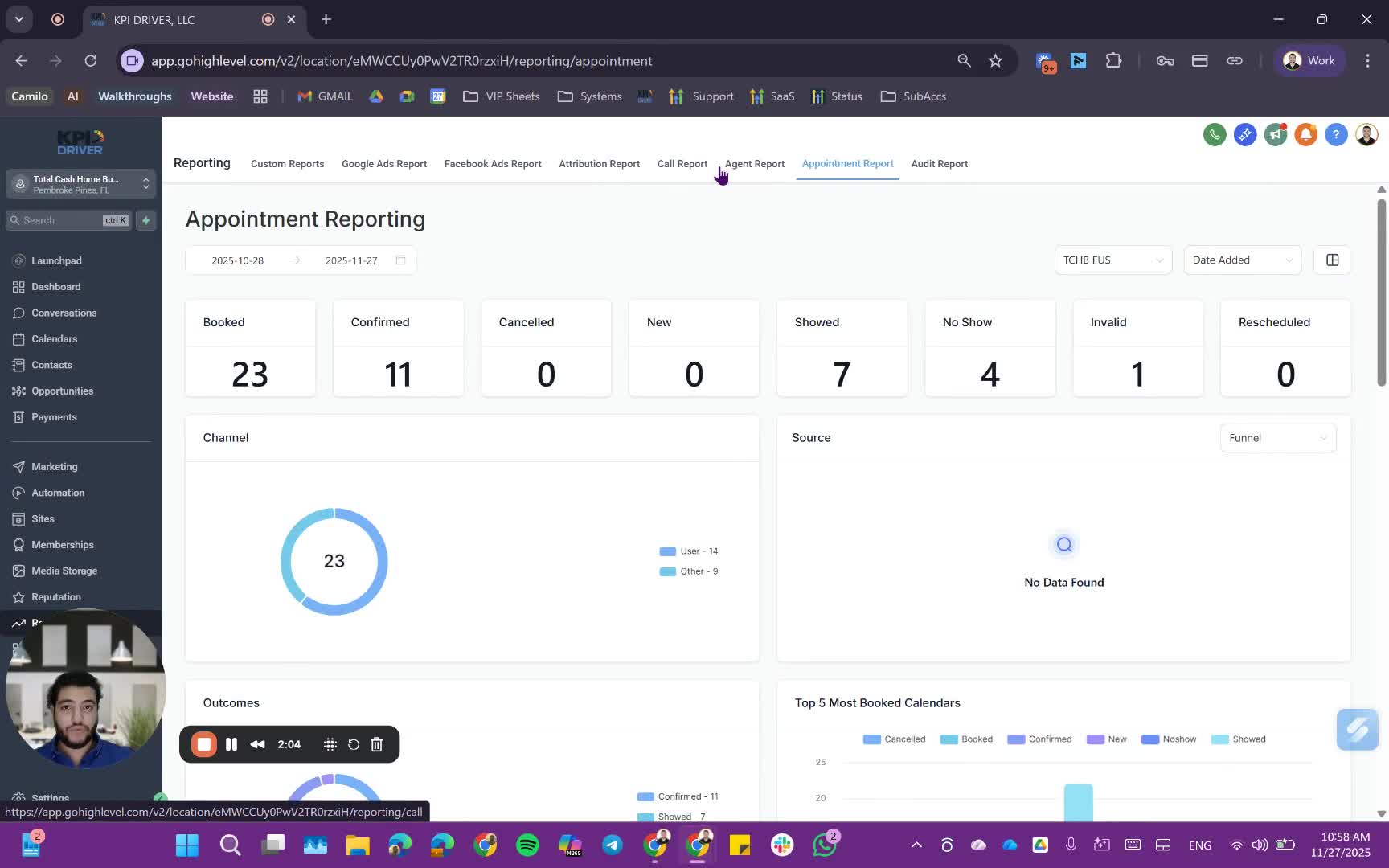
- If applicable, integrate Facebook or Google ads reports for comprehensive analysis.
8. Reviewing User Appointment Data 2:36
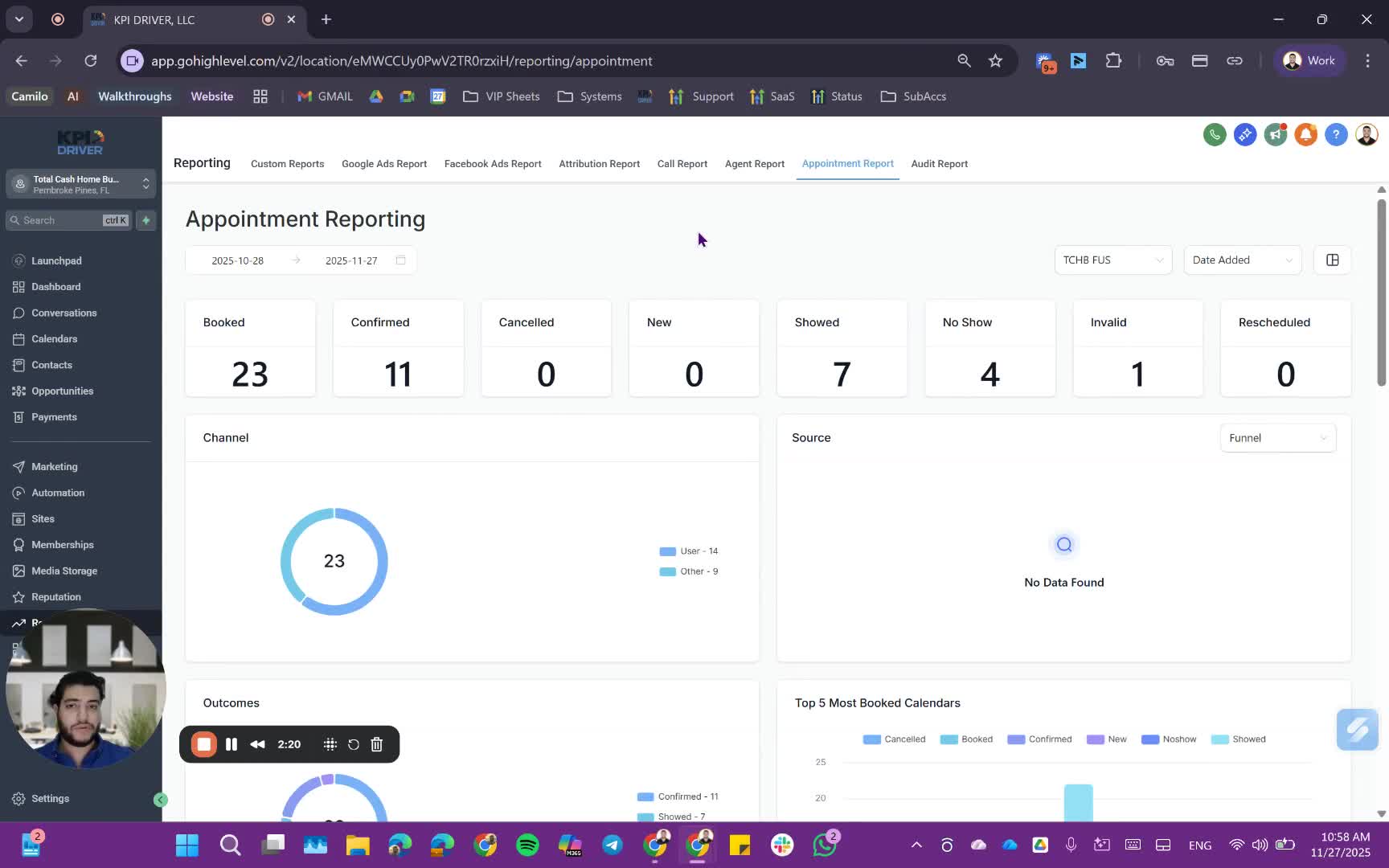
- Check the user data for appointments made, including dates and user names.
Cautionary Notes
- Ensure that all appointment statuses are updated regularly to avoid inaccurate data.
- Inaccurate data entry can lead to misleading reports and analysis.
Tips for Efficiency
- Utilize the custom dashboard for quicker access to key metrics.
- Schedule regular reviews of appointment statuses to maintain data integrity.
- Train team members on the importance of updating appointment statuses.
Link to Loom
https://loom.com/share/4e4c4d79f70a4eb3a4de5b0b792dd25c
Articles
Other Related Articles
FAQ
FAQ
What makes KPI DRIVER different from other real estate CRMs?
Do I need separate systems for document signatures, dispo, or rentals?
How long does it take to migrate my CRM to KPI DRIVER?
Will KPI DRIVER work if I’m new to real estate or don’t have a CRM yet?
Is the KPI Dashboard customizable?
How does KPI DRIVER help me scale my business?
Do you offer support or training?
How many leads, calls, and deals can KPI DRIVER handle?
How much does KPI DRIVER cost?

@KPI DRIVER LLC 2025. All Rights Reserved.
Design and developed by YAVACADO