
Call & Agent Report Overview 📈 🧭
In this video, I walk you through the cold report and what to expect when reviewing it. I demonstrate how to filter data by different time frames, such as this week or last week, and highlight the importance of analyzing outgoing calls to assess agent performance. You’ll see metrics like total calls, unique leads, and average duration, which help gauge our outreach effectiveness. Additionally, I touch on the agent report and how it aligns with call metrics. Please let me know if you have any questions, and I hope you find this information helpful!
Call Report and Agent Report SOP
Objective
This SOP outlines the steps to access and interpret the call report and agent report for tracking performance metrics.
Key Steps
Accessing the Call Report 0:17
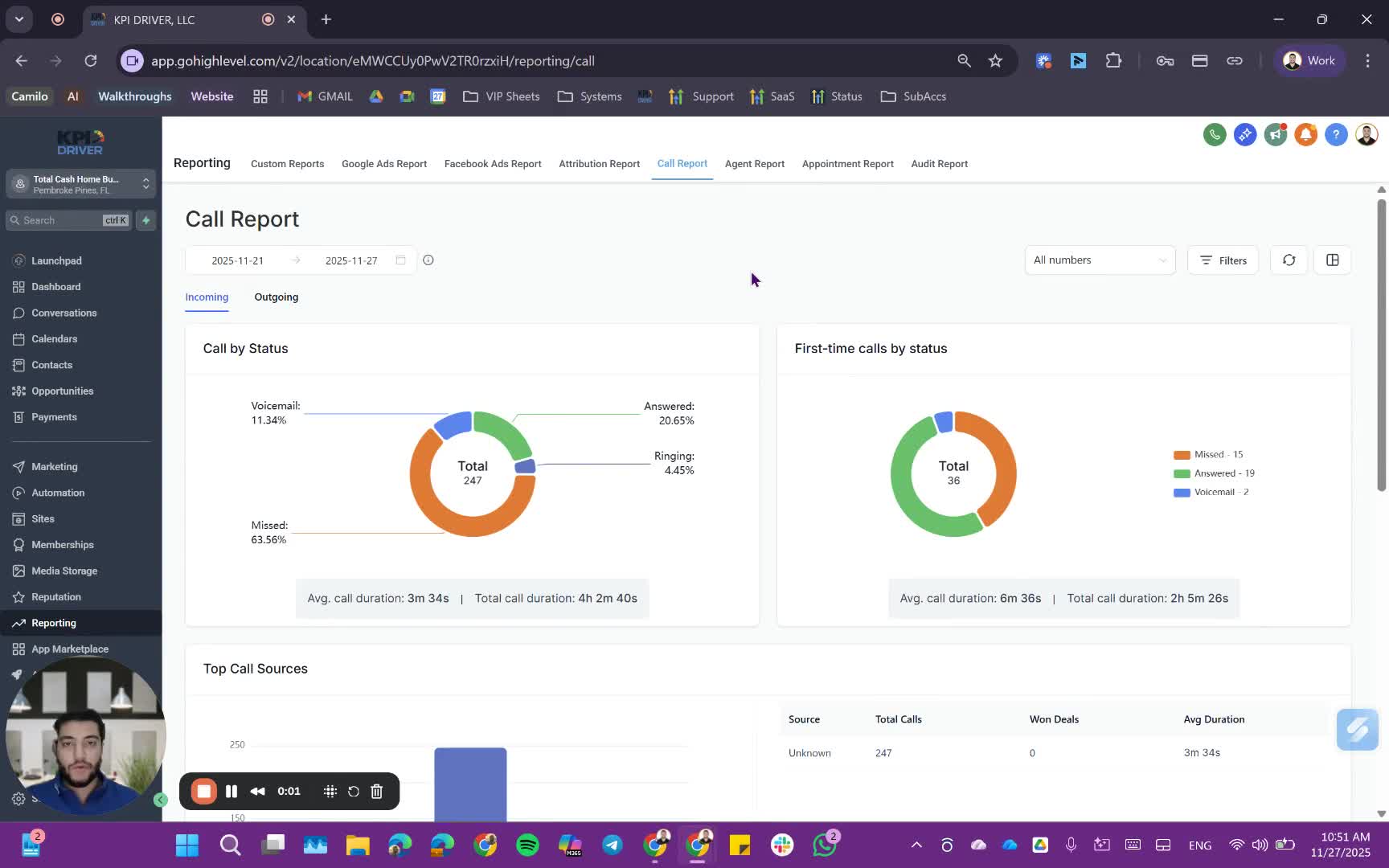
- Open the call report interface.
- By default, the report displays data for the current week (last 7 days).
Changing the Date Range 0:39
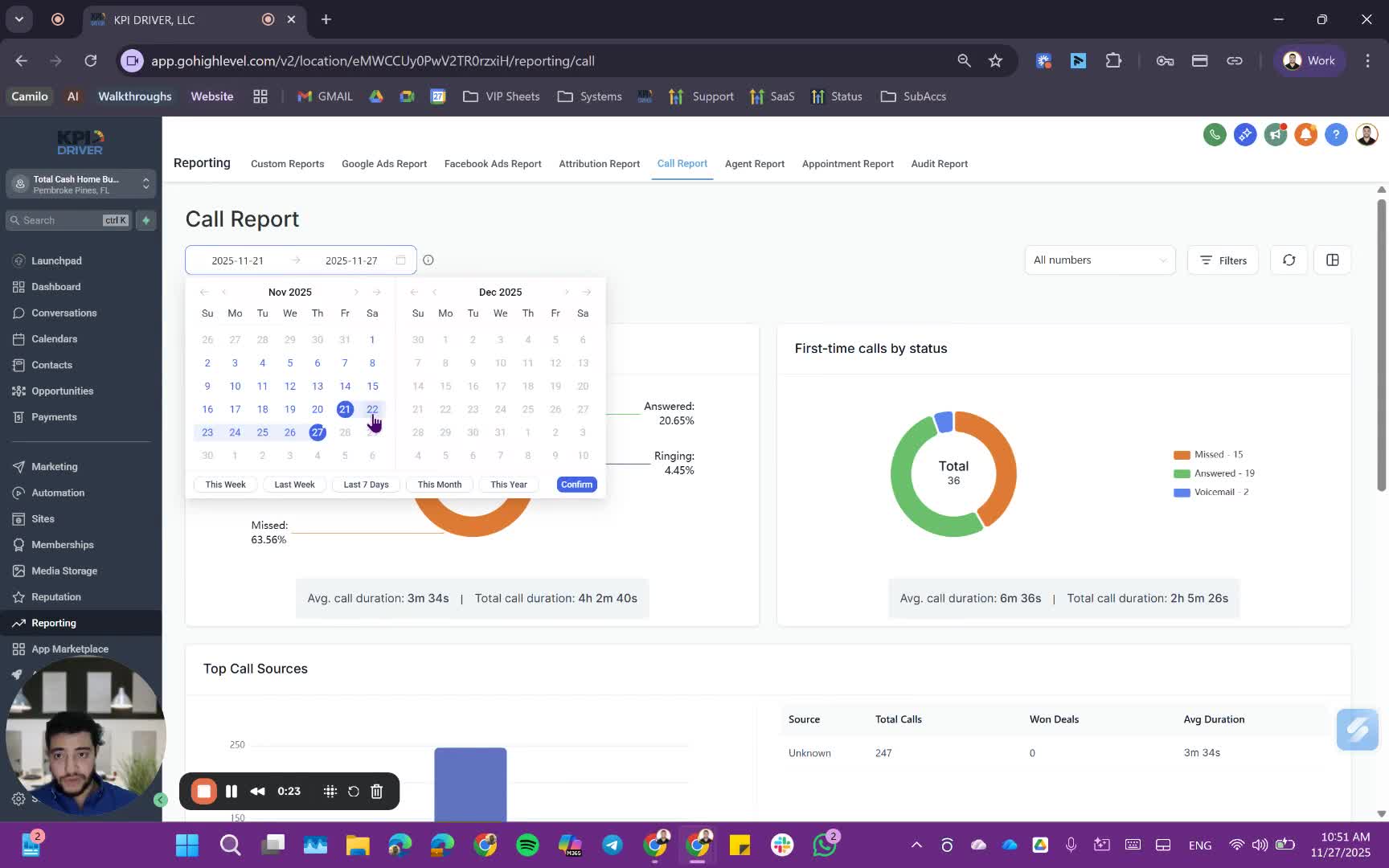
- Select the desired date range:
- Last 7 days
- Last week
- This week
- This month
- This year
- For this example, choose 'This week'.
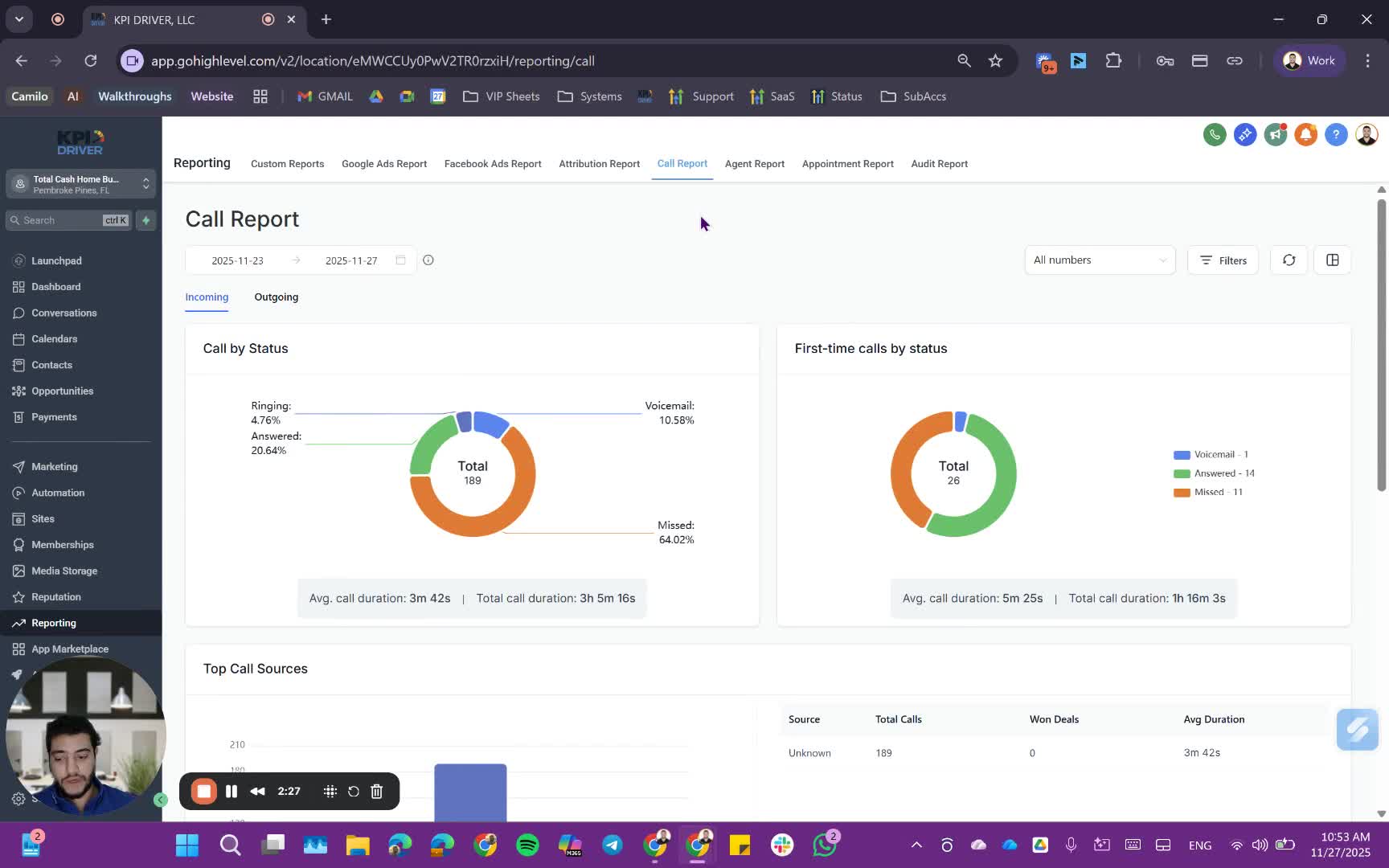
Viewing Call Metrics 1:05
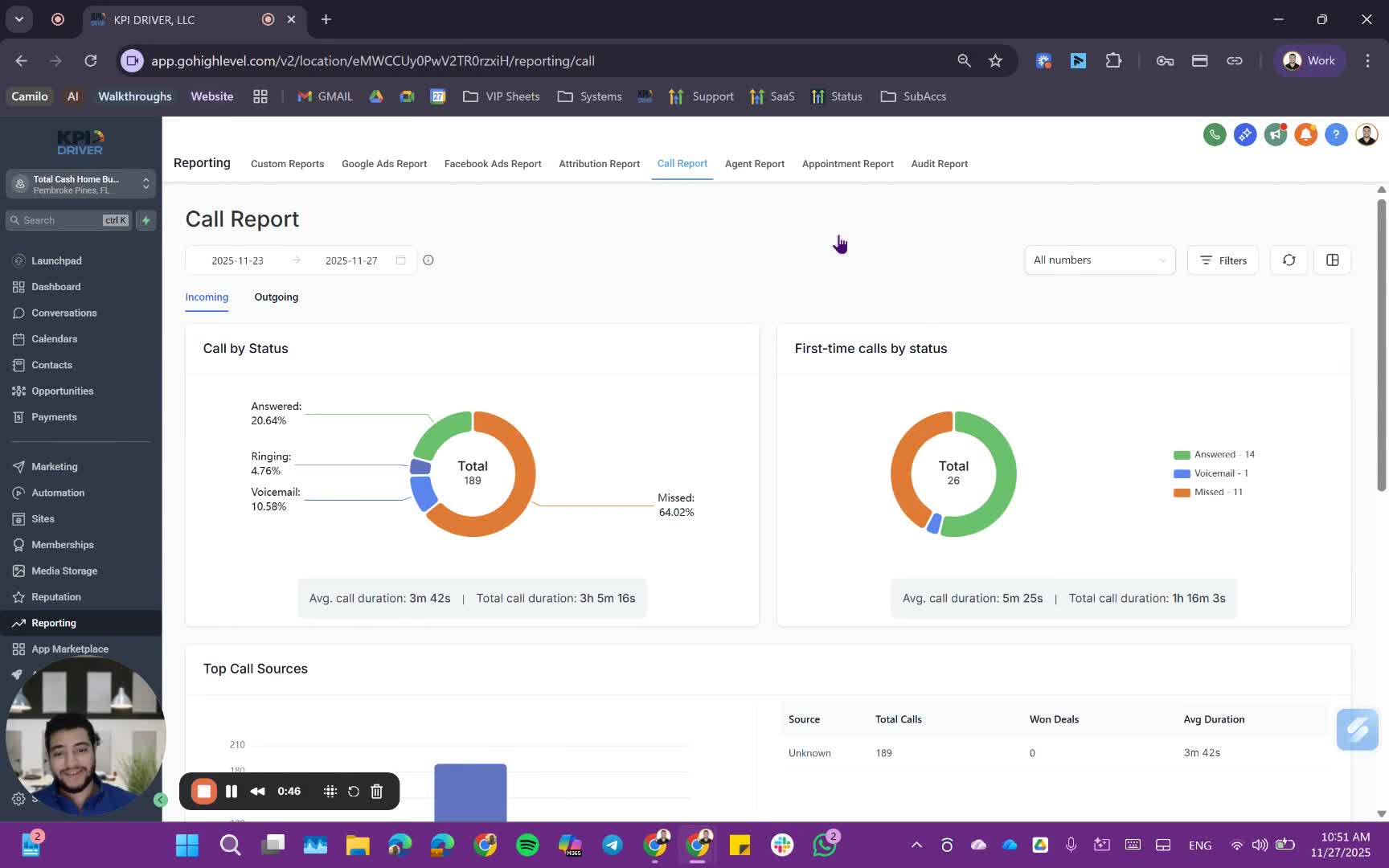
- Review the incoming and outgoing call metrics.
- Focus on outgoing calls to assess agent performance.
Understanding Unique Leads 1:18
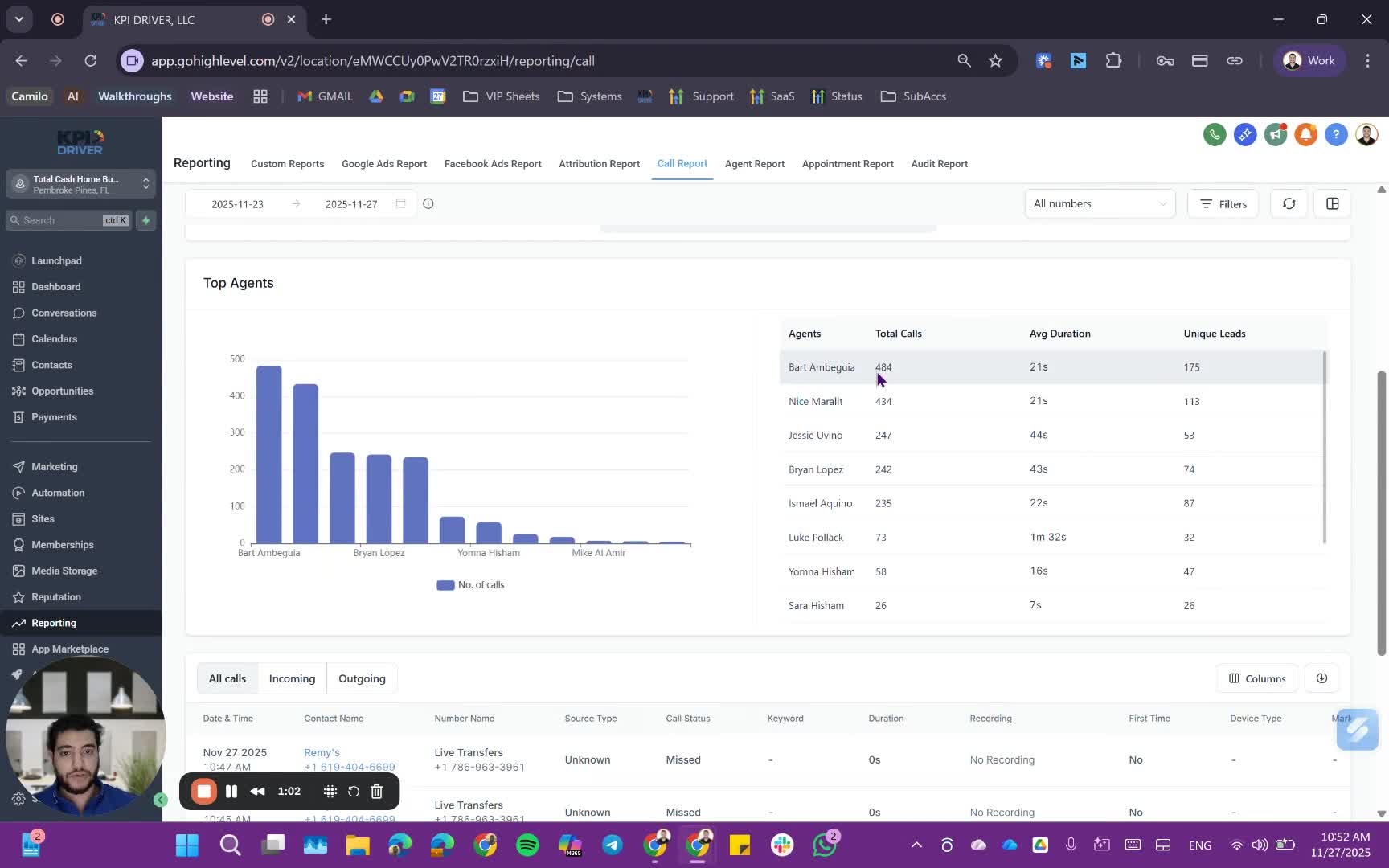
- Unique leads represent the number of distinct contacts reached.
- Compare unique leads to total calls to evaluate outreach effectiveness.
Analyzing Agent Performance 2:00
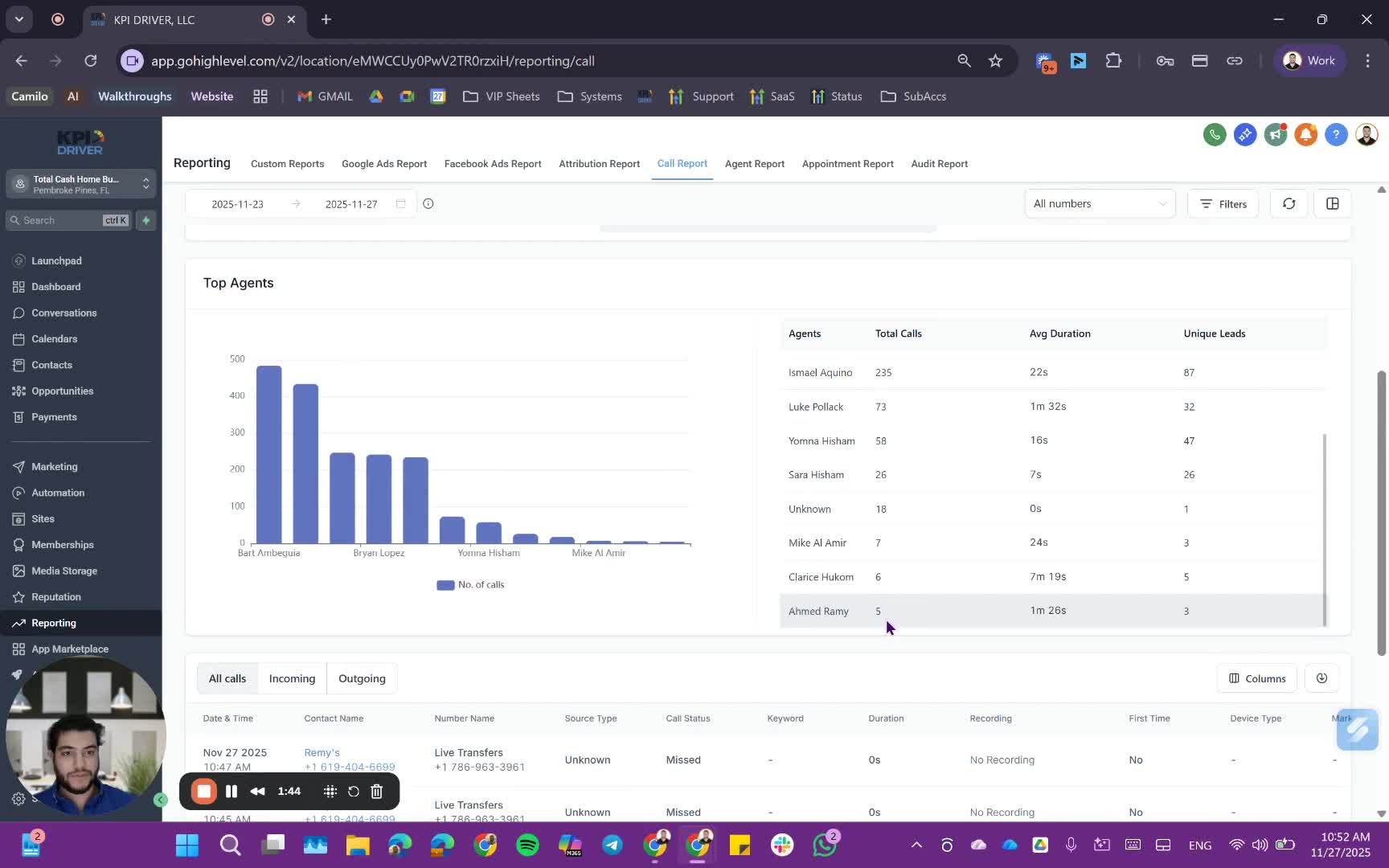
- Check the agent's name, number of calls made, average duration, and unique leads.
Reviewing Call Outcomes 2:14
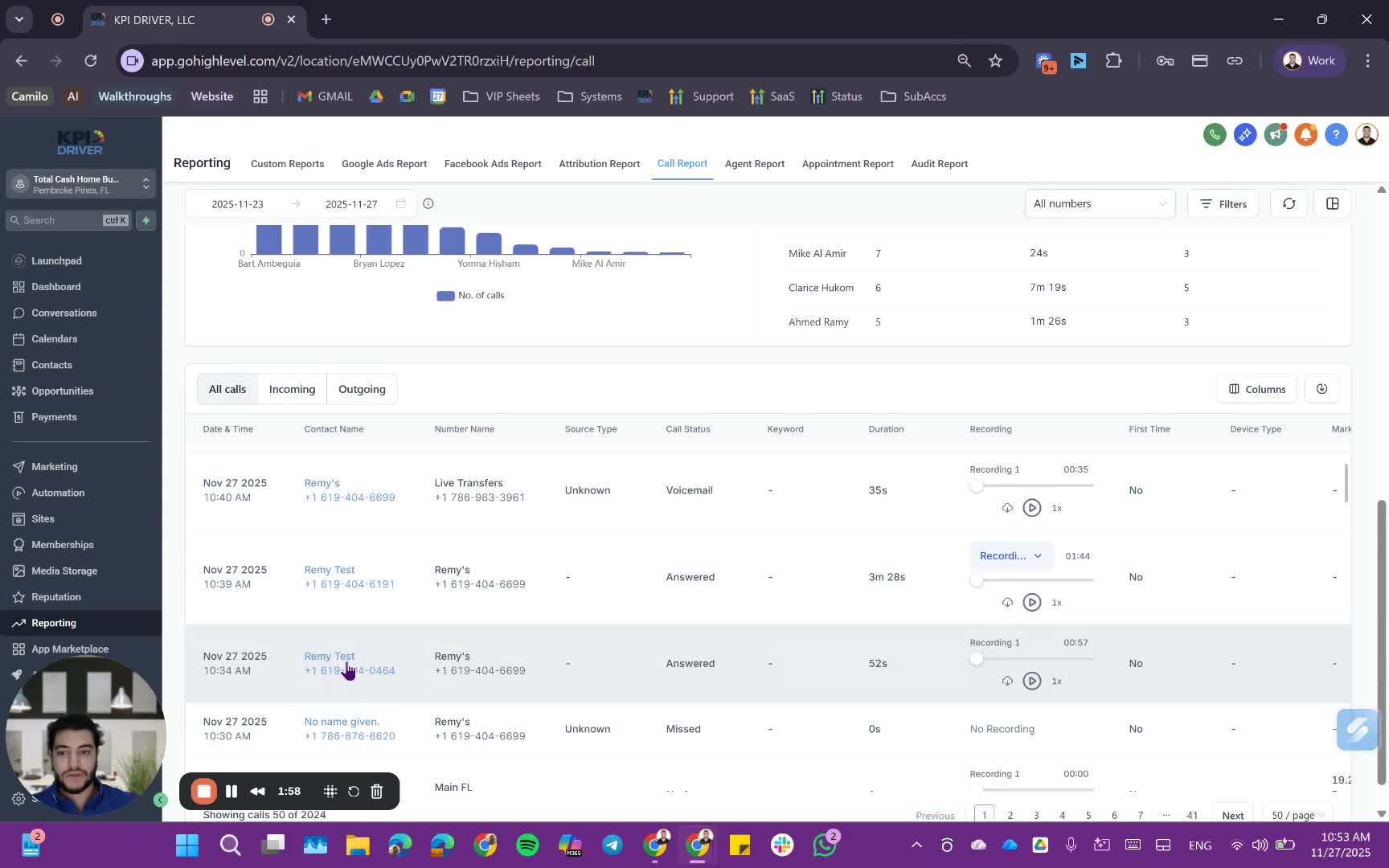
- Identify call outcomes: live transfers, voicemails, missed calls, etc.
Accessing the Agent Report 2:43
- Select the agent for whom you want to view the report.
- Choose the date range (e.g., 'This week').
- Click 'Fetch' to retrieve the report.
Viewing Call Metrics in Agent Report 3:11
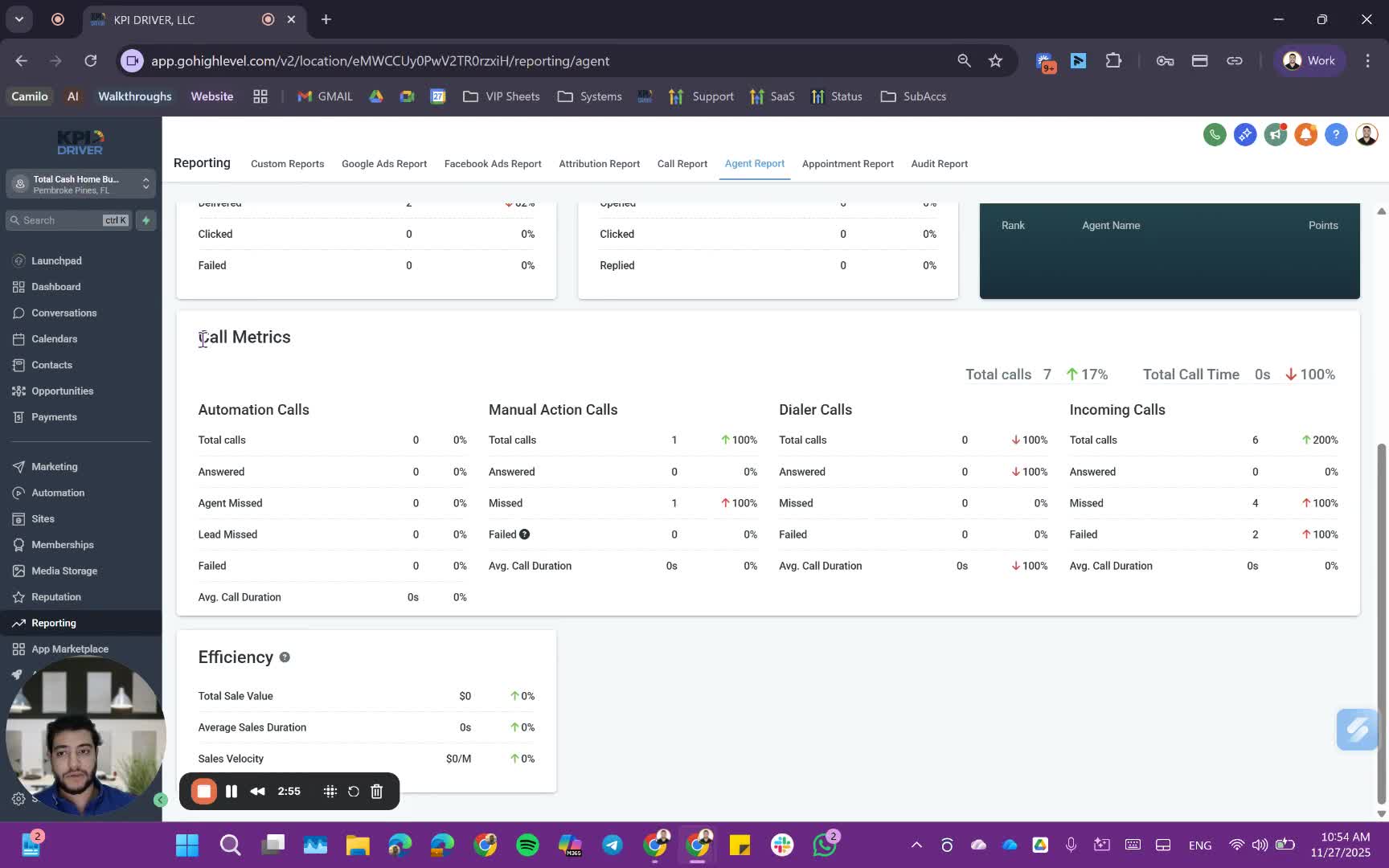
- Review total calls, missed calls, and call types (manual, automation, dialer).
Analyzing Conversion Metrics 3:34
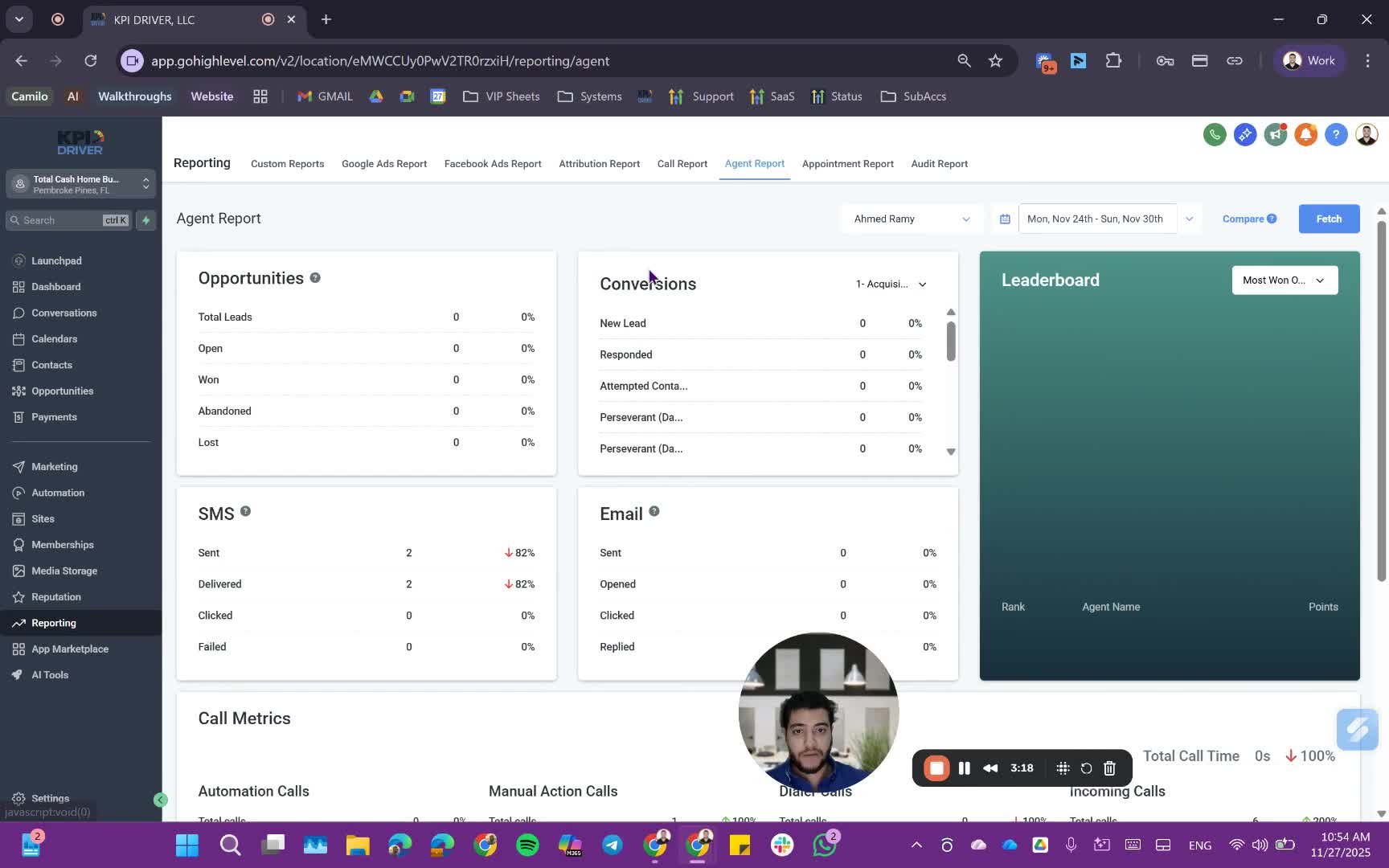
- Check conversion metrics by pipeline to assess performance.
Understanding Dashboard Access 4:24
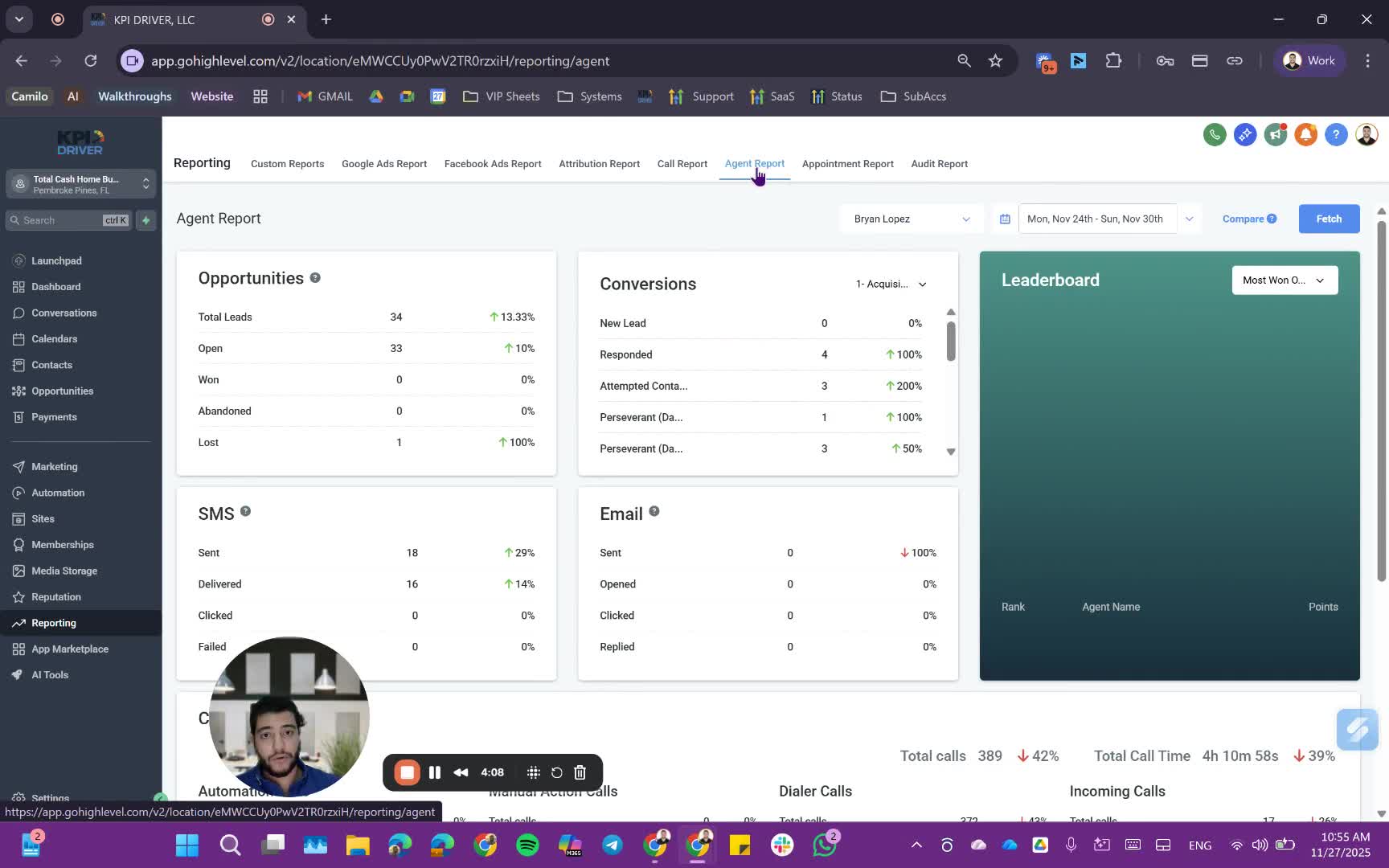
- Note that higher plan users have access to an external dashboard for a more comprehensive view.
Cautionary Notes
- Ensure you are selecting the correct date range to avoid misinterpretation of data.
- Be aware that lower plan users may have limited access to certain reports.
Tips for Efficiency
- Regularly check reports to stay updated on agent performance.
- Use filters to focus on specific metrics that matter most to your team.
Link to Loom
https://loom.com/share/28723a36f43749a59b0cd598ba0c5d47
Articles
Other Related Articles
FAQ
FAQ
What makes KPI DRIVER different from other real estate CRMs?
Do I need separate systems for document signatures, dispo, or rentals?
How long does it take to migrate my CRM to KPI DRIVER?
Will KPI DRIVER work if I’m new to real estate or don’t have a CRM yet?
Is the KPI Dashboard customizable?
How does KPI DRIVER help me scale my business?
Do you offer support or training?
How many leads, calls, and deals can KPI DRIVER handle?
How much does KPI DRIVER cost?

@KPI DRIVER LLC 2025. All Rights Reserved.
Design and developed by YAVACADO