
Calendars & Booking Statuses 📅 📝
In this video, I walk you through the calendar view, appointment list view, and the various statuses of appointments, which are crucial for effective management. You can choose different views like week, day, or month, and filter appointments by user or category. I emphasize the importance of updating appointment statuses, such as "new," "showed," or "no show," to keep everything organized. Additionally, I explain the different types of calendars we use, including personal and appointment-specific calendars. Please make sure to utilize these features to streamline your scheduling process.
Standard Operating Procedure for Managing Appointments and Calendar Views
Objective
This SOP outlines the steps for effectively managing appointments and utilizing calendar views within the system.
Key Steps
1. Accessing Calendar View 0:23
- Navigate to the calendar view.
- Choose your preferred view: week, day, or month.
- Use annotations if necessary.
2. Managing Appointment Views 0:42
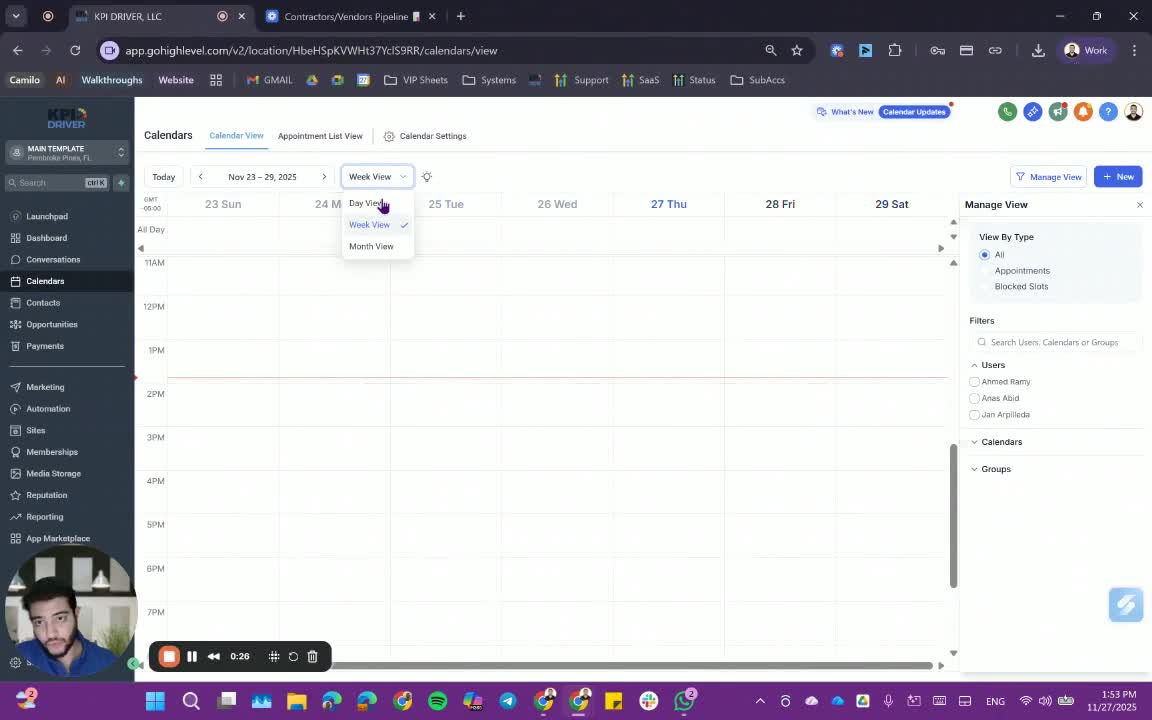
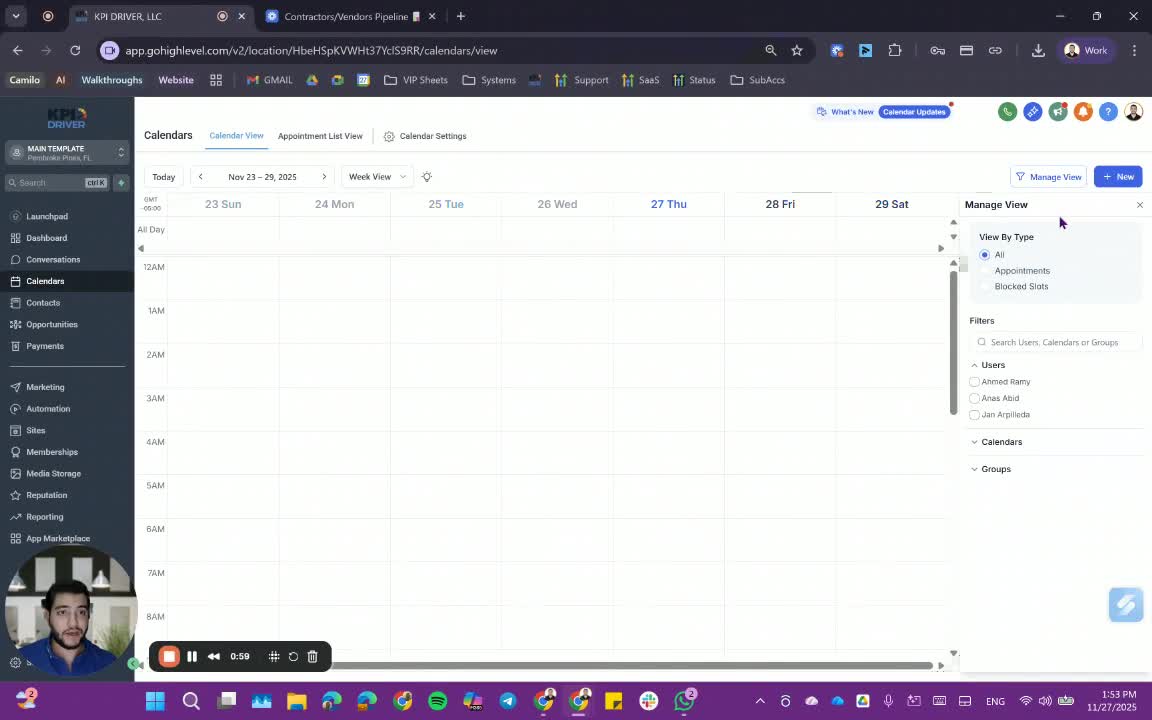
- Select the type of view: appointments, blocks, lots, or everything.
- Adjust filters to manage your view as needed.
3. Adding New Appointments 1:07
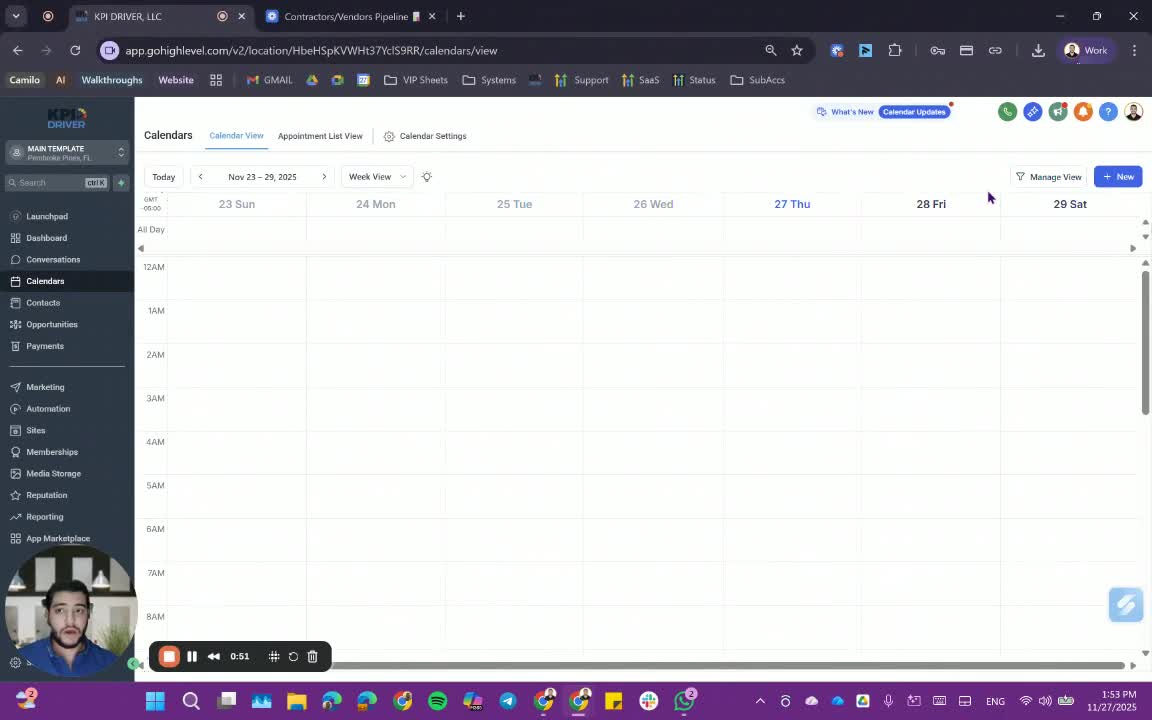
- While you can add appointments from the calendar, it is recommended to add them from within the contact or opportunity.
4. Using Filters for Appointments 1:15
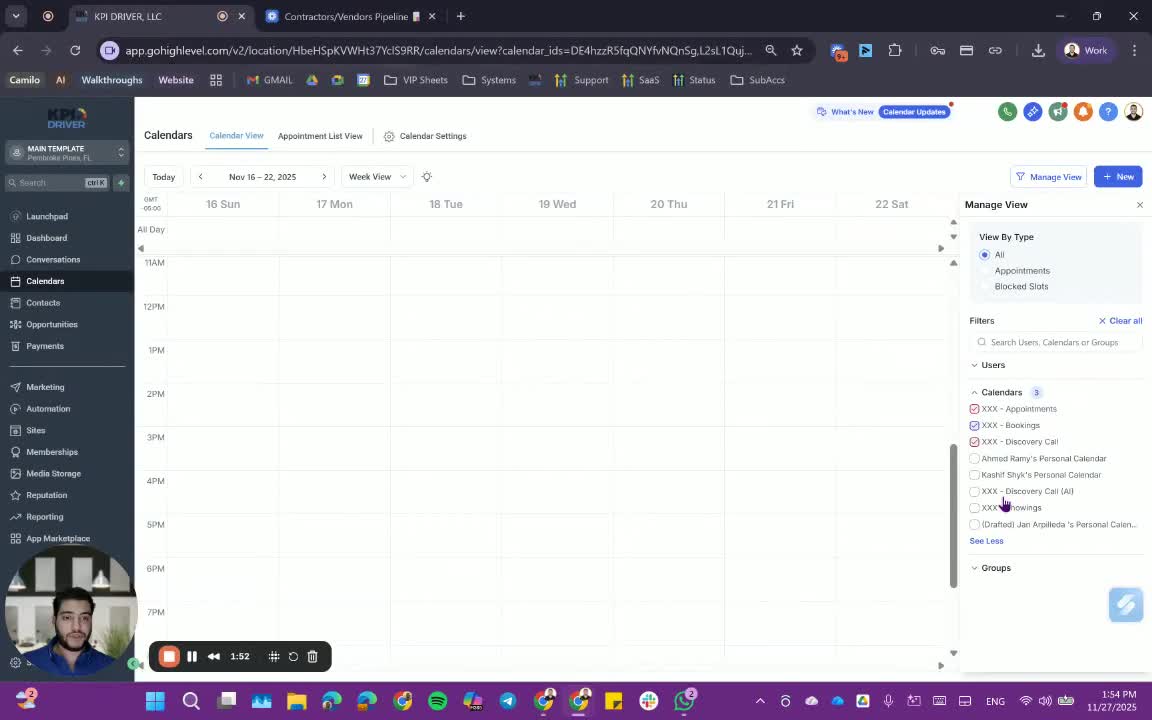
- Apply filters to view appointments by user or calendar groups.
- Select personal calendars or specific appointment calendars.
5. Appointment List View 2:08
- Access the appointment list view to check upcoming, canceled, or all appointments.
- Use advanced filters to create smart lists based on specific criteria.
6. Updating Appointment Status 3:18
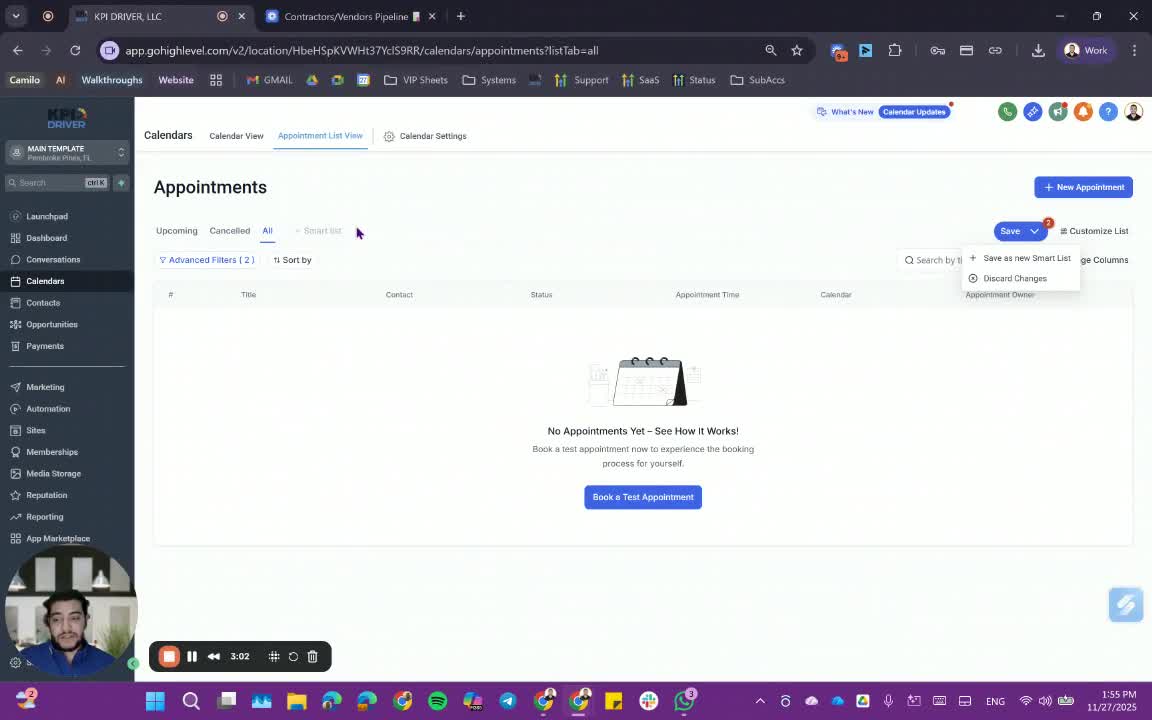
- Update the status of appointments as follows:
- If the meeting occurred, update to 'show'.
- If the client did not show, update to 'no show'.
- If canceled, update to 'canceled'.
- If rescheduled, edit the appointment details without changing the original.
7. Understanding Calendar Types 5:19
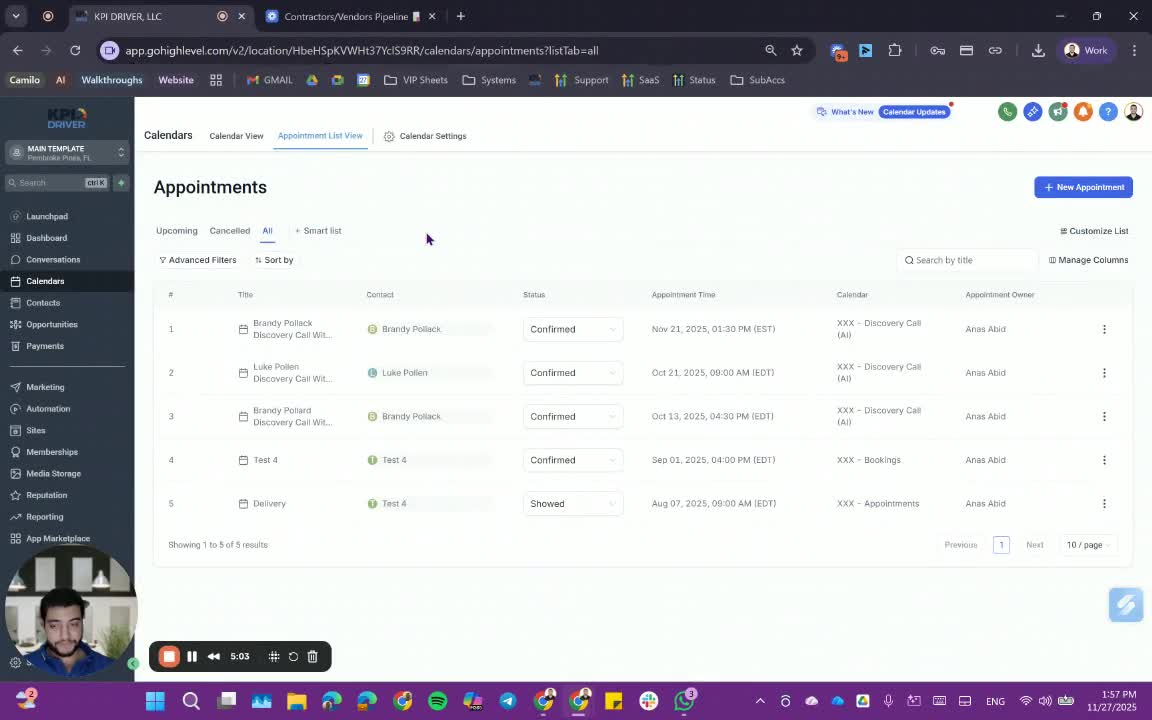
- Familiarize yourself with different calendar types:
- Appointments Calendar: For follow-up specialists booking for acquisition specialists.
- Bookings Calendar: For acquisition specialists booking for themselves.
- Discovery Call Calendar: For client self-booking through automation.
- Showings Calendar: For buyers when the dispute team is booking showings.
8. Ignoring Personal Calendars 8:01
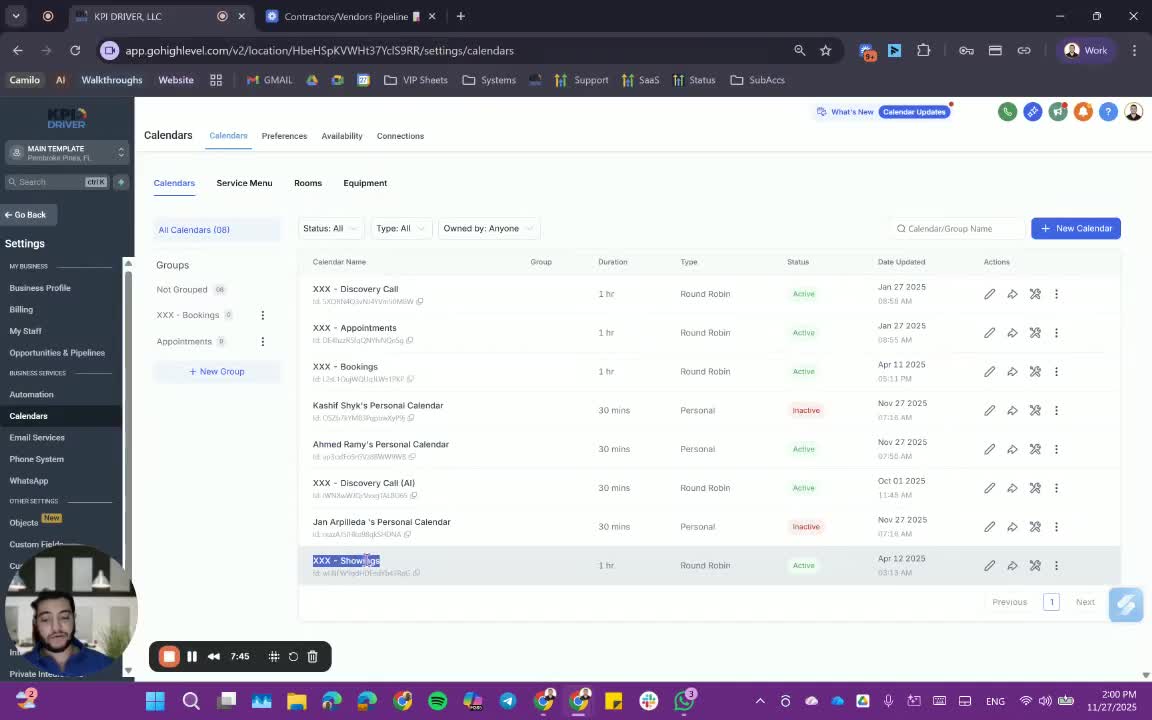
- Ignore any calendars labeled as personal; focus on the designated appointment and booking calendars.
Cautionary Notes
- Always ensure the correct calendar type is selected when booking appointments to avoid confusion.
- Confirm the appointment status is updated promptly to maintain accurate records.
Tips for Efficiency
- Regularly check the appointment list view to stay updated on upcoming appointments.
- Utilize smart lists to quickly access frequently used filters and views.
Link to Loom
https://loom.com/share/0afa3d8d4ac14c3f82f5059b85b617a3
FAQ
FAQ
What makes KPI DRIVER different from other real estate CRMs?
Do I need separate systems for document signatures, dispo, or rentals?
How long does it take to migrate my CRM to KPI DRIVER?
Will KPI DRIVER work if I’m new to real estate or don’t have a CRM yet?
Is the KPI Dashboard customizable?
How does KPI DRIVER help me scale my business?
Do you offer support or training?
How many leads, calls, and deals can KPI DRIVER handle?
How much does KPI DRIVER cost?

@KPI DRIVER LLC 2025. All Rights Reserved.
Design and developed by YAVACADO